
Learn every Findex feature,
with real product screens
Follow along from online or offline installation and first-run setup through Simple and Normal search, Command Center, the PDF preview window, OCR, Luna, the desktop pet and apps, and automatic updates — rebuilt around the 1.2 product screens.
Chapters
Six chapters, one per area
What Findex does
Find documents on your PC by name and by content
An on-premise document search app for Windows. File-name and content indexing, search, and image-PDF OCR run locally. When you use Luna through a cloud LLM, however, questions and conversation, relevant document content, filenames and metadata, and tool results may be sent to the provider you selected.
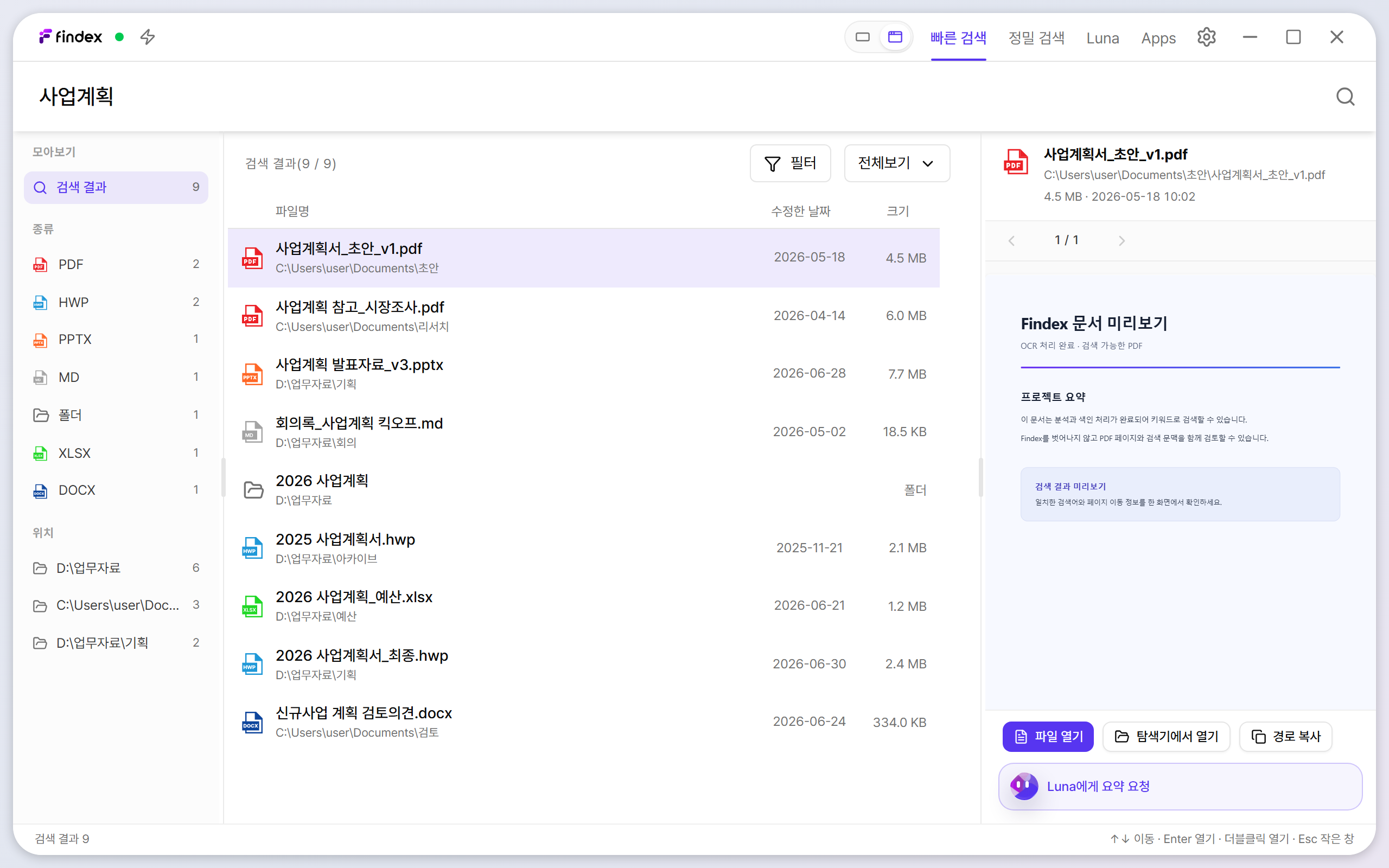
Quick Search
Instant lookup by file name, path, extension, and date — narrowed with filters and operators.
Precise Search
Searches document contents and shows evidence snippets with page numbers.
Luna
Connect an LLM and the AI assistant can find, read, compare, and summarize your documents.
In three minutes
The everyday flow
- Open search in Simple or Normal modePress Ctrl+Shift+F. Choose Simple for a quick pop-up, or Normal for filters and preview.
- Start with a file name or pathIn Normal mode, begin from recent searches or documents, then narrow by type, date, or location in the left panel.
- Use Precise Search for contentsSearch by a keyword, exact phrase, or sentence to see evidence snippets and pages. Image-only PDFs are recognized with your selected OCR languages first.
- Need synthesis? Ask LunaRequest a report summary or contract comparison, then use Mermaid diagrams or HTML preview when a visual structure helps. The Process log above the answer shows which documents were read.
- In a hurry? Ask the desktop petTurn on Apps → Desktop Pet and click the pet on your desktop to ask Luna a quick question without opening a window.
New to Findex? The Getting Started chapter walks you from installation to your first search, screen by screen.