
검색어 대신 문장으로 — AI 비서 Luna
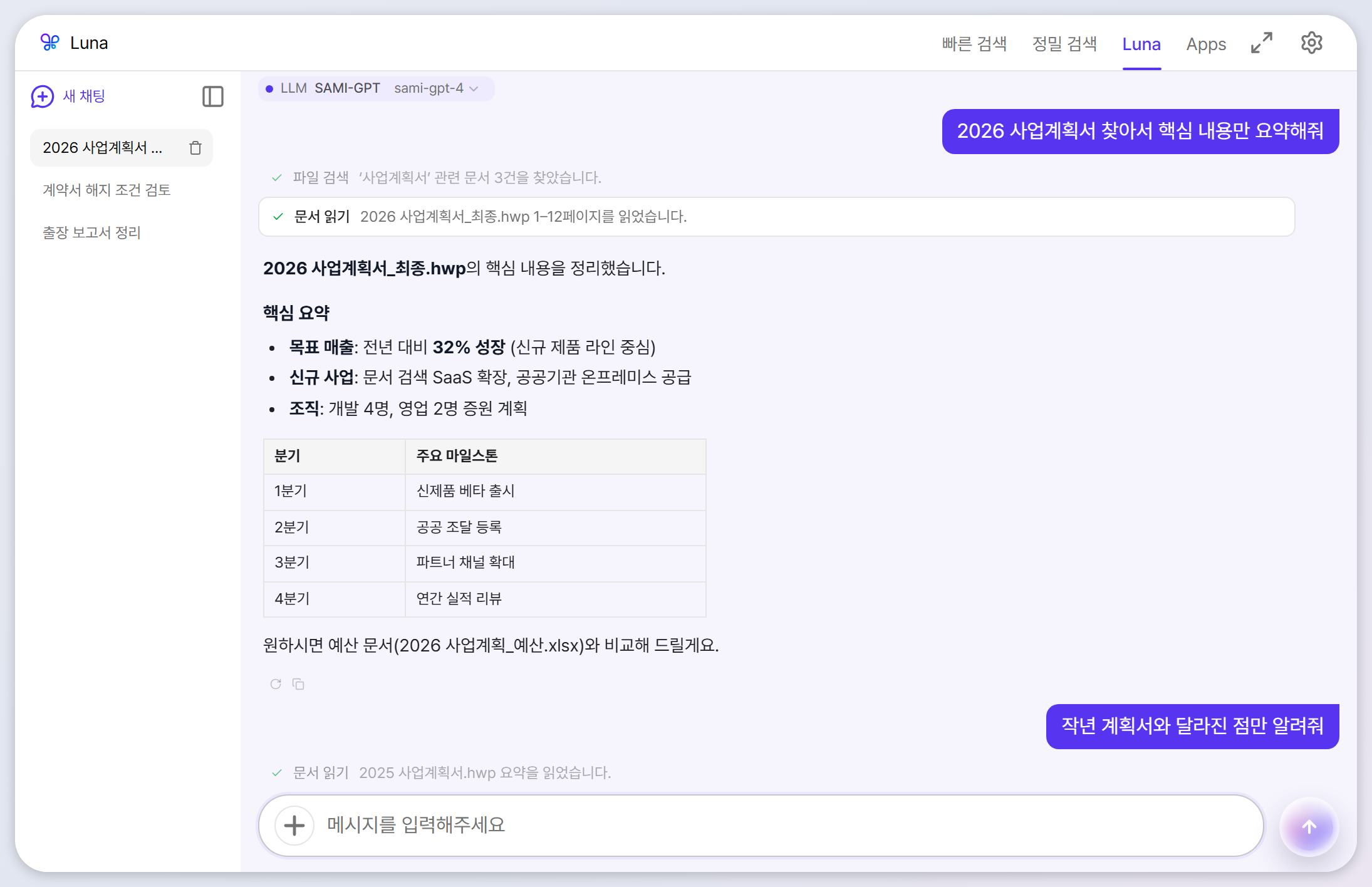
Luna는 요청을 이해하고 스스로 문서를 검색하고 읽고 비교해서 답하는 에이전트형 AI 비서입니다. “분기 보고서 찾아서 핵심만 정리해줘” 한 문장이면 검색–읽기–요약이 한 번에 끝납니다.
준비
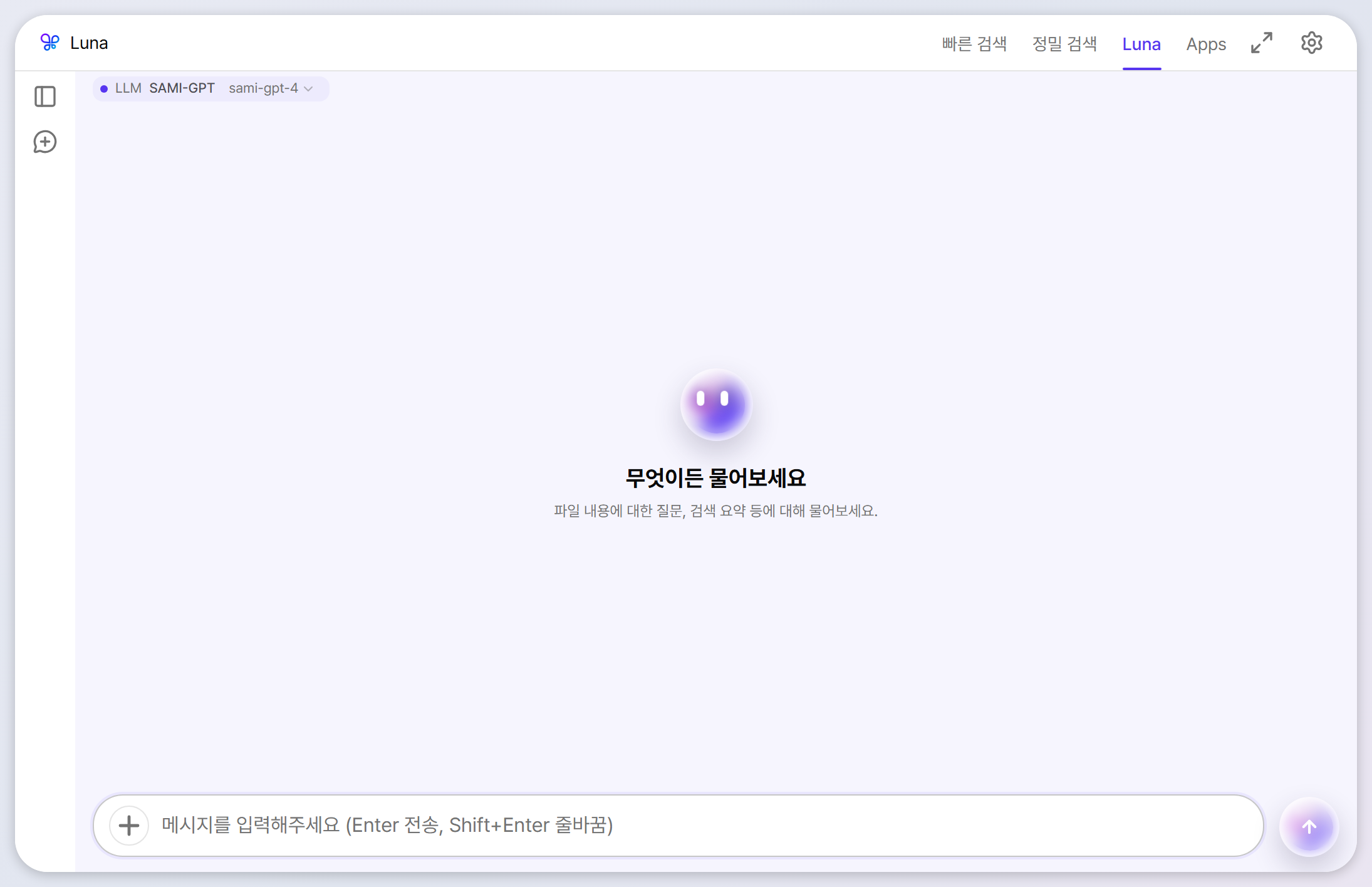
Luna는 LLM이 연결되어 있을 때 활성화됩니다
메인 창에서 Luna 탭을 누르면 대화 화면이 열립니다. 상단 배지에 현재 연결된 제공자와 모델이 표시되고, 배지를 눌러 모델을 바로 바꿀 수도 있습니다. LLM을 아직 연결하지 않았다면 설정 → LLM 탭에서 제공자를 연결하세요.
기본기
묻고, 멈추고, 다시 묻기
- 전송: Enter — 줄바꿈은 Shift+Enter.
- 응답 중지: 답변이 길어지면 중지 버튼으로 즉시 끊을 수 있습니다.
- 재시도 / 복사: 답변 아래 버튼으로 같은 질문을 다시 보내거나 답변 전체를 복사합니다.
- 내 메시지 수정: 연필 버튼으로 이전 질문을 고치면 그 메시지 이후의 대화는 삭제되고 수정한 질문으로 새 답변을 생성합니다. 단, 파일 생성·수정이나 외부 전송처럼 이미 끝난 도구 작업은 되돌아가지 않습니다.
- 표·수식·코드: 답변은 Markdown으로 렌더링됩니다. 병합 셀이 있는 표와
$E=mc^2$같은 수식도 읽기 쉬운 형태로 표시되고,2026~2027처럼 물결표가 있는 범위도 취소선으로 바뀌지 않습니다. - 글자 크기: 오른쪽 위 T 100% 컨트롤이나 Ctrl+마우스 휠, Ctrl++/-로 대화 글자를 80%~220% 사이에서 조절하고, Ctrl+0으로 기본 크기로 돌아옵니다.
- 자동 스크롤과 최신 메시지: 답변이 길어져도 최신 내용을 따라가고, 이전 내용을 보려고 위로 올리면 멈춥니다. 멀리 올라갔다면 최신 메시지 버튼으로 바로 아래로 이동하세요.
풍부한 결과
Mermaid 다이어그램과 안전한 HTML 미리보기
Luna가 구조를 시각화하거나 간단한 화면을 제안하면 코드만 읽지 않고 결과를 바로 확인할 수 있습니다. 완성된 mermaid 코드 블록은 다이어그램으로 렌더링되고, html 코드 블록에는 별도 미리보기 버튼이 나타납니다.
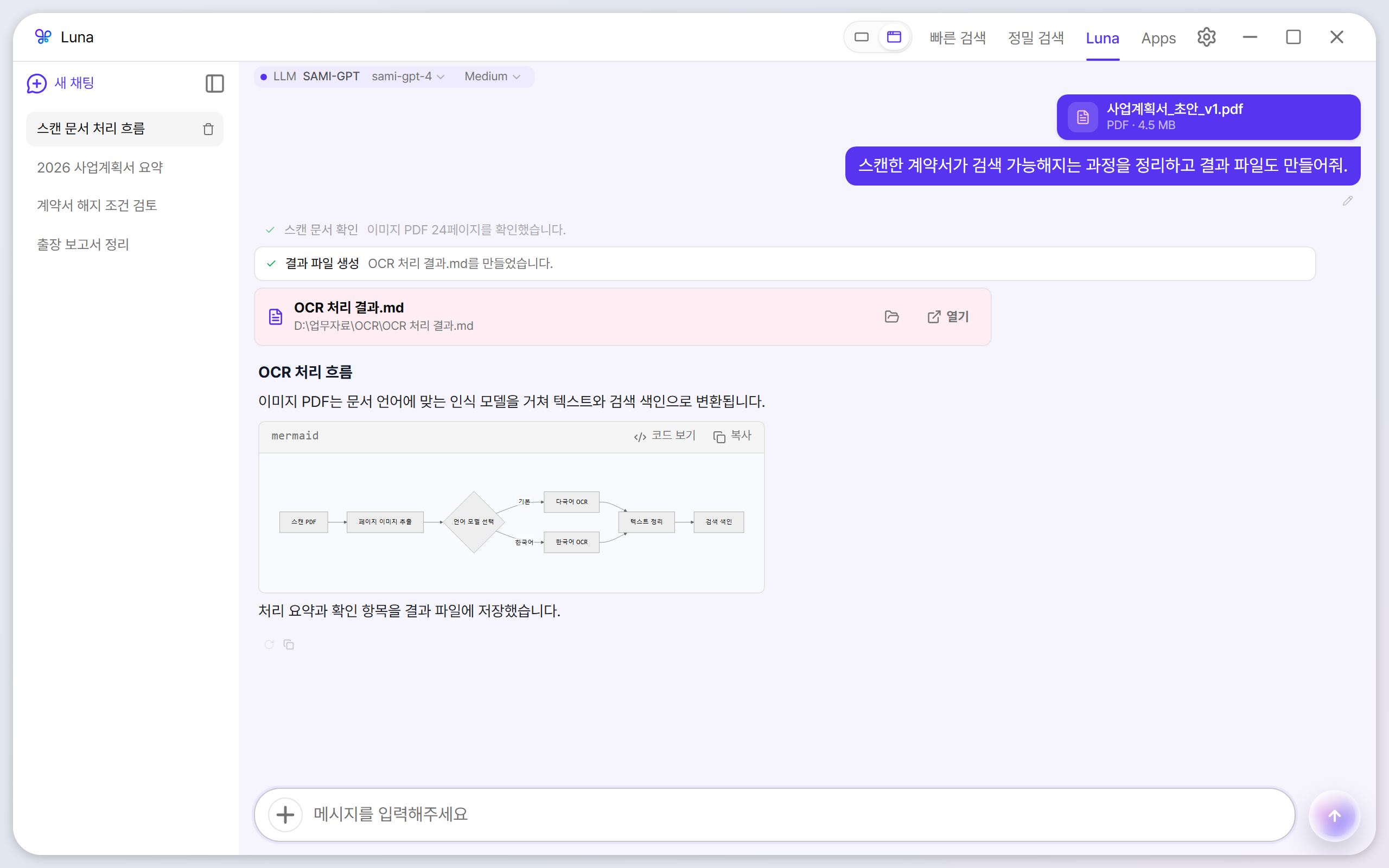
- Mermaid: 응답 생성이 끝난 뒤 렌더링합니다. 다이어그램/코드 버튼으로 원본을 확인할 수 있고 문법 오류가 있으면 오류 상태와 코드를 보여줍니다.
- HTML: 미리보기는 sandbox가 적용된 별도 프레임에서 열리며 스크립트 실행이 비활성화됩니다. 디자인 확인용으로 사용하고, 중요한 내용은 코드도 함께 검토하세요.
에이전트 동작
Luna가 실행하는 도구 이해하기
Luna는 답변하기 전에 필요한 만큼 도구를 실행하고, 그 과정을 답변 위의 작업 과정 헤더에 모아 보여줍니다. 헤더에는 도구 호출 수와 실패·재시도 횟수가 표시되고, 펼치면 도구 이름·실행 결과 요약(예: “관련 문서 3건을 찾았습니다”)과 중간 멘트가 순서대로 나옵니다. 작업이 진행 중일 때는 “작업 진행 중”으로 바뀌므로 답변이 어떤 근거로 만들어졌는지, 지금 무엇을 하고 있는지 확인할 수 있습니다. 답변의 출처에는 실제로 열람한 문서만 표시되며, PDF 출처를 누르면 인용된 페이지부터 전용 미리보기 창이 열립니다.
| 도구 | 하는 일 |
|---|---|
| 파일 검색 | 파일명·내용으로 감시 폴더의 문서를 찾습니다. |
| 문서 읽기 | 특정 문서의 페이지·구간을 읽어 답변의 근거로 사용합니다. |
| 문서 비교 | 두 문서의 추출 텍스트를 비교해 차이를 정리합니다. 결과는 접을 수 있는 비교 카드로 표시됩니다. |
| 폴더 구조 보기 | 감시 폴더 내부의 폴더·파일 구조를 읽습니다. |
| MCP 외부 도구 | 연결 센터에서 켠 외부 도구(웹 검색 등). 실행 전 승인 여부를 물을 수 있습니다. |
작업 과정은 Luna가 어떤 자료를 읽었는지 확인하는 기록입니다. 답변을 다시 요청하면 이전 도구 결과를 재사용하지 않고 문서를 처음부터 다시 확인합니다. AI 답변은 틀릴 수 있으므로 중요한 판단에서는 읽은 문서와 페이지, 원문을 함께 확인하세요.
첨부
특정 문서를 콕 집어 질문하기
질문이 특정 문서에 관한 것이라면 파일을 첨부하세요. Luna가 그 파일을 우선 분석합니다.
- + 버튼: 입력창 왼쪽 + 버튼으로 파일 선택 창을 엽니다(여러 개 선택 가능, 최대 10개).
- 드래그 앤 드롭: 탐색기에서 파일을 대화 화면으로 끌어다 놓아도 첨부됩니다.
- 클립보드 붙여넣기: Luna 입력창에서 Ctrl+V를 누르면 탐색기에서 복사한 파일이나 클립보드 이미지를 첨부합니다. 클립보드 데이터로 전달되는 파일은 개당 최대 25MB입니다.
- 지원 형식: 검색과 동일 — PDF, HWP/HWPX, Word, Excel, PowerPoint, TXT, MD.
- 감시 폴더 밖 파일: 첨부하면 그 대화에서는 분석할 수 있지만, 인덱스에는 추가되지 않습니다.
대용량 첨부: 100MB 이상 파일에는 경고가 표시됩니다. 페이지가 많은 문서도 분석 시간이 길어질 수 있습니다. 질문에 필요한 파일만 골라 첨부하고, 큰 문서는 필요한 범위나 페이지를 질문에 함께 적어 주세요.
기록
대화 기록 관리
- 새 채팅: 왼쪽 레일의 + 버튼. 주제가 바뀌면 새 채팅으로 시작하는 편이 답변 품질에 좋습니다.
- 기록 열기: 패널 버튼으로 사이드바를 펼치면 이전 대화 목록이 나옵니다. 제목은 첫 질문으로 자동 생성됩니다.
- 삭제: 목록에서 휴지통 아이콘으로 개별 삭제, 전체 삭제는 설정 → 엔진의 “대화 이력 삭제”.
- 보관 위치: 대화는 최대 100개까지 내 PC에만 저장됩니다.
활용
이렇게 요청해 보세요
| 요청 예시 | Luna가 하는 일 |
|---|---|
| “2026 사업계획서 찾아서 핵심만 요약해줘” | 파일 검색 → 문서 읽기 → 불릿·표 요약 |
| “이 계약서에서 해지 조건 찾아줘” (파일 첨부) | 첨부 문서에서 해당 조항과 페이지를 찾아 인용 |
| “작년 계획서와 올해 계획서 차이 비교해줘” | 두 문서를 읽고 비교 카드 + 변경점 목록 생성 |
| “이 폴더 안 프로젝트 구조 알려줘” | 폴더 트리를 읽어 구조를 정리(감시 폴더 내부만) |
| “회의록에서 결정된 항목만 뽑아서 표로 만들어줘” | 문서 검색·읽기 후 결정 사항만 추출해 표로 정리 |
1.2 신규
Pet Chat — 데스크톱 펫으로 바로 묻기
데스크톱 펫을 켜 두면 메인 창을 열지 않고도 Luna에게 물어볼 수 있습니다. 펫을 클릭하면 “루나에게 물어보기…” 입력창이 펫 옆에 뜨고, 응답 방식에 따라 대화창(작은 Luna 창, 이어서 질문 가능) 또는 응답만(말풍선) 형태로 답이 돌아옵니다. 펫에 이름과 성격을 정해 두면 그 말투로 대답합니다.
- 메인 창에서 이어 가기: 미니 대화창의 Findex 열기를 누르면 같은 대화가 Luna 탭에 그대로 열립니다.
- LLM이 꺼져 있으면: 펫 클릭은 Pet Chat 대신 메인 검색창을 엽니다.
- 도구와 승인은 동일: Pet Chat도 같은 Luna이므로 문서 검색·읽기 도구와 MCP 승인 규칙이 그대로 적용됩니다.
MCP
외부 도구(MCP) 승인 다루기
연결 센터에서 외부 MCP 서버를 켜면 Luna가 웹 검색 같은 외부 도구도 쓸 수 있게 됩니다. 확인이 필요한 도구를 호출하면 대화 중에 승인 카드가 나타나며, 이번만 허용 / 항상 허용 / 거부 중에서 선택하면 됩니다. 예상하지 못한 도구 호출은 거부하는 것이 안전합니다.