
검색창에서 확장되는 업무 도구
메인 창의 앱 탭에는 업무 보조 앱이 모여 있습니다. 각 앱은 별도 창으로 열리고, 일정과 할 일은 바탕화면 위젯으로도 쓸 수 있으며 Luna와도 연동됩니다. 1.2에서는 바탕화면을 돌아다니며 Luna에게 바로 물어볼 수 있는 데스크톱 펫이 더해졌습니다.
입구
Apps 탭 — 앱을 여는 곳
카드를 클릭하면 해당 앱이 별도 창으로 열립니다. 이미 열려 있으면 그 창에 초점이 이동합니다. 연결 센터는 설정 → 기본 → 확장 기능에서 MCP 서버 및 도구 연동이 켜져 있어야 표시되고, 데스크톱 펫 카드는 펫 설정 창을 엽니다.
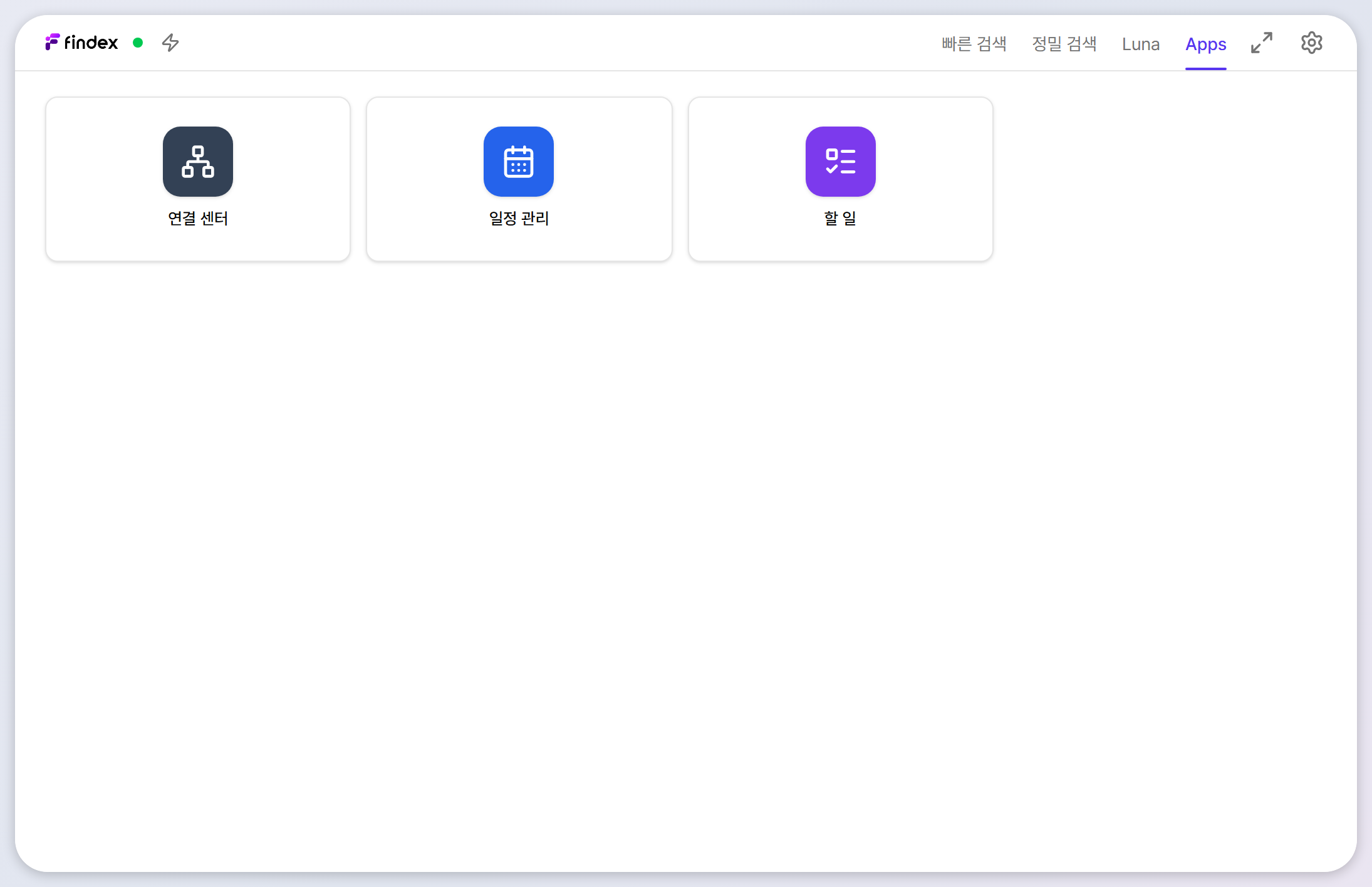
AI가 폴더 구조를 제안해 주는 폴더 정리 기능은 아직 테스트 단계라 기본 구성에는 표시되지 않습니다. 정식 제공 시 이 가이드에 추가됩니다.
앱 1
일정 관리 — 로컬에 저장되는 내 업무 달력
월간 달력에서 일정을 등록하고 관리합니다. 모든 일정은 내 PC의 로컬 DB에 저장됩니다.
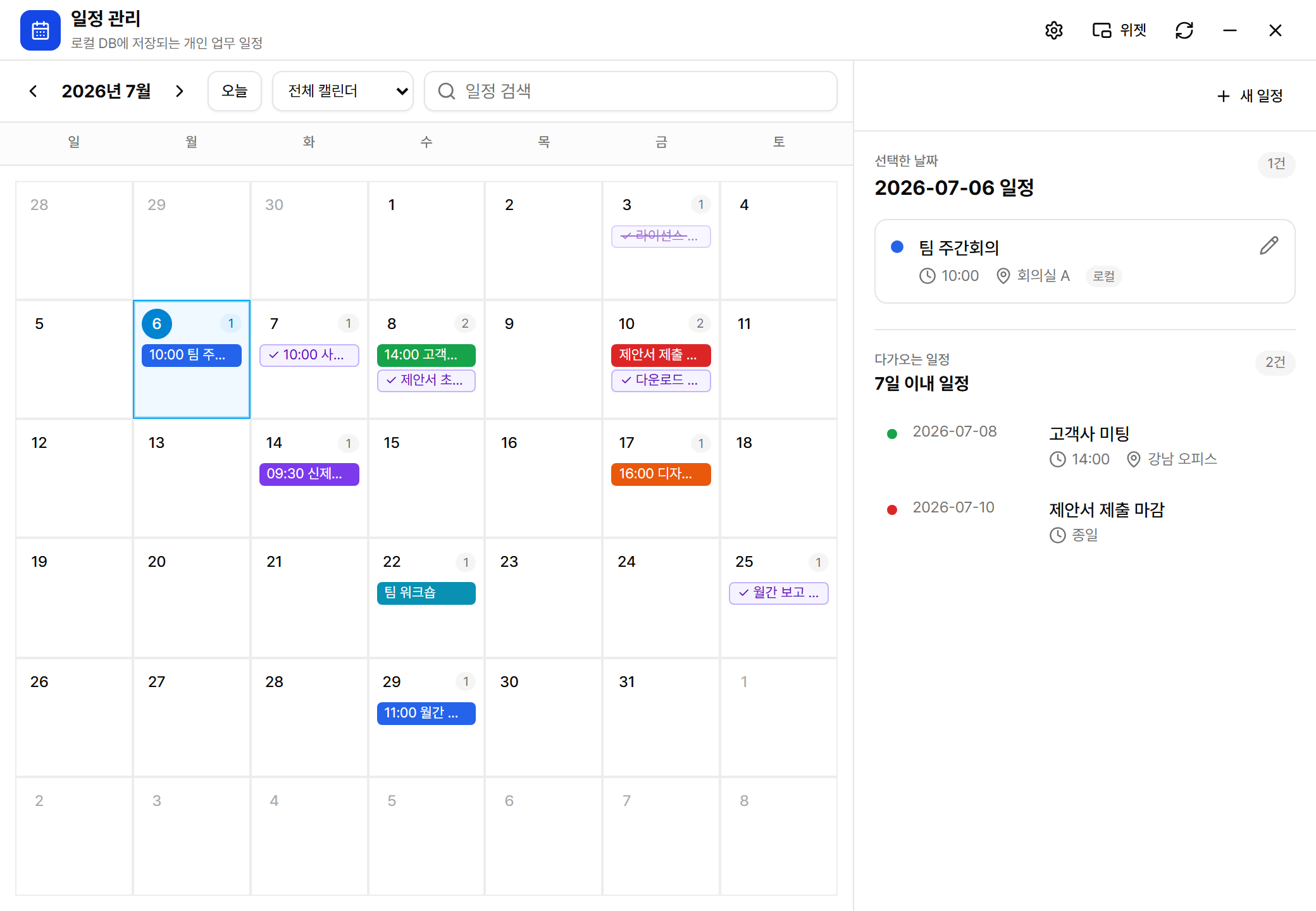
- 새 일정: 오른쪽 위 + 새 일정 또는 달력의 날짜를 클릭. 제목, 날짜/시간(또는 종일), 색상, 설명, 장소를 입력합니다.
- 수정/삭제: 일정을 클릭한 뒤 연필 아이콘으로 편집하거나 삭제합니다.
- 일정 검색: 상단 검색창으로 제목·설명·장소를 검색합니다.
- 알림: 일정 시각에 알림을 받을 수 있습니다(설정 → 기본 → 알림 사용).
- Luna 연동: “다음 주 일정 알려줘”, “금요일 3시에 미팅 잡아줘”처럼 대화로 일정을 조회·등록할 수 있습니다.
앱 2
할 일 — 마감일과 우선순위가 있는 작업 목록
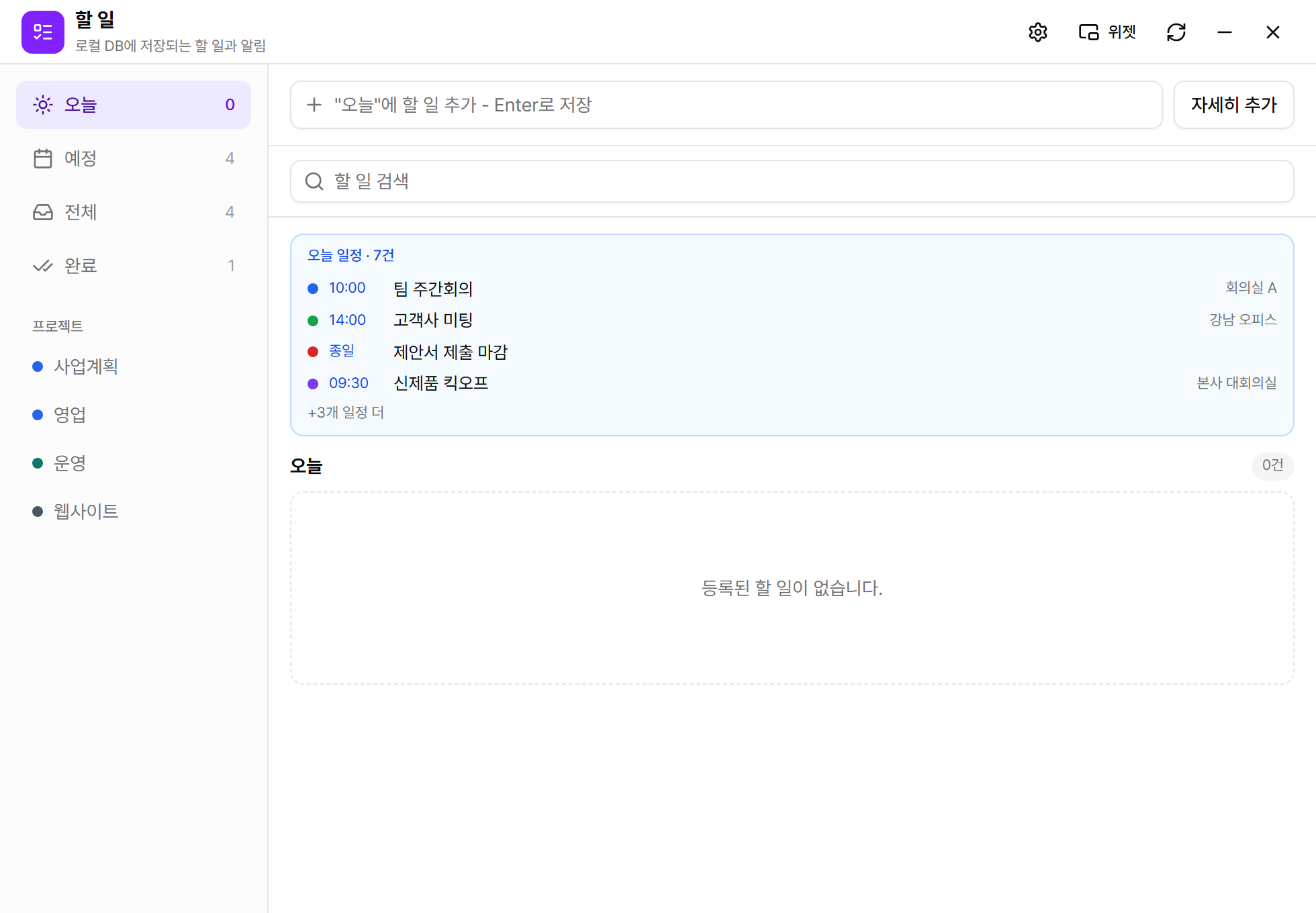
- 할 일 항목: 제목, 메모, 프로젝트, 우선순위(높음/중간/낮음), 마감일·시각, 알림 시각을 가질 수 있습니다.
- 프로젝트: 같은 프로젝트끼리 색상으로 묶여 여러 업무를 한 화면에서 구분할 수 있습니다.
- 달력에 표시: “일정에 표시” 옵션을 켜면 마감일 기준으로 일정 관리 달력에도 나타납니다.
- 알림: 지정한 시각에 Windows 알림으로 리마인드를 받습니다.
- Luna 연동: “내일까지 해야 할 일 뭐 있지?”, “보고서 검토 할 일로 추가해줘”처럼 요청할 수 있습니다.
위젯
바탕화면 위젯으로 항상 보이게
일정 관리와 할 일 앱의 상단 위젯 버튼을 누르면 바탕화면에 항상 떠 있는 미니 위젯이 열립니다. 위젯은 접기/펼치기가 가능하고, 위치와 상태가 저장되어 다음 실행 때 자동으로 복원됩니다. 할 일 위젯에서는 빠른 추가도 할 수 있고, 위젯 테마는 메인 테마와 별개로 각 앱에서 따로 고를 수 있습니다.
앱 4 · 1.2 신규
데스크톱 펫 — 바탕화면을 돌아다니는 작은 Luna 창구
데스크톱 펫은 바탕화면 위를 걷고, 달리고, 점프하고, 앉아서 쉬는 작은 캐릭터입니다. 장식만은 아닙니다 — 펫을 클릭하면 Luna에게 바로 질문할 수 있고, 답은 펫 옆의 작은 대화창이나 말풍선으로 돌아옵니다. 전체 화면 앱이나 발표 중에는 자동으로 숨고, 알림 창은 펫을 피해서 뜹니다.
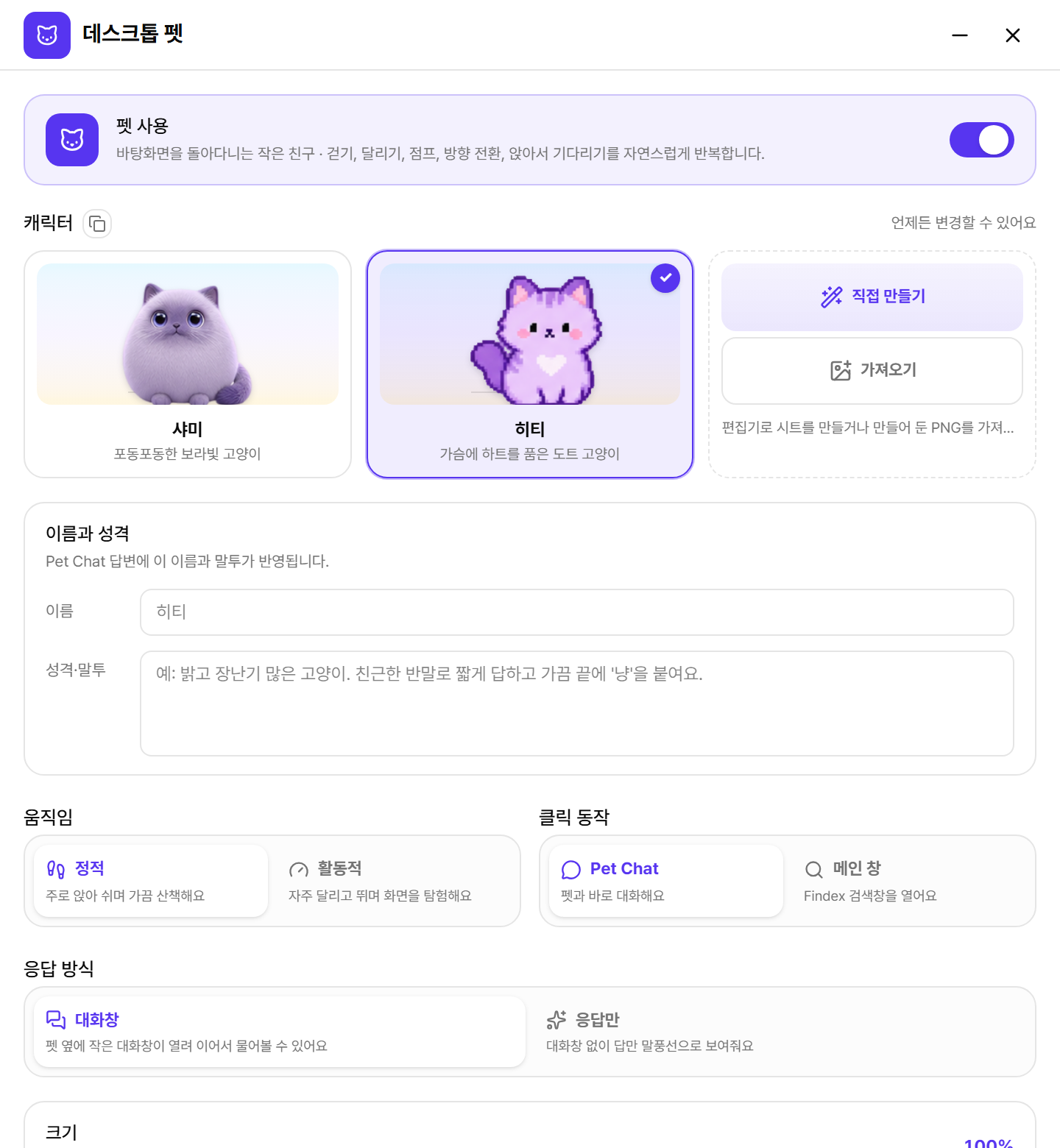

| 설정 | 설명 |
|---|---|
| 펫 사용 | 펫을 켜고 끕니다. 기본값은 꺼짐이며, 켜는 즉시 바탕화면에 나타납니다. |
| 캐릭터 | 포동포동한 보라빛 고양이 샤미, 가슴에 하트를 품은 도트 고양이 히티가 기본 제공됩니다. 직접 만들기는 시트 편집기를 열어 6행 × 7칸 표준 템플릿으로 나만의 펫을 그리게 해 주고, 가져오기는 만들어 둔 PNG 시트를 불러옵니다. |
| 이름과 성격 | 펫을 부르는 이름과 말투를 적으면 Pet Chat 답변에 반영됩니다. 이름 뒤의 조사(이/가, 을/를)는 받침에 맞춰 자동으로 붙습니다. |
| 움직임 | 정적은 주로 앉아 쉬며 가끔 산책하고, 활동적은 자주 달리고 뛰며 화면을 탐험합니다. |
| 클릭 동작 | Pet Chat은 펫 옆에 질문 입력창을 띄우고, 메인 창은 Findex 검색창을 엽니다. LLM을 사용하지 않는 상태에서는 Pet Chat 대신 메인 창이 열립니다. |
| 응답 방식 | 대화창은 펫 옆에 작은 Luna 창이 열려 이어서 질문할 수 있고, 응답만은 대화창 없이 답만 말풍선(생각 구름)으로 보여 줍니다. 말풍선은 항상 펫을 가리키고, 자리가 부족하면 반대편으로 옮겨 갑니다. |
| 여러 모니터 넘나들기 · 크기 | 맞닿은 화면 사이를 자연스럽게 이동할지 정하고, 크기 슬라이더로 펫과 말풍선을 함께 키우거나 줄입니다. |
- 길게 누르기 메뉴: 펫을 길게 누르면 펫 설정 · N분 숨기기 · 펫 끄기 메뉴가 나옵니다. 회의 중에는 “숨기기”로 잠시 치워 두세요.
- 대화 이어 가기: 미니 대화창의 Findex 열기를 누르면 같은 대화가 메인 창의 Luna 탭에서 이어집니다.
- 가볍게 동작: 펫이 떠 있어도 검색·인덱싱 성능에는 영향을 주지 않도록 불필요한 작업을 줄여 두었습니다.
앱 3
연결 센터 — Luna의 외부 도구 관리 (MCP)
연결 센터는 MCP(Model Context Protocol) 연결을 관리하는 곳입니다. MCP 서버를 켜면 Luna가 웹 검색, 사내 시스템 조회 같은 외부 도구를 대화 중에 사용할 수 있게 됩니다. 화면은 둘러보기 · 내 연결 · Findex MCP 세 개의 탭으로 나뉘고, 오른쪽 위 켜짐/꺼짐 배지는 MCP 연동 전체 스위치(설정 → 기본의 “MCP 서버 및 도구 연동”과 동일)입니다. 제목 아래에는 현재 연결 수와 사용 중인 도구 수가 표시됩니다.
둘러보기 — 카탈로그에서 바로 추가
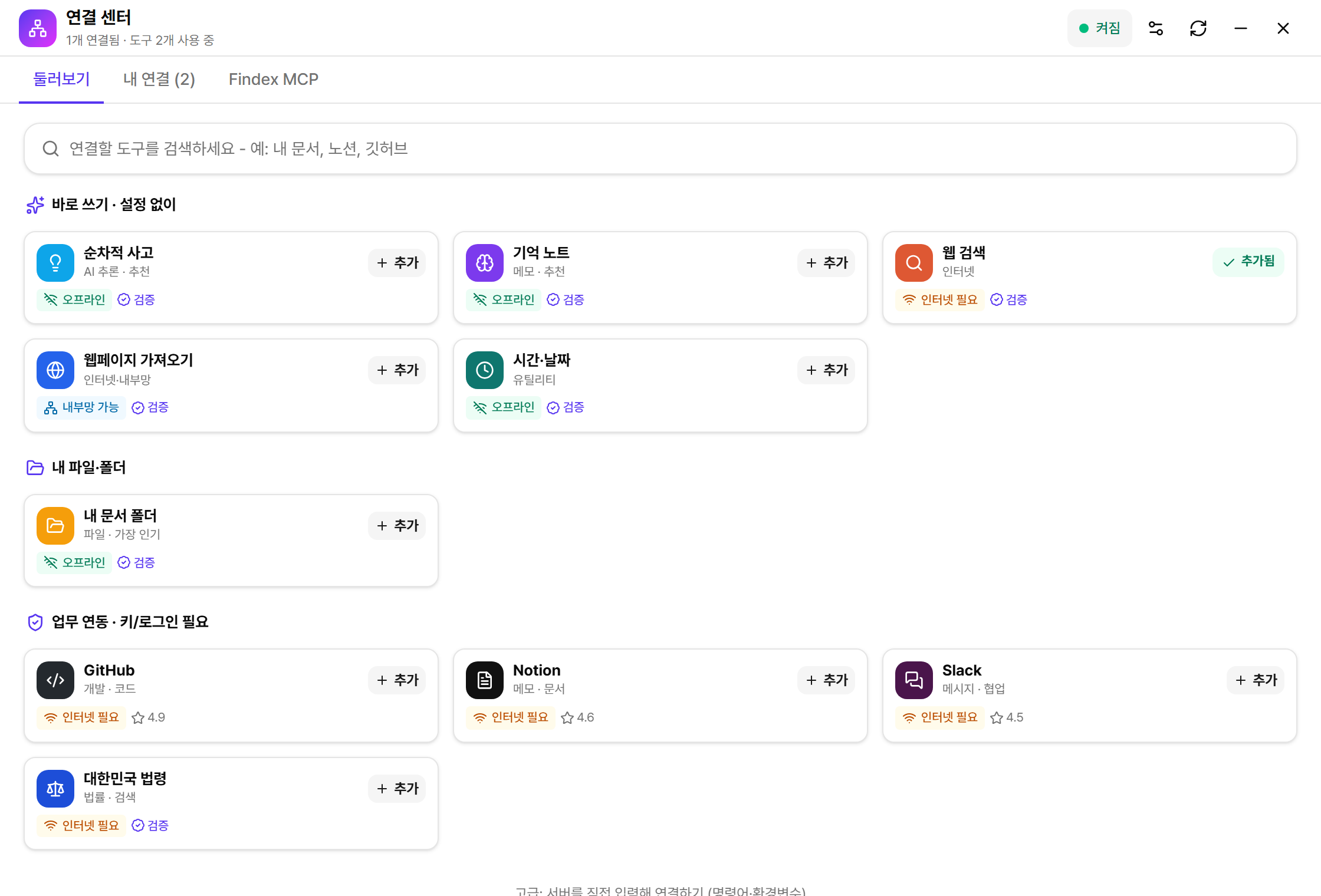
- 카탈로그: 순차적 사고, 기억 노트, 웹 검색, 웹페이지 가져오기, 시간·날짜, 내 문서 폴더, HWPX 문서, XLSX·Word 문서, GitHub, Notion, Slack, 그리고 한국어 환경에서는 대한민국 법령(law.go.kr, API 키 없이 바로 추가)까지 준비되어 있습니다. HWPX·XLSX·Word 도구는 설치 후 별도 다운로드 없이 오프라인에서 동작합니다.
- 배지 읽는 법: “오프라인”은 인터넷 없이 동작, “인터넷 필요”는 외부 서비스와 통신, “검증”은 확인된 서버라는 뜻입니다.
- 직접 입력: 카탈로그에 없는 서버는 아래 고급 옵션에서 명령형(stdio)·URL형 서버를 직접 등록할 수 있습니다. 환경 변수·헤더·타임아웃 지정을 지원합니다.
내 연결 — 서버와 도구 관리
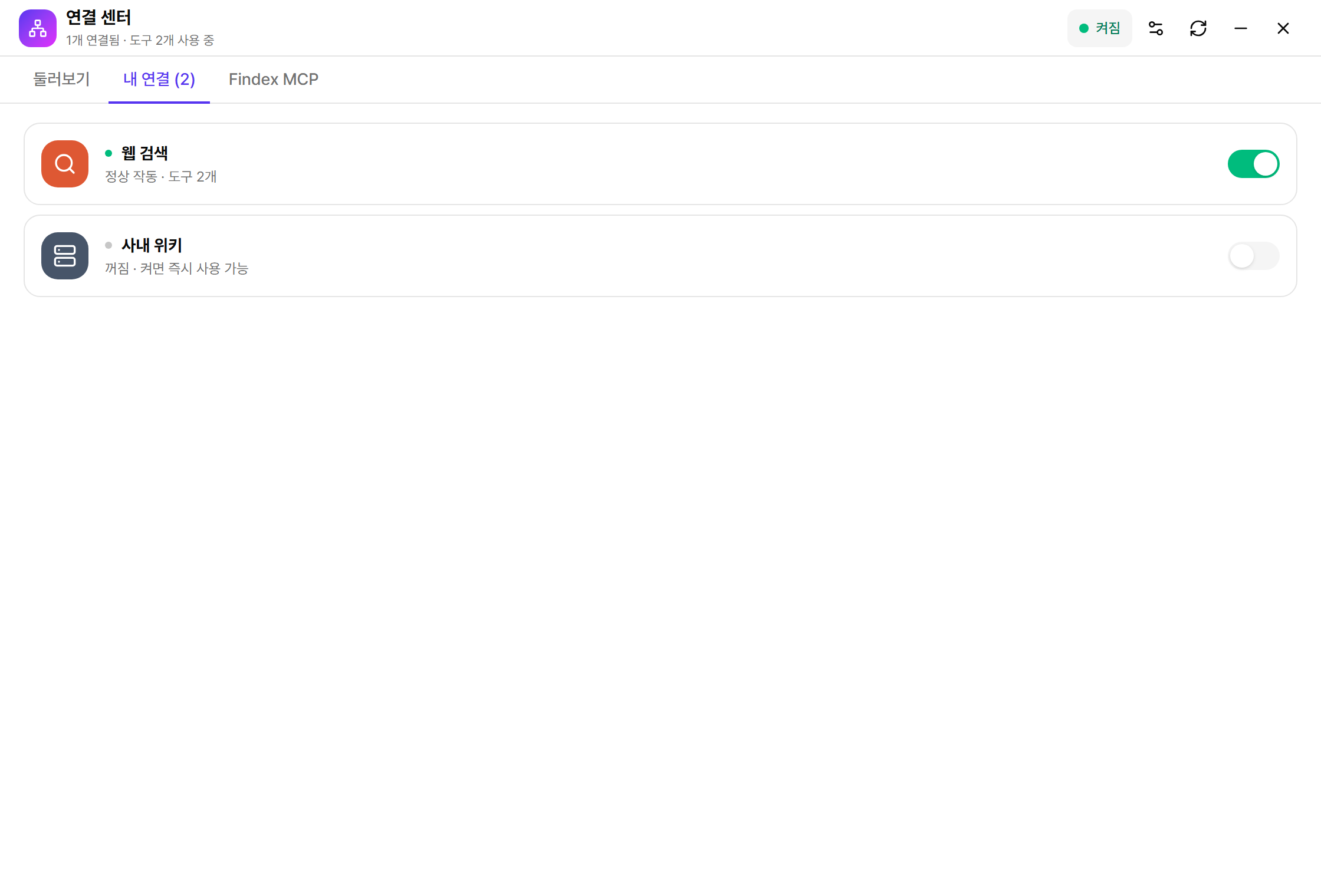
- 서버 켜기/끄기: 등록된 서버를 스위치로 활성화합니다. 켠 서버의 도구만 Luna에 노출됩니다.
- 연결 점검: 저장 전에 연결 테스트로 서버가 응답하는지, 어떤 도구를 제공하는지 확인할 수 있습니다.
- 도구 단위 제어: 서버 안의 도구를 개별로 켜고 끄고, 도구마다 “물어보기/항상 허용/차단” 권한을 정합니다.
외부 MCP 도구는 외부 서비스와 통신할 수 있습니다. 신뢰할 수 있는 서버만 등록하고, 처음 쓰는 도구는 권한을 “물어보기”로 두는 것을 권장합니다.
문서 자동화
HWPX · XLSX · Word 문서 — 읽기부터 양식 채우기까지
연결 센터의 HWPX 문서를 추가하면 Luna가 선택한 작업 폴더 안의 HWPX를 읽고, 찾고, 편집하고, 양식을 채울 수 있습니다. 같은 방식으로 XLSX·Word 문서를 추가하면 그 폴더의 .xlsx와 .docx를 읽고, 새로 만들고, 편집합니다. 실행에 필요한 Python·Node 런타임은 Findex에 포함되어 있어 별도 설치 없이 오프라인에서도 동작합니다.
- 둘러보기에서 HWPX 문서 또는 XLSX·Word 문서 추가접근을 허용할 작업 폴더 하나를 선택합니다. 도구는 이 폴더 안의 해당 형식 파일에만 접근합니다.
- 내 연결에서 서버와 도구 켜기처음에는 편집·생성 도구의 권한을 “물어보기”로 두고, Luna가 제안한 파일과 동작을 확인한 뒤 승인하세요.
- Luna에 작업 요청“이 양식의 회사 정보를 채워줘”, “제안서 제목을 바꿔줘”, “예산표 3월 열에 합계를 넣어줘”처럼 대상과 변경 내용을 구체적으로 말합니다.
작업 폴더 밖의 첨부 파일
작업 폴더 밖의 HWPX를 Luna에 첨부하면 Findex가 작업 폴더 안에 임시 복사본을 만들어 도구에 전달합니다. 편집이 성공하면 변경된 복사본을 원본 위치로 동기화하고, 원본과 같은 폴더에 .sami-sync.bak 안전 백업을 만듭니다. 결과가 원본과 같거나 비어 있으면 원본을 덮어쓰지 않습니다.
Luna 메시지를 나중에 편집해 이후 대화를 다시 생성해도 이미 완료된 HWPX 생성·편집 같은 도구 동작은 되돌아가지 않습니다. 승인 전 대상 파일을 확인하고, 결과는 백업과 함께 검토하세요.
Findex MCP
Findex MCP — 외부 AI에게 내 문서 검색을 빌려주기
연결 센터의 Findex MCP 탭에서는 반대 방향의 연결을 관리합니다. Findex가 직접 MCP 서버가 되어, Claude Desktop 같은 외부 AI가 Findex의 파일명 검색과 문서 내용 검색을 사용할 수 있게 합니다. 전용 On/Off 토글로 언제든 개방을 중단할 수 있습니다.
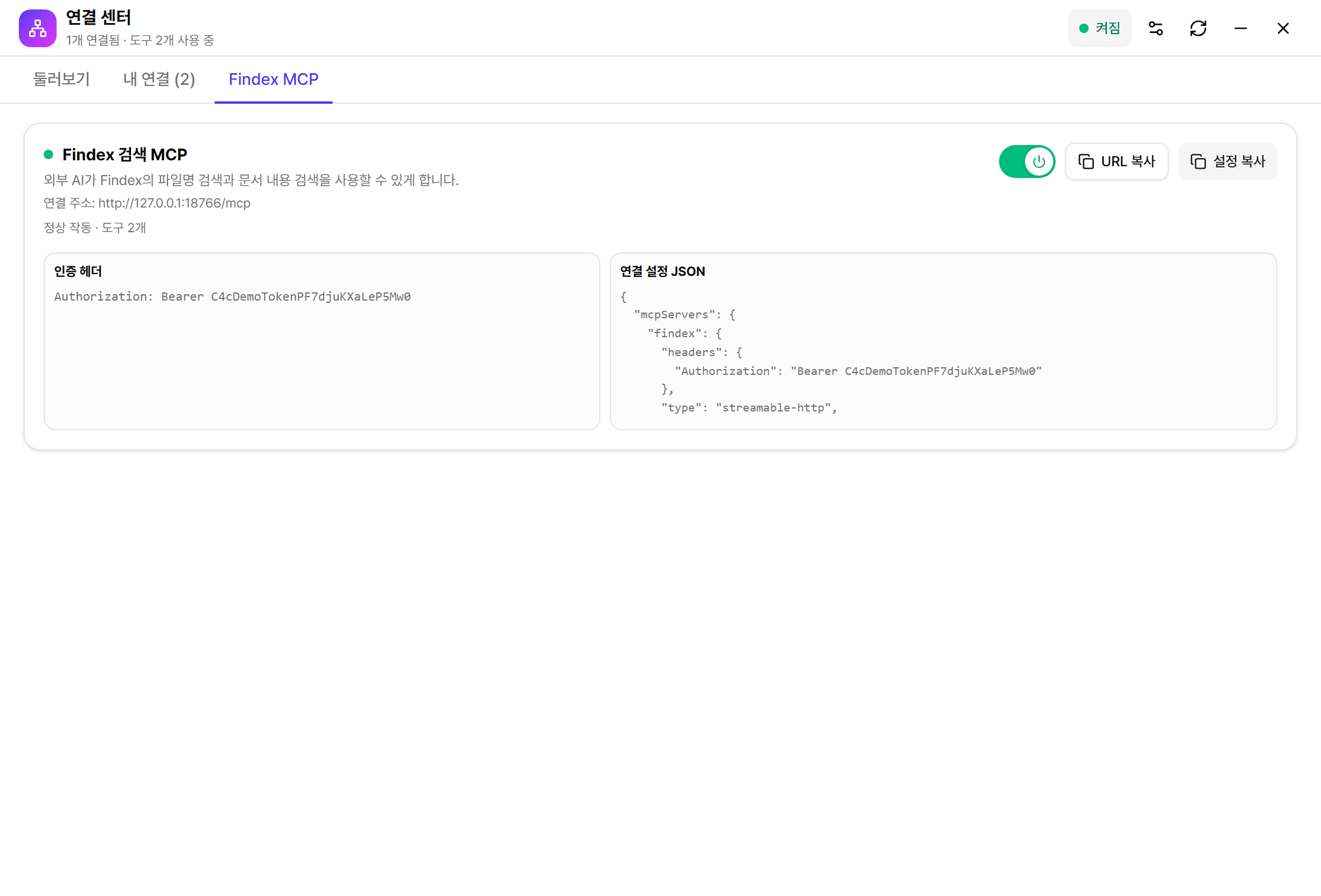
- 토글을 켭니다초록 점이 켜지고 “정상 작동 · 도구 N개”가 표시되면 준비 완료입니다. 연결 주소는 내 PC 안(127.0.0.1)에서만 열립니다.
- URL 복사 또는 설정 복사간단히 주소만 쓰려면 URL 복사, Claude Desktop 등 설정 파일에 붙여넣으려면 설정 복사(mcpServers JSON)를 사용하세요.
- 외부 AI에 붙여넣기인증 헤더가 함께 필요합니다. 이 토큰이 있어야만 접근할 수 있으니 외부에 공유하지 마세요.