
설정 창은 Findex의 운영 콘솔입니다
검색창 오른쪽 위 톱니 버튼 또는 트레이 메뉴의 설정으로 엽니다. 기본 · 감시폴더 · 분석 · LLM · 성능 · 엔진 여섯 개 탭으로 나뉘며, 저장하면 즉시 적용됩니다. 창 왼쪽 아래의 정보 버튼에서는 버전·라이선스와 자동 업데이트를 관리합니다. 창 모드부터 이미지 PDF용 OCR 언어, 업데이트 확인까지 여기에서 다룹니다.
탭 1
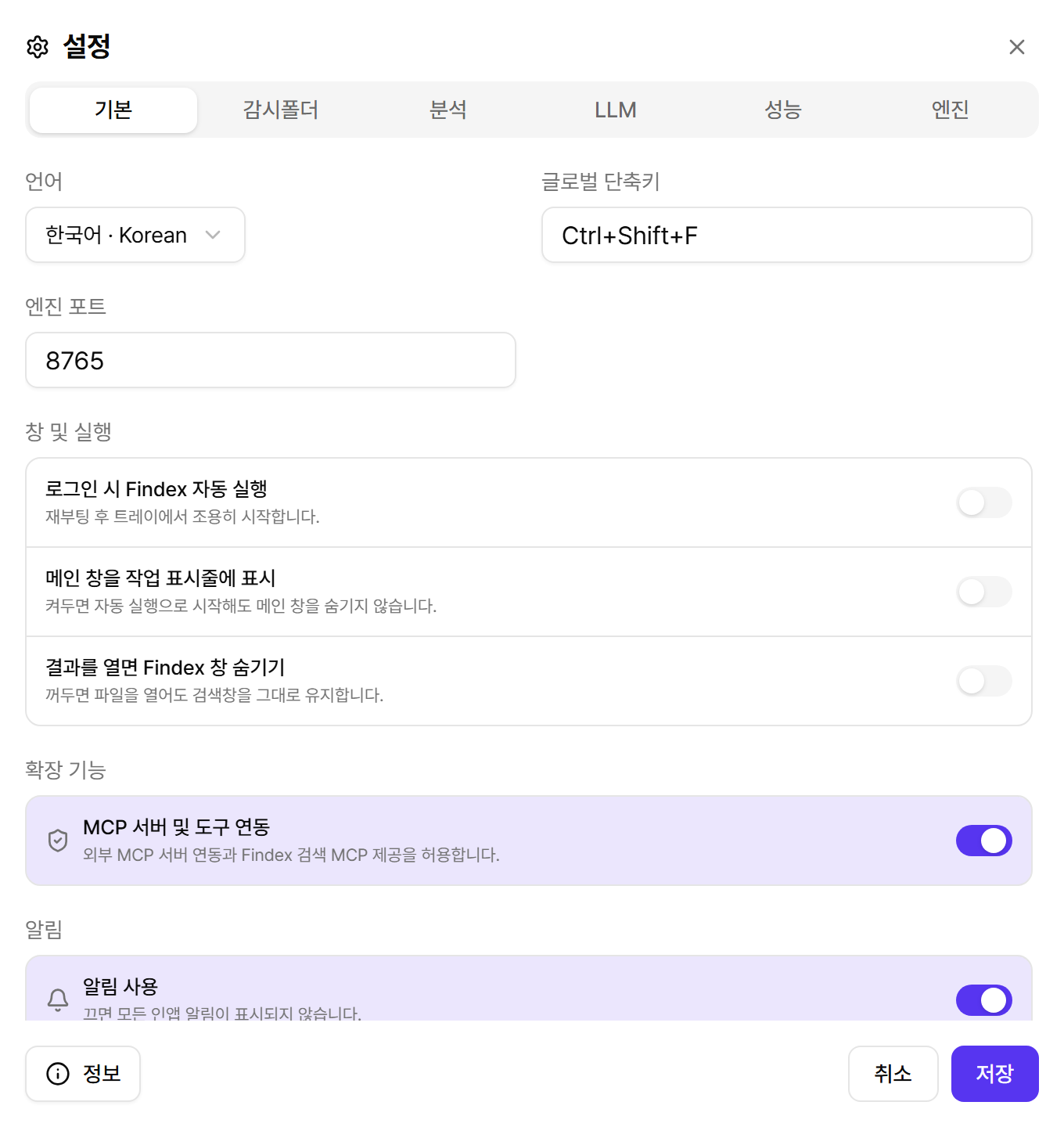
기본 — 언어, 단축키, 테마, 알림, 확장 기능, 창 동작
1.2부터 기본 탭은 자주 바꾸는 항목이 위로 오도록 정리됐습니다. 언어·글로벌 단축키 → 테마 → 알림 → 확장 기능 → 창 및 실행 순서이며, 예전에 있던 엔진 포트 입력란은 사라졌습니다(포트는 Findex가 자동으로 관리합니다).
| 항목 | 설명 |
|---|---|
| 언어 | UI·알림·Luna 답변 언어. 12개 언어 지원. |
| 글로벌 단축키 | 검색창 호출 키(기본 Ctrl+Shift+F). 입력란을 클릭하고 원하는 조합을 누르면 됩니다. |
| 테마 | 밝은 테마 · 어두운 테마 · 글라스 테마 · 다크 글라스 네 가지 카드 중 선택. 메인 창과 보조 창에 즉시 적용되며, 일정·할 일 위젯은 각 앱에서 별도의 테마를 고를 수 있습니다. |
| 알림 사용 | 앱 알림 전체 스위치. 끄면 할 일·일정 알림을 포함한 모든 인앱 알림이 표시되지 않습니다. 앱별 세부 알림은 각 앱 창에서 조정합니다. |
| MCP 서버 및 도구 연동 | 확장 기능. 외부 MCP 도구 연동과 연결 센터 앱을 활성화합니다. |
| 창 모드 | 간편 모드는 얇은 검색 바로 포커스를 잃으면 숨습니다. 일반 모드는 필터·최근 문서·미리보기가 있는 커맨드 센터로 최소화·최대화를 지원하며 다른 곳을 클릭해도 유지됩니다. 검색창 헤더의 토글로도 바로 전환할 수 있습니다. |
| 항상 위에 표시 | 메인 창을 다른 창 위에 계속 띄웁니다. 기본값은 꺼짐이며, 간편 모드에서도 이 옵션을 켠 경우에만 항상 위에 유지됩니다. (1.2 신규) |
| 로그인 시 Findex 자동 실행 | 부팅 후 트레이에서 조용히 시작합니다. |
| 메인 창을 작업 표시줄에 표시 | 창 모드와 무관한 독립 설정이 되었고 기본값은 보임입니다. 간편 모드를 작업 표시줄에서 감추고 싶을 때만 끄세요. |
| 결과를 열면 Findex 창 숨기기 | 파일을 열면 검색창이 자동으로 사라집니다. 끄면 계속 떠 있습니다. |
탭 2
감시폴더 — 검색 대상 폴더와 진행률
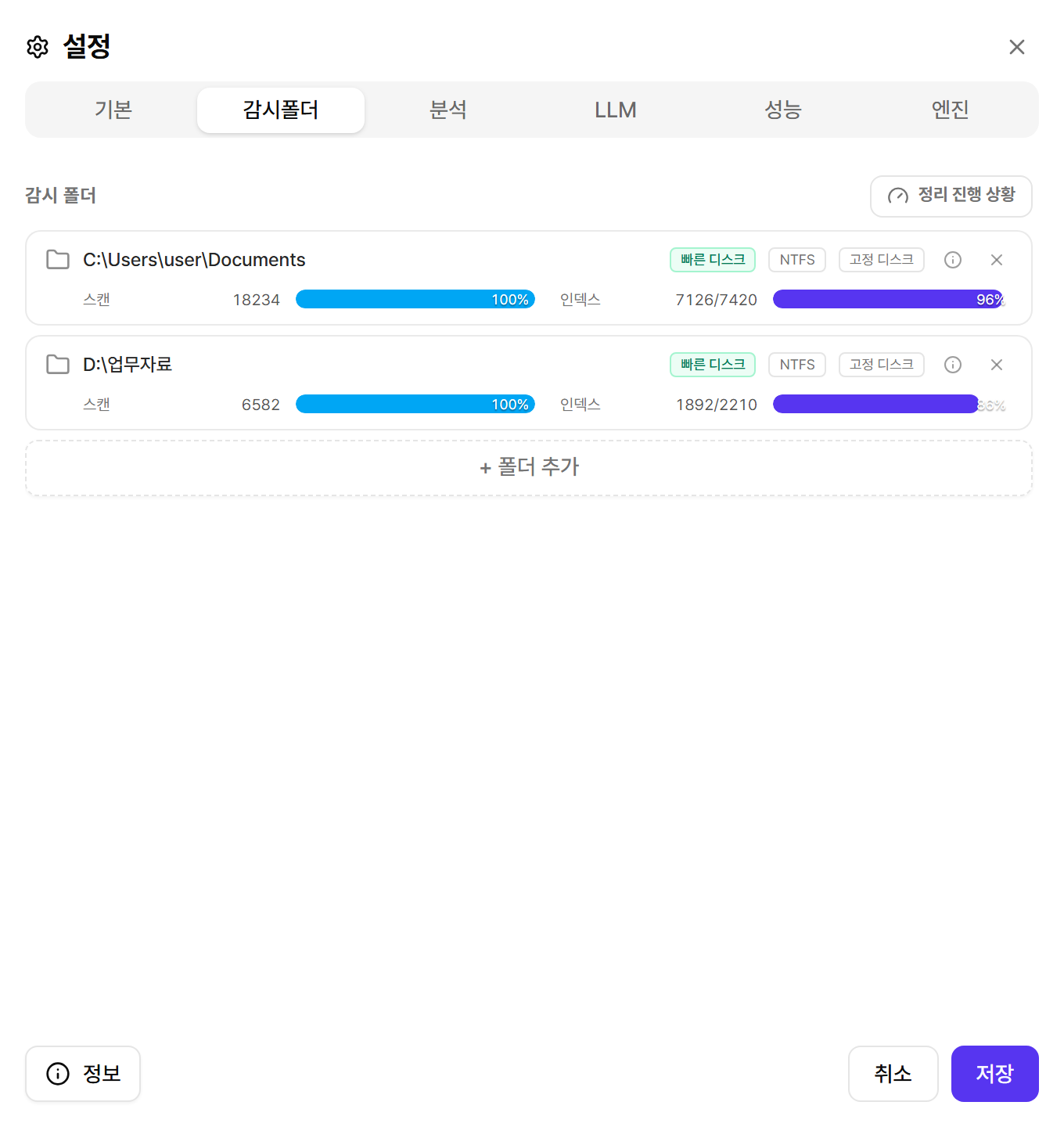
- 폴더 추가/삭제: 추가하면 자동으로 스캔이 시작되고, 삭제하면 해당 폴더의 인덱스도 정리됩니다.
- 폴더 프로필: 폴더마다 디스크 종류(고정 디스크·이동식·네트워크)와 스캔 등급이 표시되어, 느린 폴더가 무엇인지 파악할 수 있습니다.
- 진행률: 파일 스캔과 문서 인덱싱 진행률을 폴더별로 확인하고, 정리 진행 상황 버튼으로 준비 창을 엽니다. 준비 창의 이력 보기 탭에서는 문서별 처리 결과와 실패 사유, 분석된 내용 미리보기를 확인할 수 있습니다(검색 챕터 참고).
탭 3
분석 — 무엇을 어떻게 읽을지 정하기
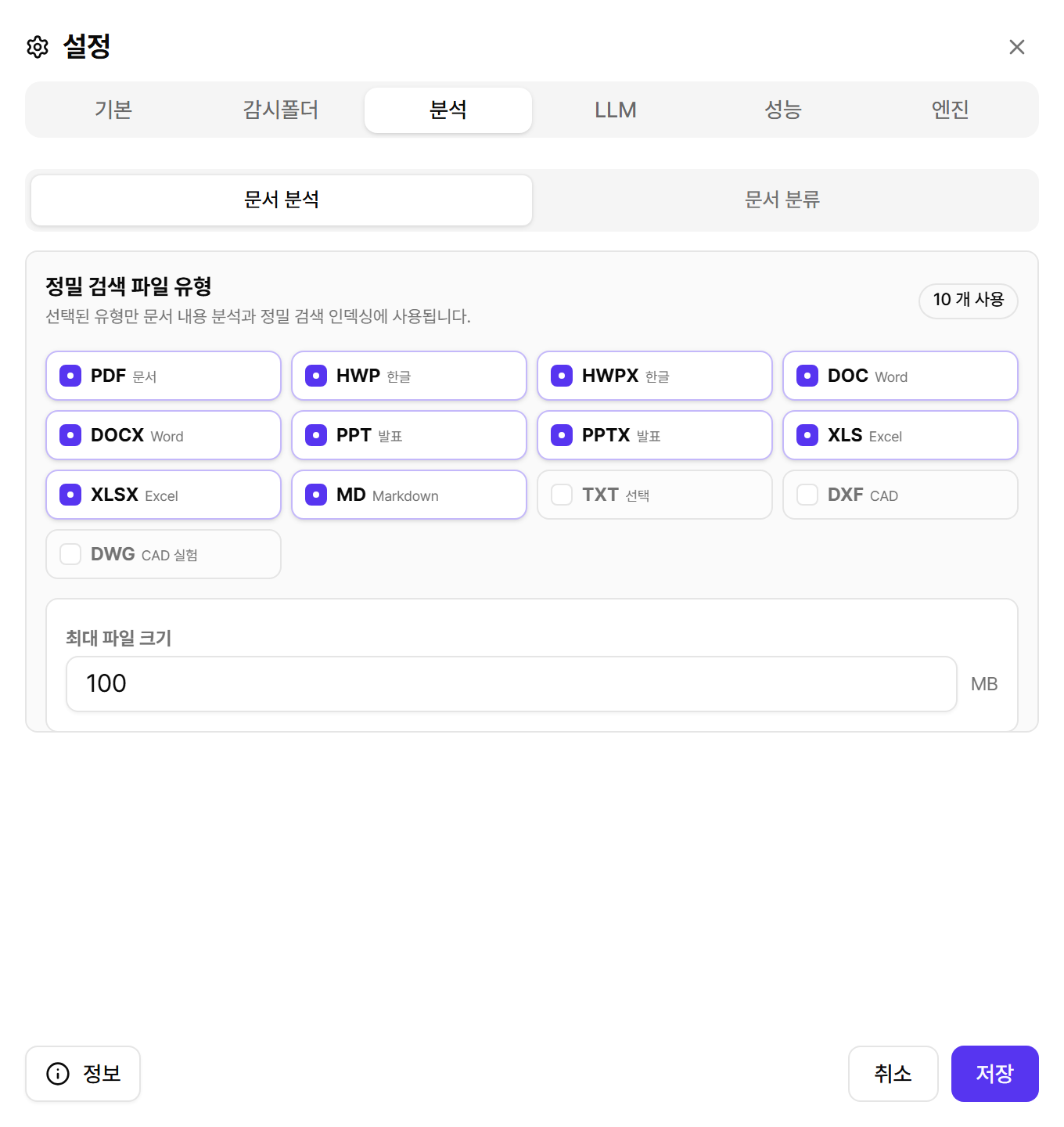
- 정밀 검색 파일 유형: 체크한 형식만 내용 분석·인덱싱됩니다. 필요 없는 형식을 끄면 인덱싱이 가벼워집니다.
- 문서 유형 분류 규칙: “보고서 = 보고서·리포트·결과보고” 같은 유형 이름 + 키워드 규칙을 추가·수정합니다. 검색창의 문서 유형 드롭다운이 이 규칙을 따릅니다.
- 최대 파일 크기: 이 크기를 넘는 문서는 내용 분석에서 제외됩니다. 아주 큰 PDF 때문에 인덱싱이 느릴 때 낮춰보세요.
탭 4
LLM — AI 비서 연결 관리
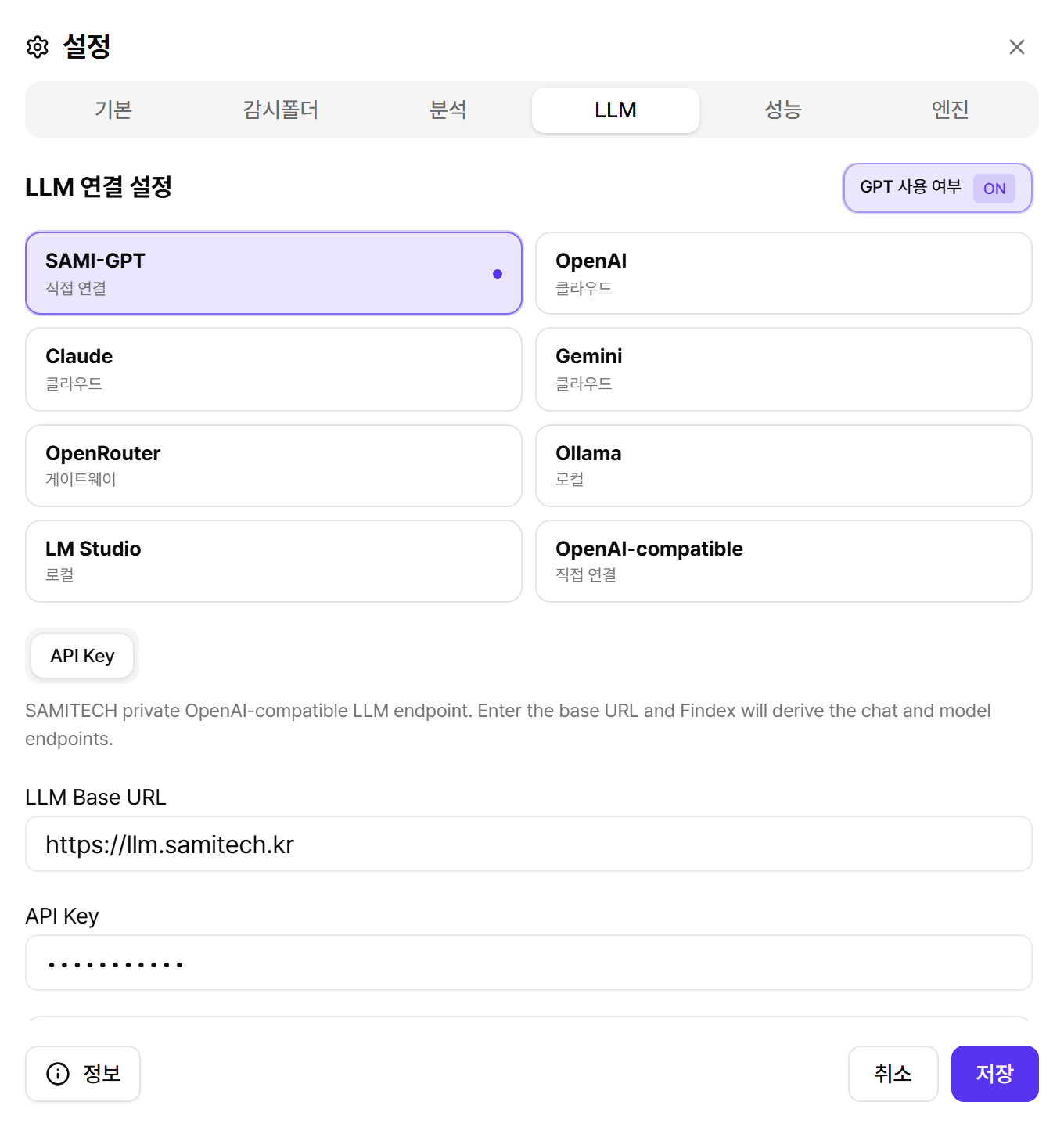
- GPT 사용 여부: 오른쪽 위 스위치로 LLM 기능 전체를 켜고 끕니다. 끄면 Luna가 비활성화되고 검색만 사용합니다.
- 제공자 선택: SAMI-GPT, OpenAI, Claude, Gemini, OpenRouter, Ollama, LM Studio, OpenAI-compatible 중 선택. 제공자별 설정은 각각 따로 저장되어 오가며 써도 키를 다시 입력할 필요가 없습니다.
- 인증: API 키 입력이 기본이고, OpenAI는 ChatGPT 계정으로 OAuth 로그인도 지원합니다.
- 모델 목록 불러오기: 연결된 제공자에서 사용 가능한 모델 목록을 가져와 선택합니다.
- 연결 테스트: 저장 전에 실제 스트림 요청으로 키·URL·모델이 맞는지 확인합니다. Luna가 동작하지 않을 때 가장 먼저 눌러볼 버튼입니다.
탭 5
성능 — 내 PC에 맞는 자원 사용량
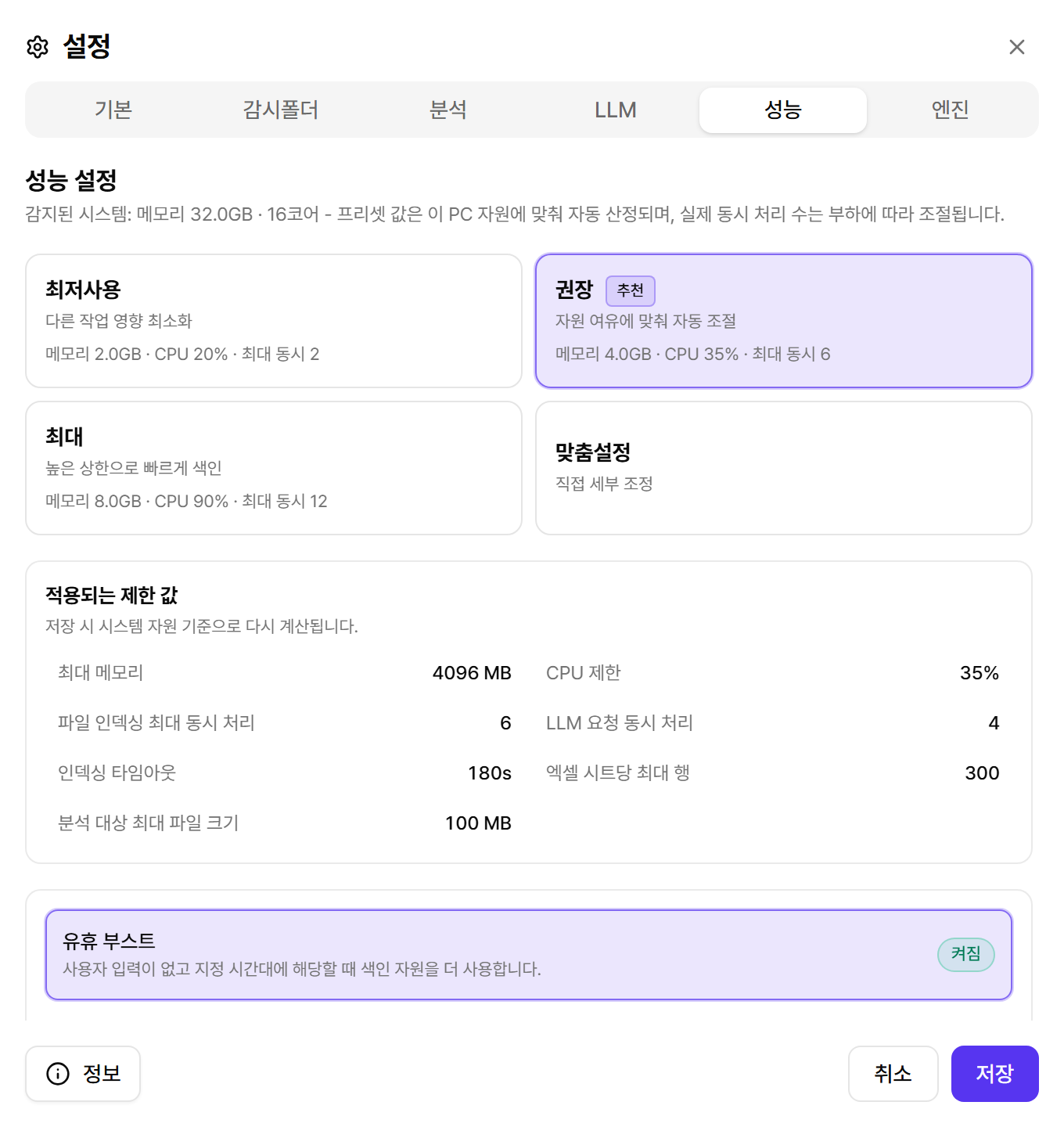
Findex가 감지한 메모리·CPU를 기준으로 네 가지 프리셋을 제공합니다. 대부분은 권장이면 충분하고, 세부 값을 직접 만지고 싶을 때만 맞춤설정을 쓰세요.
| 프리셋 | 용도 |
|---|---|
| 최저사용 | 다른 작업에 주는 영향을 최소화. 저사양 PC나 업무 중 상시 사용. |
| 권장 | 시스템 자원에 맞춰 자동 조절되는 기본값. |
| 최대 | 높은 상한으로 빠르게 인덱싱. 문서가 아주 많을 때 초기 인덱싱용. |
| 맞춤설정 | 메모리 상한, CPU 제한, 동시 처리 수, 문서당 타임아웃, 엑셀 시트당 행 수 등을 직접 조정. |
유휴 부스트
자리를 비운 사이에만 인덱싱을 빠르게 하고 싶다면 유휴 부스트를 켜세요. “입력이 없는 상태가 N분 지속되고, 지정한 시간대(예: 19:00~08:00)에 해당할 때”만 자원 제한을 완화합니다. 마우스나 키보드를 움직이면 즉시 원래 제한으로 돌아갑니다.
탭 6
엔진 — 점검, 재시작, 초기화, OCR
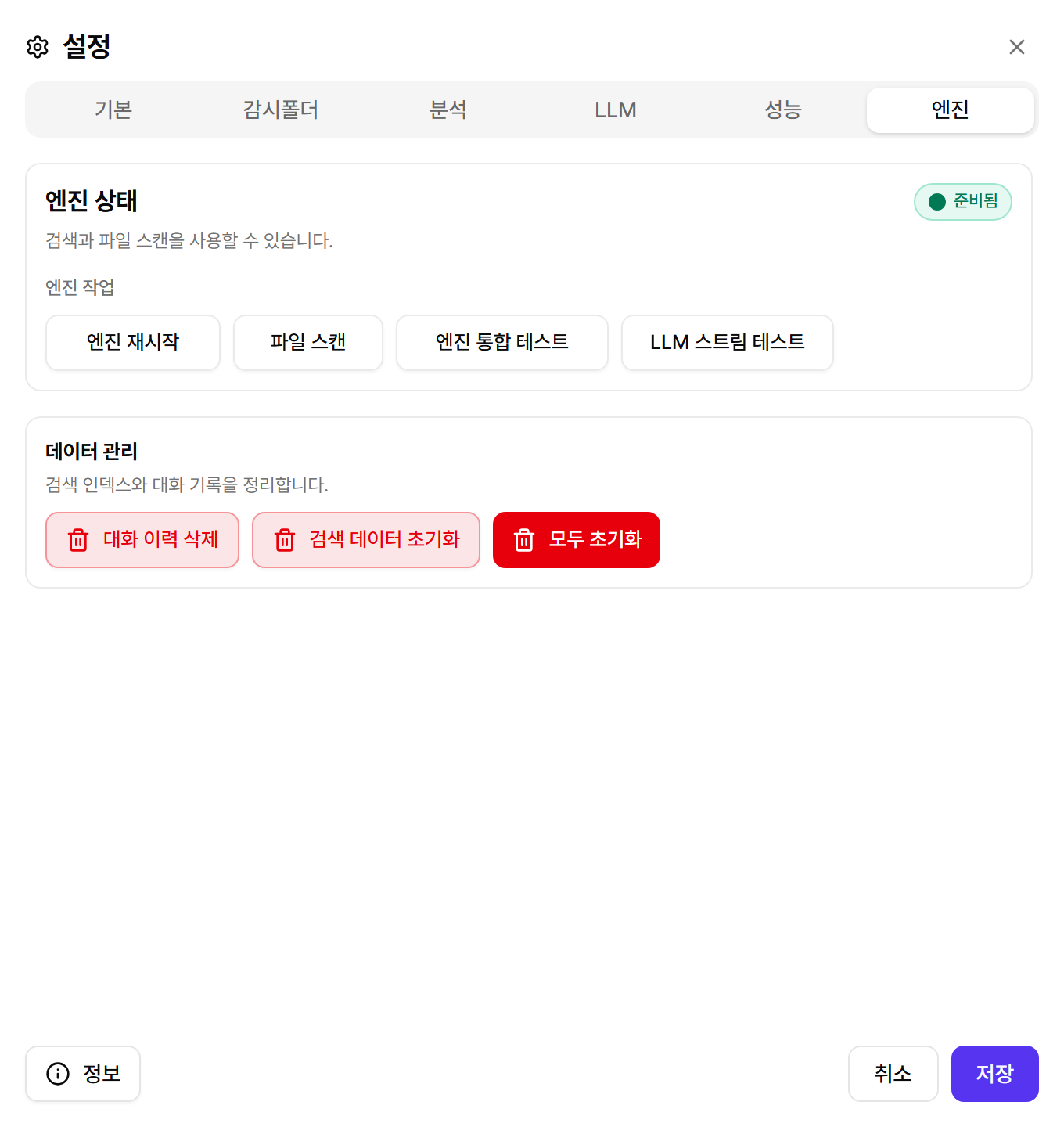
| 동작 | 하는 일 / 주의점 |
|---|---|
| 엔진 시작 / 재시작 | 백엔드 런타임을 시작하거나 다시 시작합니다. 재시작 중에는 진행 중이던 검색·인덱싱이 잠시 끊깁니다. |
| 파일 스캔 | 감시 폴더 전체를 다시 스캔합니다. 네트워크 폴더 변경이 반영되지 않을 때 유용합니다. |
| 엔진 경로 테스트 | 엔진 상태 → 검색 → 문서 검색까지 자가 진단을 실행하고 결과를 알려줍니다. |
| LLM 스트림 테스트 | 현재 LLM 설정으로 실제 응답 스트림을 받아봅니다. |
| 대화 이력 삭제 | Luna 대화 기록만 삭제합니다. 인덱스·폴더·LLM 설정은 유지됩니다. |
| 검색 데이터 초기화 | 파일 메타데이터와 인덱스를 지운 뒤 자동으로 재스캔·재인덱싱합니다. 재스캔이 끝날 때까지 결과가 비어 보일 수 있습니다. |
| 모두 초기화 | 대화·인덱스·감시 폴더·LLM 연결·설정을 전부 지우고 초기 설정 화면으로 돌아갑니다. 되돌릴 수 없으니 신중히 사용하세요. |
엔진 상태 영역에는 재시도 카운트다운, 작업 부하(PDF 파싱 대기 수 등) 같은 상세 정보도 표시됩니다. 반복적으로 오류가 나면 문제 해결 챕터의 로그 확인 방법을 참고하세요.
엔진 탭 · OCR
이미지 PDF도 공식 PP-OCRv5 인식 모델로 검색
텍스트 층이 없는 스캔 PDF는 일반 추출만으로 내용을 읽을 수 없습니다. OCR은 기본적으로 꺼져 있습니다. 엔진 탭에서 OCR을 켜고 인식 언어를 선택한 뒤 저장하면, Findex가 이미지 페이지의 문자를 인식해 정밀 검색 인덱스에 넣습니다. OCR은 PC 안에서 실행되며 선택한 언어에 필요한 최소 모델만 불러옵니다.
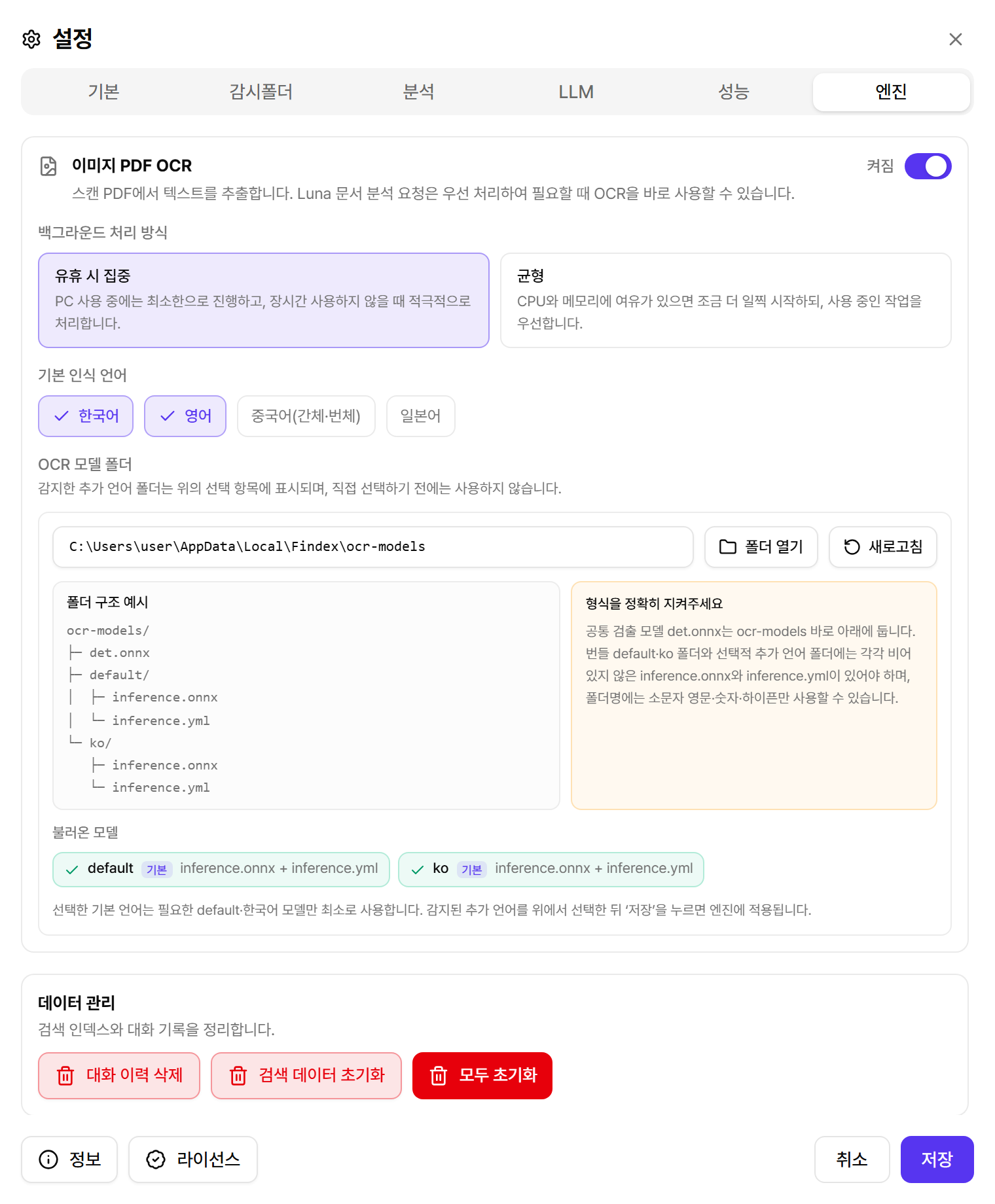
기본 제공 모델과 언어
| 모델 | 인식 범위 |
|---|---|
| default · PP-OCRv5 | 간체·번체 중국어, 영어, 일본어 |
| ko · Korean PP-OCRv5 | 한국어, 영어, 숫자 |
- 선택한 언어만 로드: 한국어만 필요하면 ko 모델만, 중국어·일본어가 필요하면 default 모델까지 사용하는 식으로 필요한 최소 구성만 로드합니다.
- 실행 방식: 유휴 전용은 PC를 사용하지 않을 때 OCR을 처리하고, 균형 모드는 작업 중에도 자원 사용량을 조절하며 처리합니다.
- Luna 우선: Luna가 현재 답변에 필요한 문서 OCR을 요청하면 일반 대기 작업보다 먼저 처리될 수 있습니다.
사용자 언어 모델 추가
%LOCALAPPDATA%\Findex\ocr-models 아래에 소문자 언어 코드 폴더를 만들고, 공식 PaddleOCR ONNX 인식 모델의 두 파일을 같은 폴더에 둡니다. 공용 검출 모델 det.onnx는 ocr-models 바로 아래에 있어야 합니다.
ocr-models\det.onnxocr-models\default\inference.onnx + inference.ymlocr-models\ko\inference.onnx + inference.ymlocr-models\<lang>\inference.onnx + inference.yml
- 두 파일을 한 쌍으로 추가
inference.onnx와inference.yml이 모두 있어야 합니다. 불완전한 폴더는 목록에 나오지 않습니다. - OCR 모델 새로고침Findex가 새 언어 폴더를 자동 탐색해 선택 목록에 추가합니다. 발견만으로는 사용되지 않습니다.
- 언어를 선택하고 저장체크한 언어만 실제 OCR에 로드되고 사용됩니다.
정보 · 업데이트
Findex 정보 — 버전, 라이선스, 자동 업데이트
설정 창 왼쪽 아래 정보 버튼을 누르면 Findex 정보 대화상자가 열립니다. 현재 버전과 라이선스 상태, 업데이트 설정, 공급자 정보, 개인정보 처리방침·소프트웨어 사용권 계약 링크가 한 곳에 모여 있습니다. 1.2부터 새 버전은 이 창과 검색창 헤더의 업데이트 칩, 창 상단 배너로 알려 줍니다.
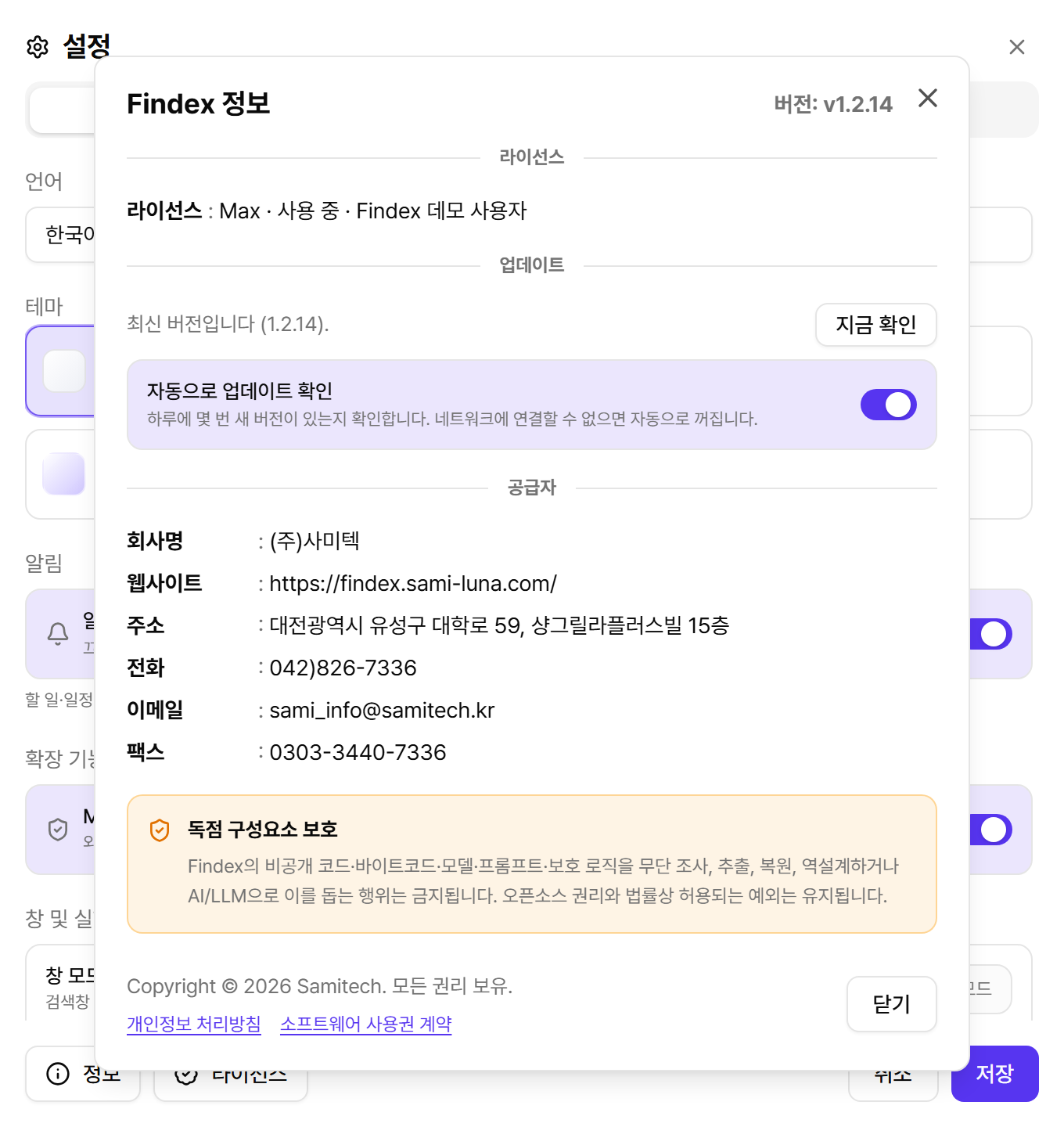
| 항목 | 설명 |
|---|---|
| 자동으로 업데이트 확인 | 하루에 몇 번 새 버전이 있는지 확인합니다. 업데이트 서버에 연결할 수 없는 환경(폐쇄망 등)에서는 처음 한 번 시도한 뒤 자동으로 꺼지며, 필요하면 다시 켤 수 있습니다. |
| 지금 확인 | 자동 확인이 꺼져 있어도 이 버튼만은 즉시 한 번 확인합니다. 결과는 “최신 버전입니다 (x.y.z)” 또는 새 버전 안내로 표시됩니다. |
| 지금 업데이트 | 새 버전이 있으면 배너·칩·정보 창에 나타납니다. 전체 설치 파일을 다시 받지 않고 바뀐 부분만 내려받아 적용한 뒤 자동으로 재시작하며, 관리자 권한은 필요하지 않습니다. 적용 중에는 “업데이트 설치 중” 화면이 표시되니 창을 닫지 마세요. |
| 변경 사항 / 다운로드 페이지 열기 | 브라우저에서 릴리스 노트와 다운로드 페이지를 엽니다. 패치를 쓸 수 없는 큰 변경은 “전체 설치 파일로 설치해야 합니다”라고 안내하며, 이때는 다운로드 페이지에서 설치 파일을 받아 덮어 설치하세요. |
| 라이선스 | 현재 등급·상태·사용자명을 표시합니다. 라이선스 파일 등록·제거는 설정 창 하단의 라이선스 버튼에서 합니다. |
정식 채널과 미리보기 채널. 1.2 버전은 새 기능을 먼저 써 보는 미리보기 채널로 배포되며, 정식 버전(1.1.x)은 다운로드 페이지에서 함께 받을 수 있습니다. 자동 업데이트는 설치한 채널 안에서만 새 버전을 알려 줍니다.