
The settings window is Findex's control room
Open it with the gear button in the search window or Settings in the tray menu. Its six tabs cover everything from window mode to the OCR languages used for image-only PDFs, and the About button at the bottom left manages version, license, and automatic updates. Saved changes apply immediately.
Tab 1
General — language, shortcut, theme, notifications, extensions, window behavior
Since 1.2 the General tab puts the settings you change most at the top: language and global shortcut → theme → notifications → extensions → window & launch. The old Engine port field is gone — Findex now manages the port automatically.
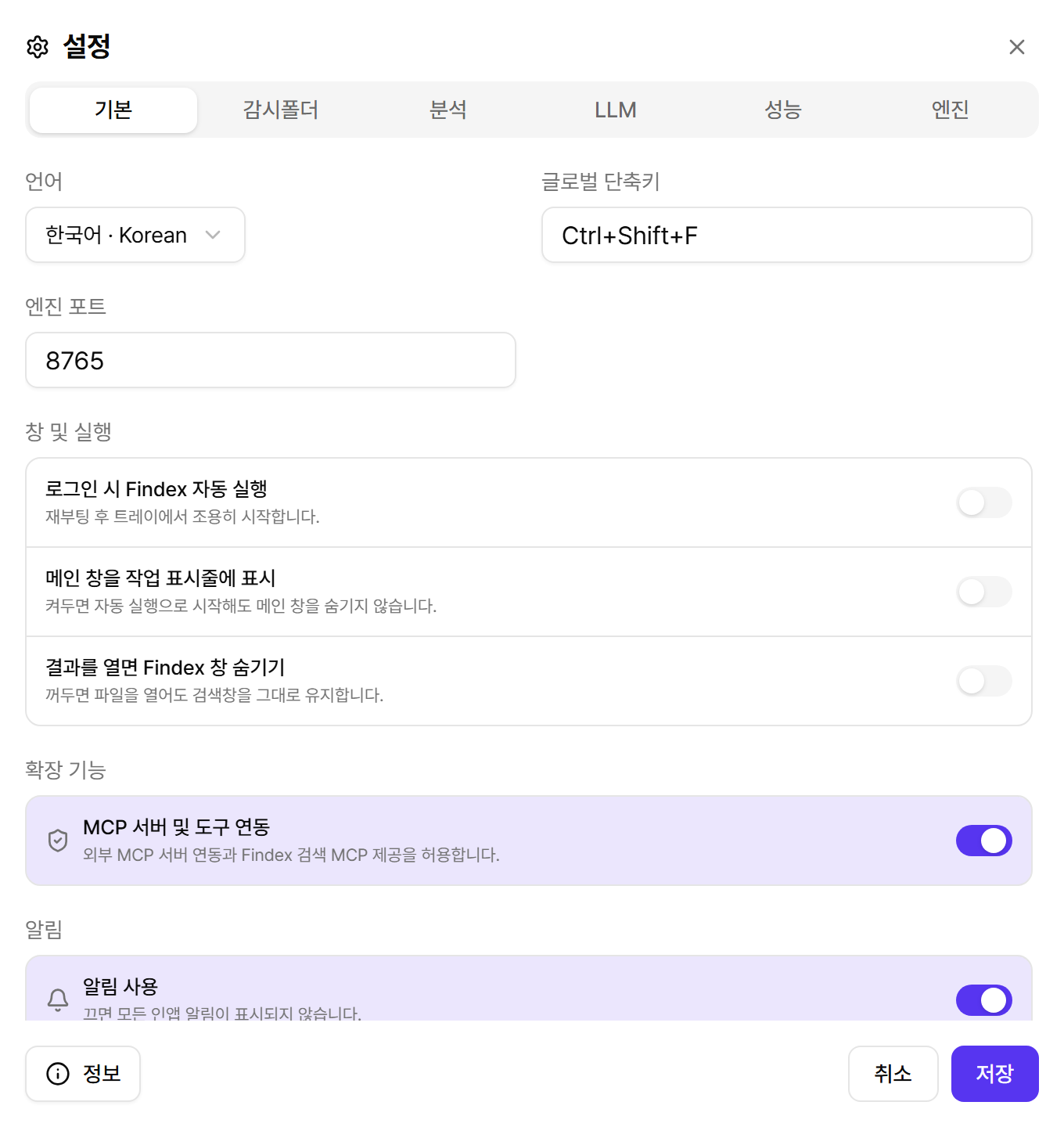
| Setting | What it does |
|---|---|
| Language | UI, notification, and Luna response language. 12 languages. |
| Global shortcut | The summon key (default Ctrl+Shift+F). Click the field and press your combination. |
| Theme | Pick one of four cards — Light, Dark, Glass, Dark Glass. It applies to the main and auxiliary windows immediately; the Schedule and To-do widgets have their own theme choice inside each app. |
| Notifications | Master switch for in-app notifications, including to-do and schedule reminders. Per-app details live in each app window. |
| MCP servers & tools | Extensions. Enables external MCP tools and the Connection Center app. |
| Window mode | Simple mode is a slim search bar that hides when it loses focus. Normal mode is the full Command Center with filters, recent documents, preview, and minimize/maximize; it stays open when you click elsewhere. The header toggle switches modes too. |
| Always on top | Keeps the main window above other windows. Off by default; even in Simple mode the window stays on top only when this is on. (New in 1.2) |
| Start Findex when signing in | Starts quietly in the tray after boot. |
| Show the main window in the taskbar | Now independent of window mode; visible by default. Turn it off only if you want Simple mode to stay out of the taskbar. |
| Hide Findex after opening a result | Dismisses the window when you open a file; off keeps it visible. |
Tab 2
Folders — what gets indexed, and progress
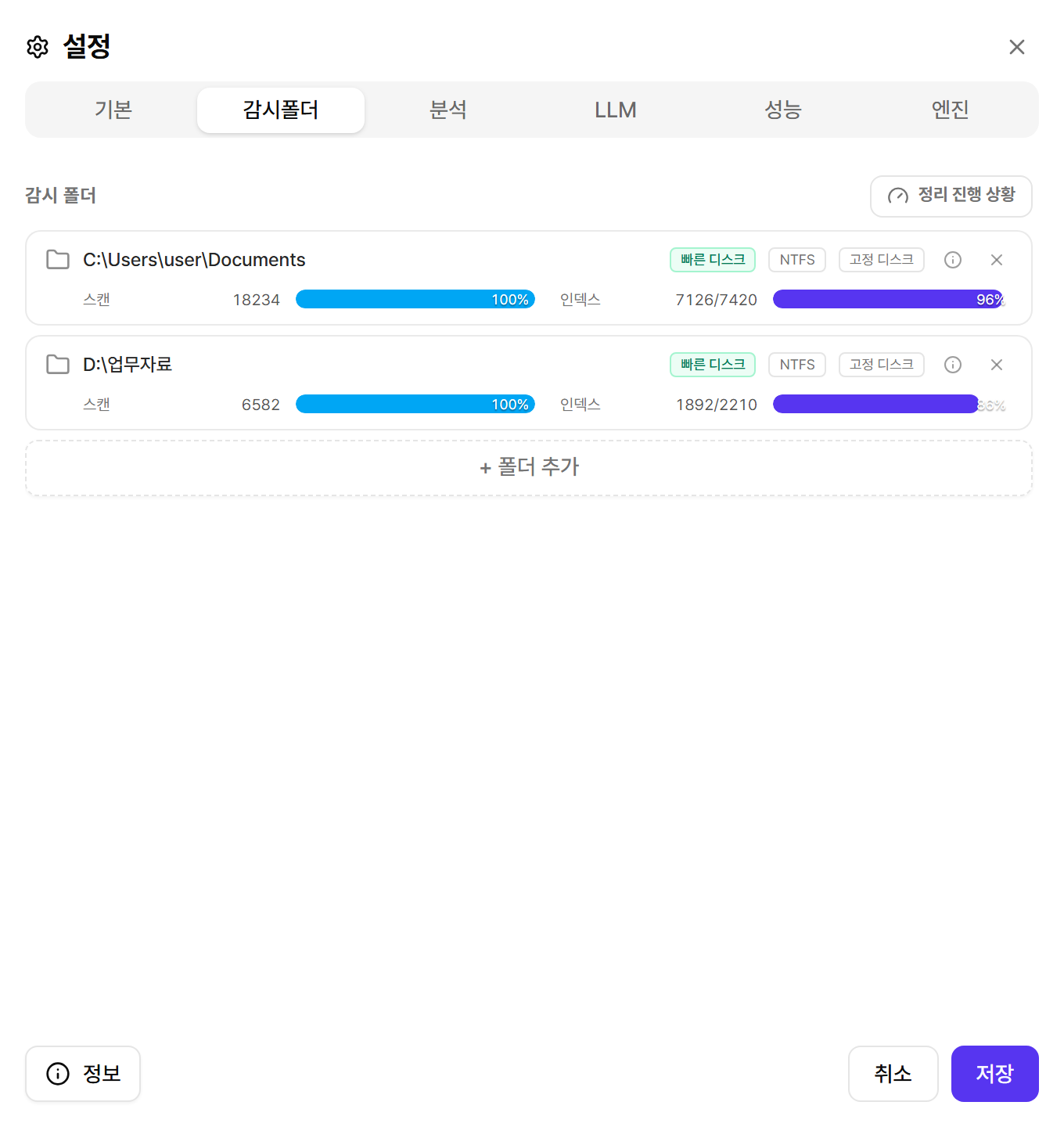
- Add/remove folders: adding starts a scan automatically; removing cleans up that folder's index.
- Folder profile: each folder shows its drive type (fixed/removable/network) and scan tier so you can spot slow sources.
- Progress: per-folder scan and indexing progress, plus a Progress button that opens the preparation window. Its History tab lists per-document results, failure reasons, and a preview of the extracted content (see the Search chapter).
Tab 3
Analysis — what to read and how
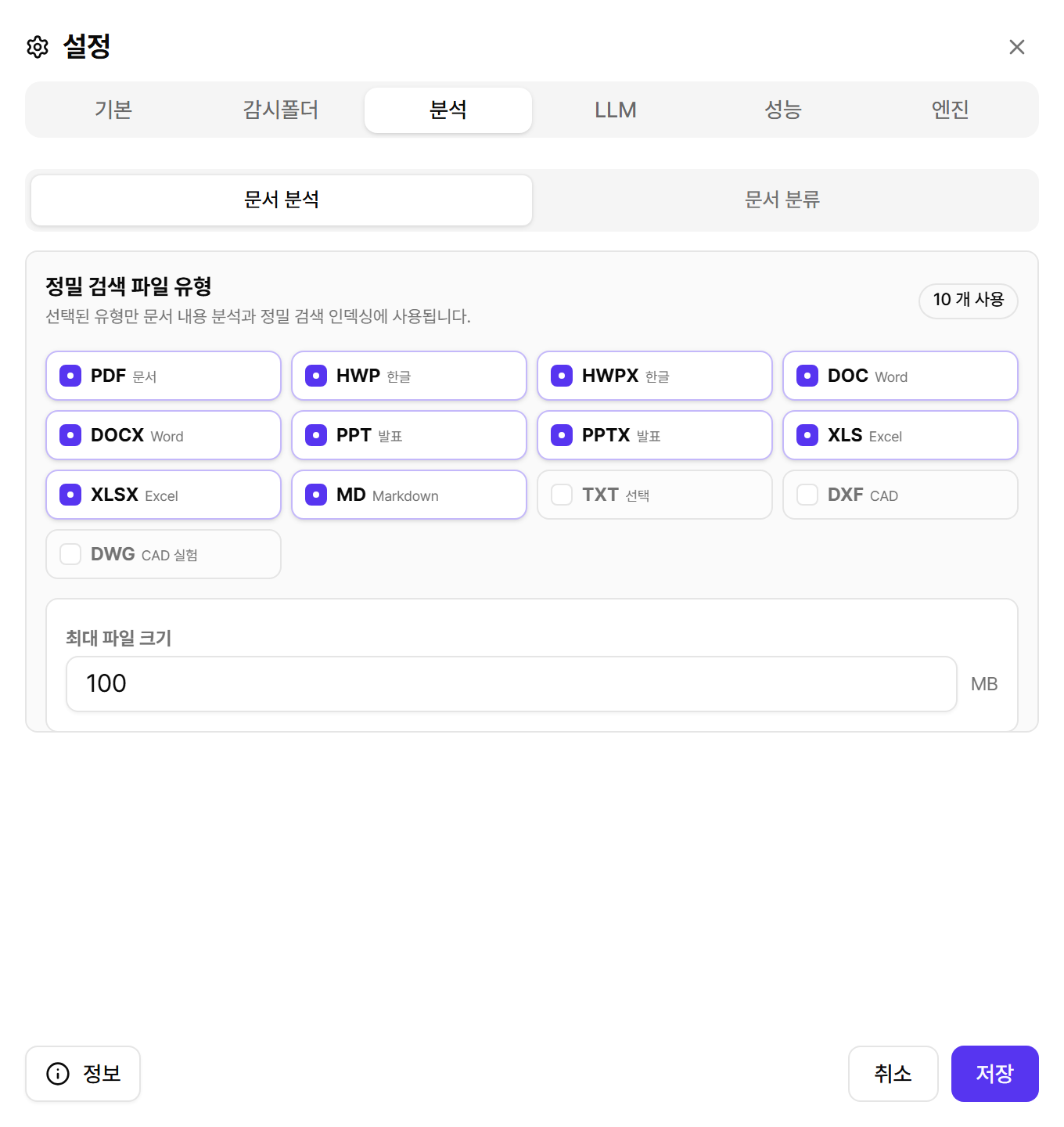
- Precise-search file types: only checked formats are content-indexed. Unchecking unused formats lightens indexing.
- Document-type rules: add or edit label + keywords rules (e.g. “Report = report, results, summary”). The document-type dropdown in search follows these rules.
- Max file size: documents above the limit are skipped for content analysis. Lower it if giant PDFs slow indexing.
Tab 4
LLM — managing the AI connection
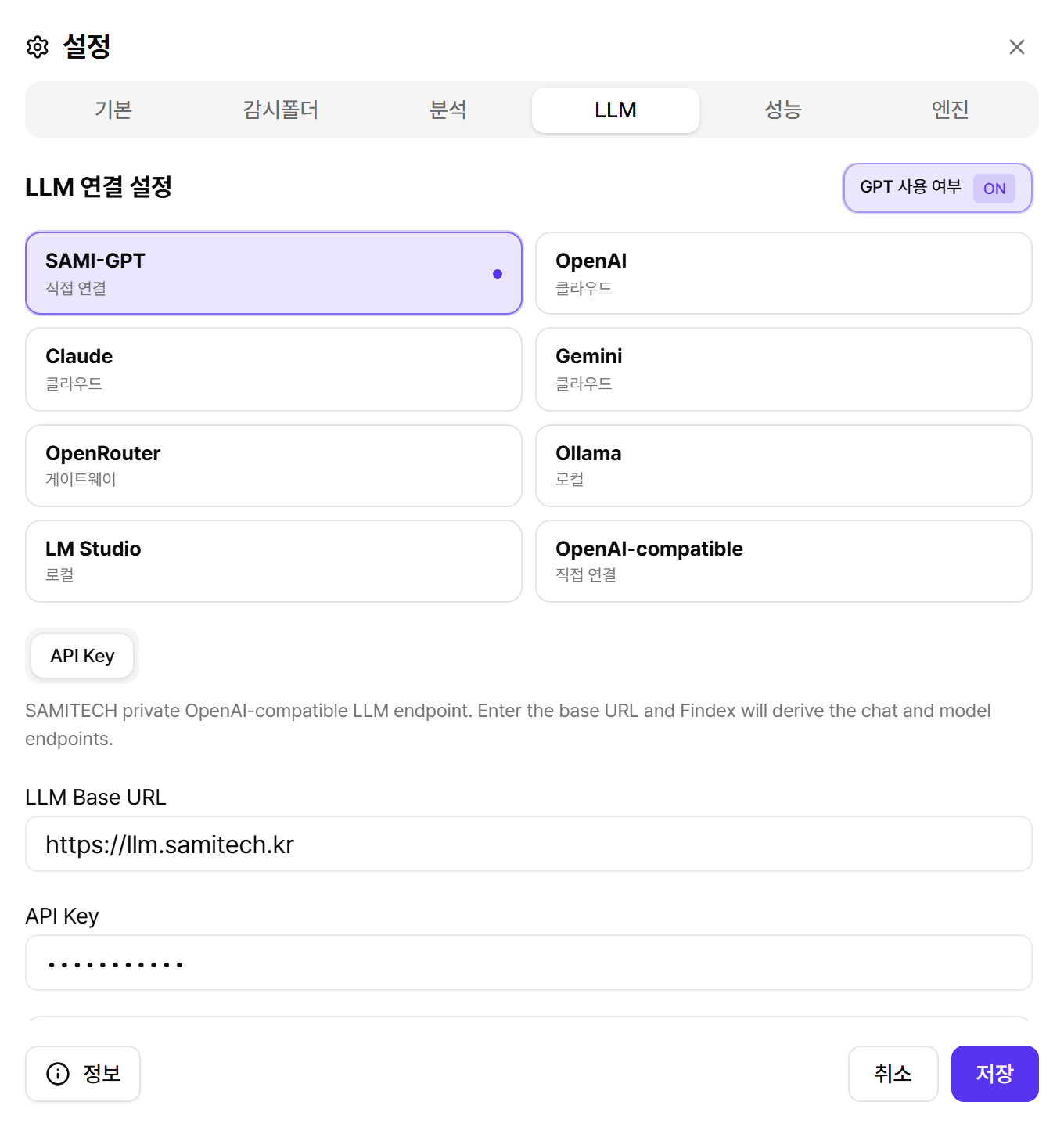
- LLM on/off: the switch at the top right toggles all LLM features. Off disables Luna; search keeps working.
- Provider: SAMI-GPT, OpenAI, Claude, Gemini, OpenRouter, Ollama, LM Studio, or OpenAI-compatible. Each provider's settings are stored separately, so switching back never loses your keys.
- Auth: API key by default; OpenAI also supports ChatGPT OAuth sign-in.
- Fetch models: pulls the available model list from the provider.
- Connection test: runs a real streaming request to validate key, URL, and model — the first thing to try when Luna is not working.
Tab 5
Performance — resource usage that fits your PC
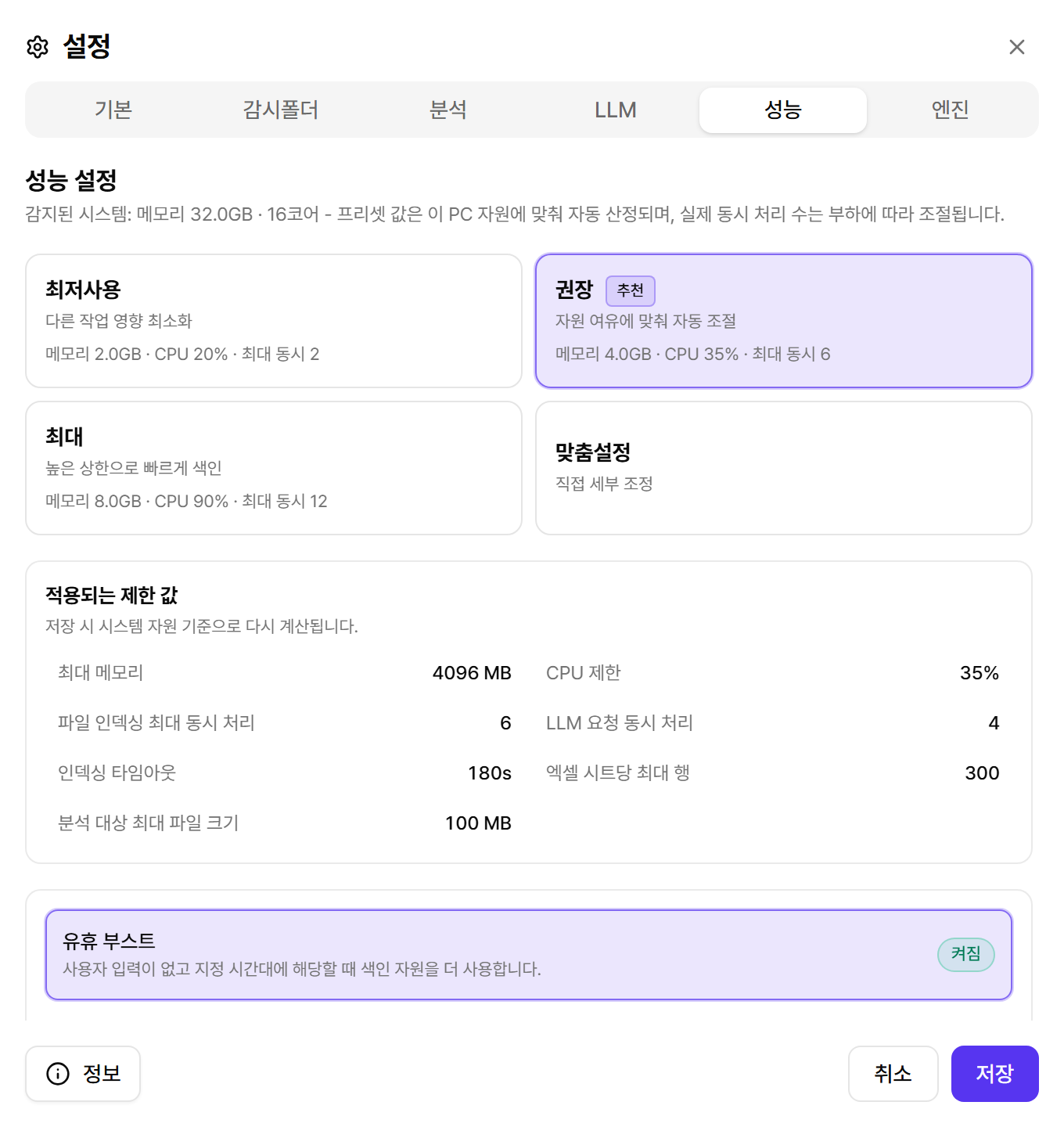
Based on your detected memory and CPU, four presets are available. Recommended is right for most people; use Custom only when you want to hand-tune the limits.
| Preset | When to use |
|---|---|
| Eco | Minimal impact on other work — for modest PCs or always-on use. |
| Recommended | The default — auto-tuned to your system. |
| Max | High limits for fast indexing — good for the initial pass over large libraries. |
| Custom | Hand-tune memory cap, CPU limit, concurrency, per-document timeout, Excel rows per sheet, and more. |
Idle Boost
To speed up indexing only while you are away, enable Idle Boost: limits are relaxed only after N idle minutes and within the allowed time window (e.g. 19:00–08:00). Any mouse or keyboard activity restores normal limits immediately.
Tab 6
Engine — diagnostics, restart, reset, OCR
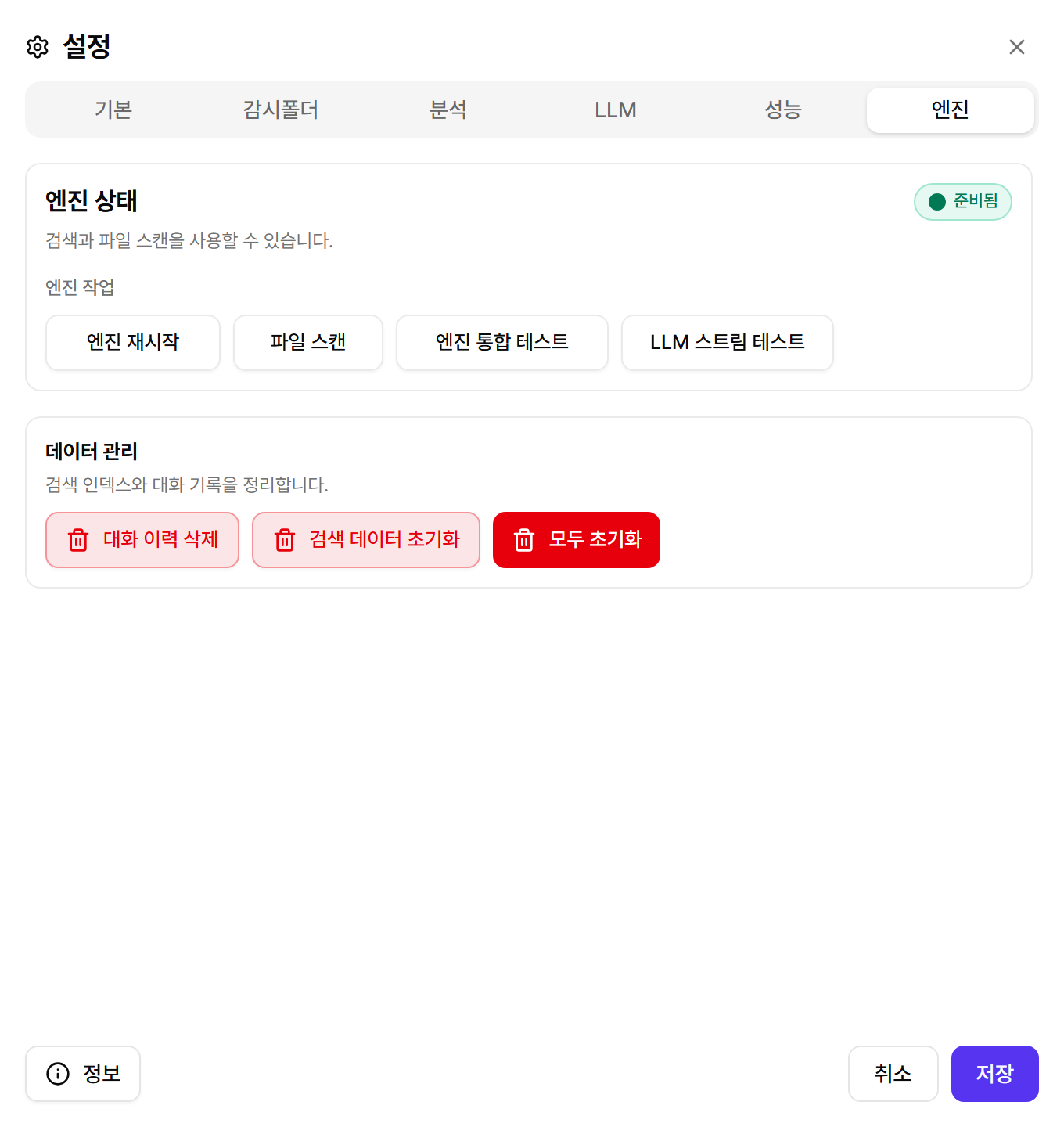
| Action | What it does / caution |
|---|---|
| Start / Restart engine | Starts or restarts the backend runtime. A restart briefly interrupts running search and indexing. |
| File scan | Rescans all watched folders — useful when network-folder changes were missed. |
| Engine test | Runs a self-diagnostic across health, search, and document search. |
| LLM stream test | Fetches a real response stream with the current LLM settings. |
| Clear chat history | Deletes Luna sessions only; index, folders, and LLM settings stay. |
| Reset search data | Wipes metadata and indexes, then rescans and re-indexes automatically. Results may look empty until the rescan finishes. |
| Reset everything | Erases sessions, indexes, folders, LLM connection, and settings, returning to the setup wizard. Irreversible — use with care. |
The status area also shows retry countdowns and workload details (e.g. queued PDF parses). For recurring errors, see the log guide in the Troubleshooting chapter.
Engine tab · OCR
Search image-only PDFs with official PP-OCRv5 recognition models
A scanned PDF without a text layer needs OCR before its contents can be indexed. OCR is off by default. In the Engine tab, enable OCR, select recognition languages, and save. Findex runs recognition locally and loads only the smallest model set required by your selection.
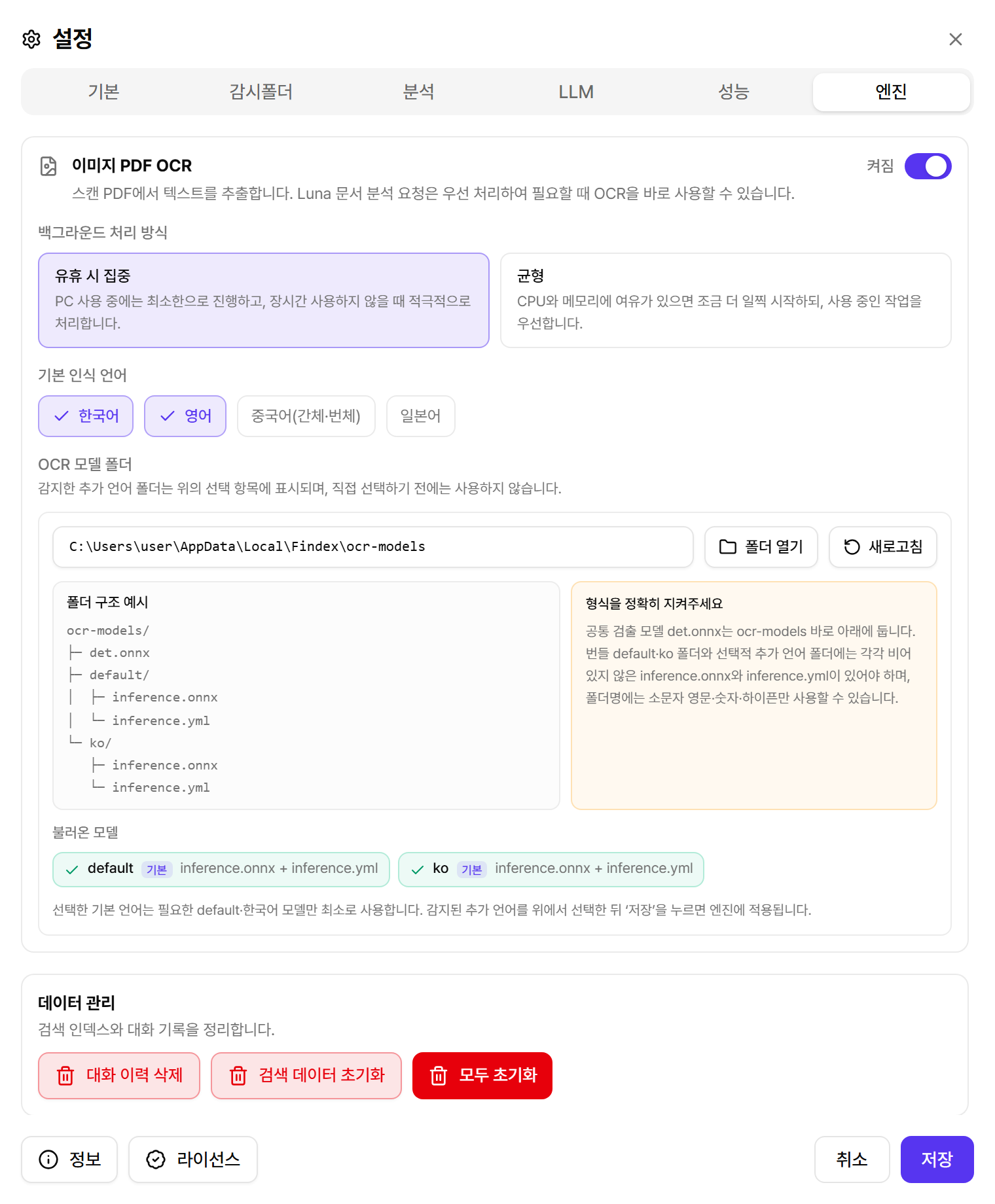
Bundled models and languages
| Model | Recognition coverage |
|---|---|
| default · PP-OCRv5 | Simplified and Traditional Chinese, English, and Japanese |
| ko · Korean PP-OCRv5 | Korean, English, and digits |
- Load only what you select: Korean-only work can use the ko model alone; selecting Chinese or Japanese adds the default model. Findex keeps the loaded set minimal.
- Run mode: Idle-only processes OCR while the PC is unattended; Balanced continues during active use while limiting resource pressure.
- Luna priority: OCR requested for Luna's current answer may be processed ahead of normal queued work.
Add a custom language model
Create a lowercase language-code folder under %LOCALAPPDATA%\Findex\ocr-models, then place the two files from an official PaddleOCR ONNX recognition model together in that folder. The shared detector, det.onnx, belongs directly under ocr-models.
ocr-models\det.onnxocr-models\default\inference.onnx + inference.ymlocr-models\ko\inference.onnx + inference.ymlocr-models\<lang>\inference.onnx + inference.yml
- Add the two-file pairBoth
inference.onnxandinference.ymlare required. Incomplete folders are ignored. - Refresh OCR modelsFindex discovers the new language folder and adds it to the choices. Discovery alone does not enable it.
- Select the language and saveOnly checked languages are loaded and used for OCR.
About · Updates
Findex information — version, license, automatic updates
The About button at the bottom left of the settings window opens the Findex information dialog: current version, license state, Updates settings, provider details, and links to the privacy policy and EULA. Since 1.2 new versions are announced here, by the Update chip in the search header, and by a banner at the top of the window.
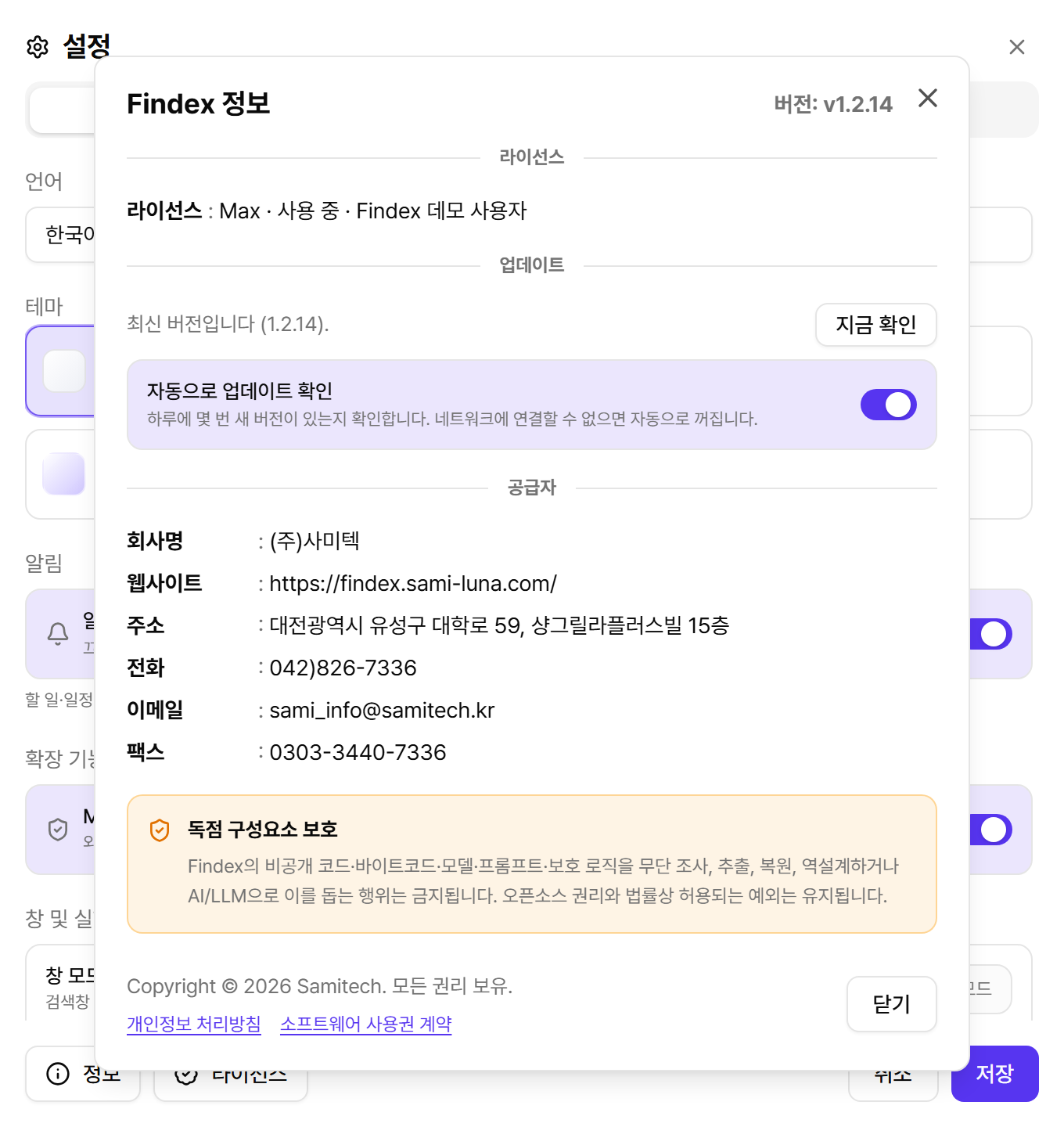
| Item | What it does |
|---|---|
| Check for updates automatically | Checks a few times a day. In environments that cannot reach the update server (air-gapped networks), it turns itself off after the first attempt; you can re-enable it anytime. |
| Check now | Checks immediately, even when automatic checks are off. The result reads “You are up to date (x.y.z)” or announces a new version. |
| Update now | Appears in the banner, chip, and About dialog when a new version exists. Findex downloads only the changed parts instead of a full installer, applies them, and restarts automatically — no administrator rights needed. Keep the window open while “Installing update” is shown. |
| Release notes / Open download page | Open the release notes and the download page in your browser. When a change is too large for a patch, Findex says the new version needs a full installer — download it and install over the existing app. |
| License | Shows the current tier, state, and licensee. Register or remove a license file with the License button at the bottom of the settings window. |
Stable vs. preview channel. 1.2 ships on the preview channel, where new features arrive first; the stable release (1.1.x) is offered alongside it on the download page. Automatic updates announce new versions within the channel you installed.