
Quick Search and Precise Search, used well
If your clue is a file name or path, use Quick Search; if it is a word or sentence inside the document, use Precise Search. Run either search in the lightweight Simple mode or the preview-rich Normal mode (Command Center).
Layout
Four tabs, two window modes
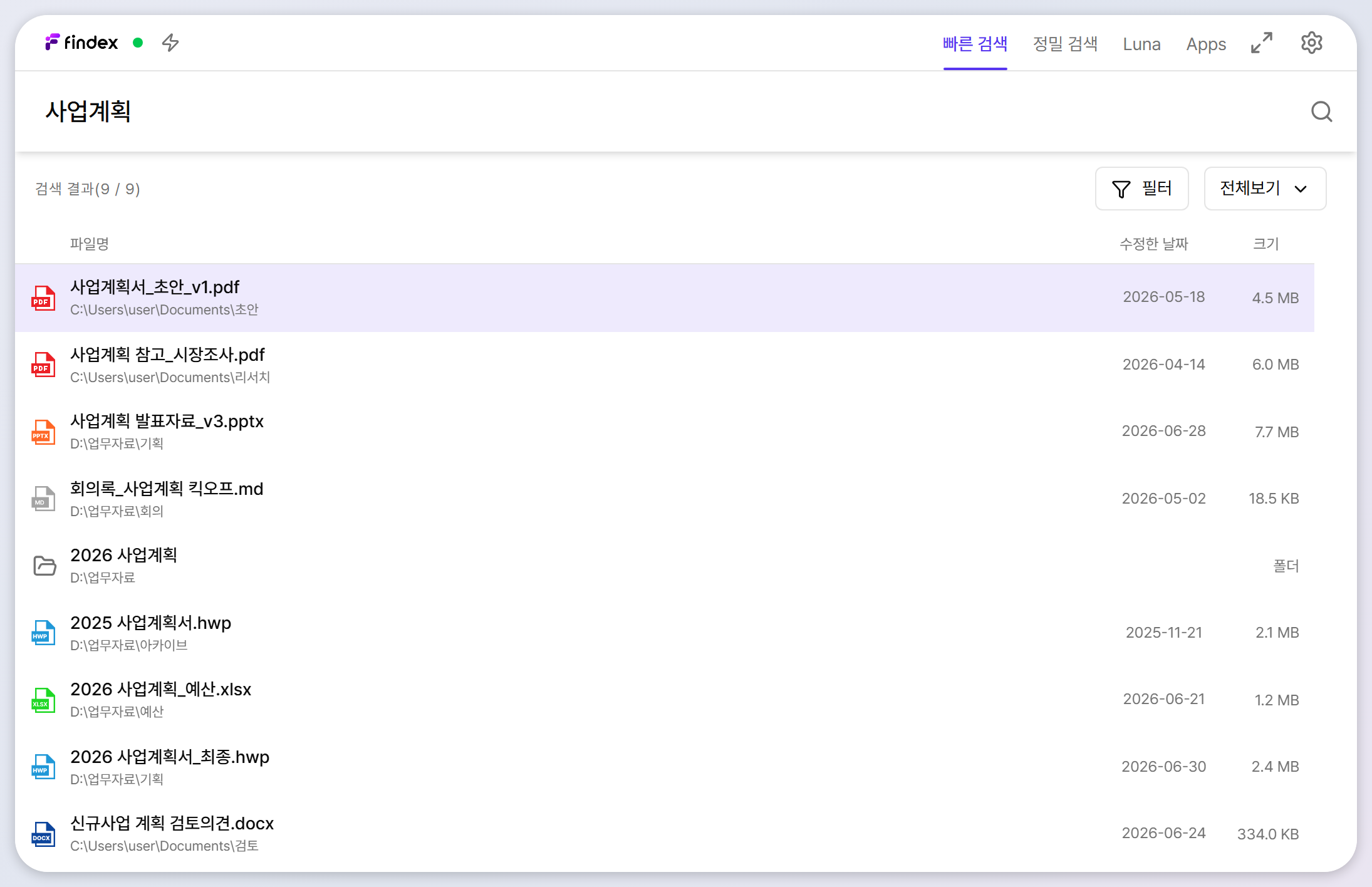
The top tabs are Quick Search · Precise Search · Luna · Apps. The green dot by the logo shows engine status and the lightning button controls Boost. The two-icon toggle before the tabs switches between Simple (search-bar icon) and Normal (window icon) mode and saves the choice; the gear opens Settings. An Update chip appears in the header when a new version is available, and Normal mode adds minimize/maximize buttons — double-clicking the title bar maximizes too.
Normal mode
A Command Center that is useful before you search
Normal mode is a full window that stays in the taskbar and supports minimize/maximize. Even with no query it shows filter chips, recent searches, and recent documents, so you can reopen familiar material or set conditions before typing.
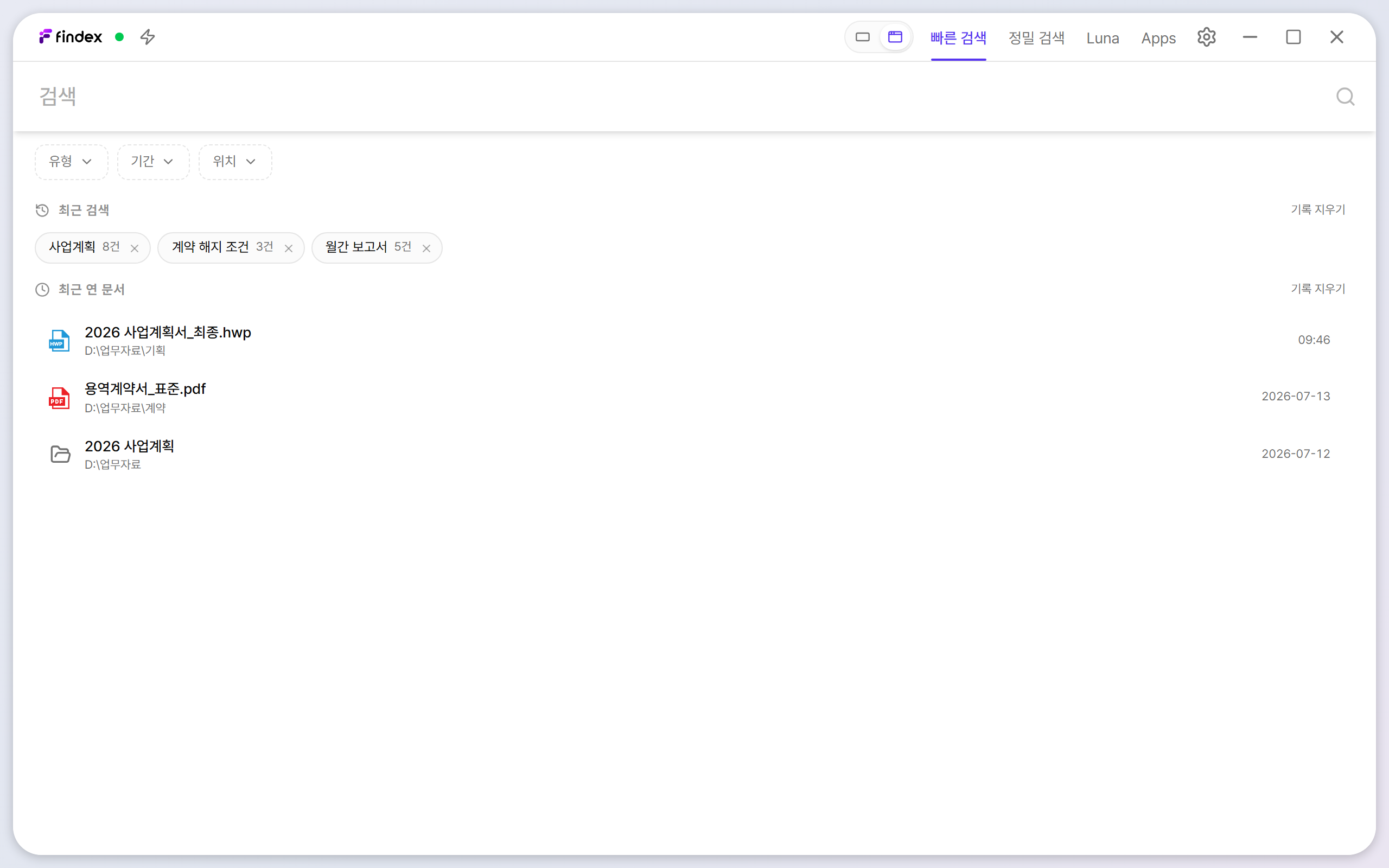
- Filter chips: preselect a type (HWP, PDF, Word, Excel, PPT, text, image), a date preset from today through the last year, or a watched-folder location.
- Recent searches: successful queries appear with result counts; select one to run it again using the current search mode and filters.
- Recent documents: keeps up to 50 files or folders opened from search. Until that history exists, recently registered or modified documents are shown instead.
Results expand into three panels
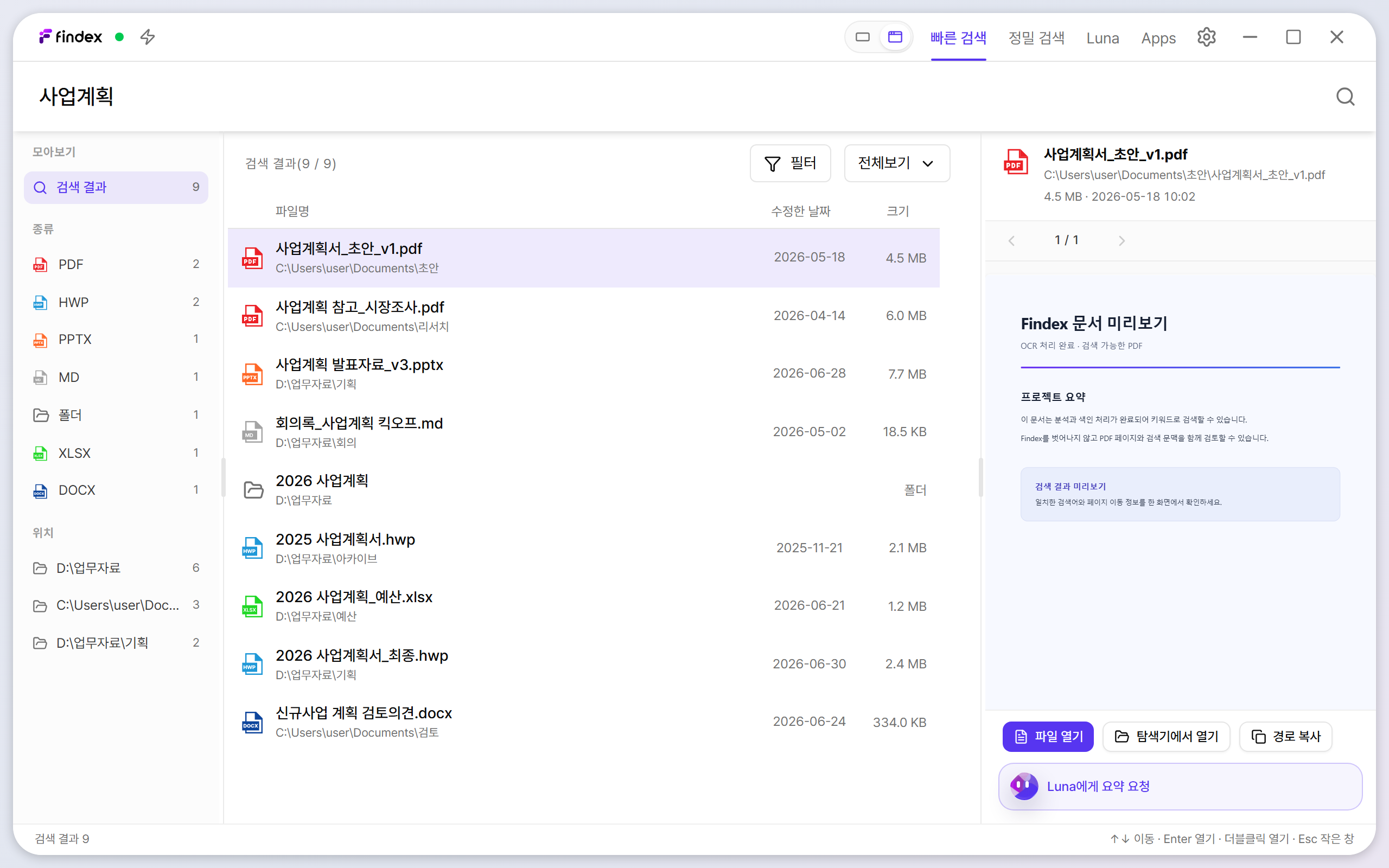
- Select and open: single-click to preview a result on the right; double-click to open the original.
- PDF preview: page through and zoom the PDF in place. A precise-search result jumps to its matching page, and Open larger launches the dedicated preview window described below.
- Quick actions: open the file, reveal it in Explorer, copy its path, or ask Luna to summarize it from the right panel.
- Panel width: drag either divider or use the arrow keys; double-click a divider to restore its default width.
Search 1
Quick Search — instant lookup by name, folder, path
Type two or more characters and matches on file and folder names appear instantly (up to 500). Each row shows the file name, parent path, modified date, and size; matching folders appear as folder rows.
- Open a file: in Simple mode click the row or press Enter. In Normal mode, single-click to preview and double-click to open.
- Right-click menu: Open file, or Open folder (reveals the file in Explorer).
- Sorting: use the column headers to sort by relevance, name, modified date, or size.
- Search target count: a pill under the input shows how many files are currently indexed.
Narrow it down
The filter panel and search operators
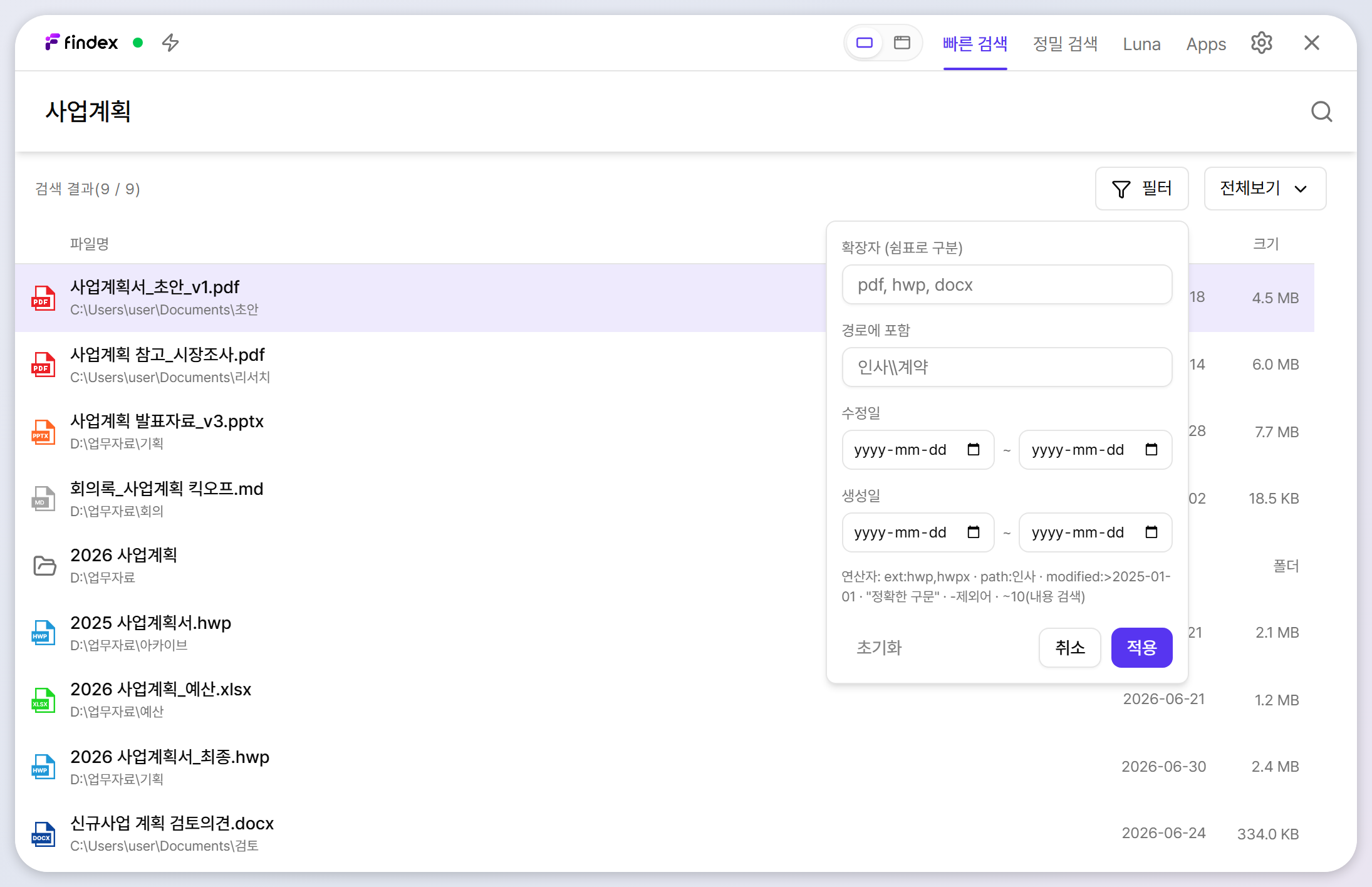
When there are too many results, open Filter to constrain extension, modified date, created date, and path. The same constraints can be typed as operators; Precise Search also supports exact phrases, exclusions, and word-distance matching.
| Operator | Example | Meaning |
|---|---|---|
ext: / filetype: |
plan ext:docx,pdf |
Only the listed extensions; separate with commas. |
modified: |
contract modified:>2026-01-01 |
Modified-date condition. Supports >, <, and start..end. |
created: |
minutes created:2026-05-01..2026-06-30 |
Created-date condition. Dates use YYYY-MM-DD. |
path: |
contract path:"Legal 2026" |
Only results whose path contains the text. Quote values containing spaces. Supported in both search modes. |
"정확한 구문" |
"termination notice period" |
Finds document text containing the quoted phrase exactly. Use in Precise Search. |
-제외어 |
contract -draft |
Excludes document text containing that term. Multiple exclusions can be combined. |
~N |
damage compensation ~5 |
Requires the query terms to appear within N words of one another (N is 1–100). Use in Precise Search. |
Active extension, date, and path constraints appear as filter chips beside the input. "phrases", -exclusions, and ~N apply only to Precise Search over document contents.
Document types
“Reports only” — narrowing by document type
The All dropdown above the results narrows them by document type — Report, Proposal, Contract, Minutes, and so on. Types are assigned automatically from file names and content keywords, and the classification rules are fully editable in Settings → Analysis.
Search 2
Precise Search — find by sentences inside documents
Use this when you cannot remember the file name and instead know a word, phrase, or sentence inside the document. Matches appear as snippets grouped by file and page. Check the source in Simple mode's evidence panel or Normal mode's detail and PDF preview.
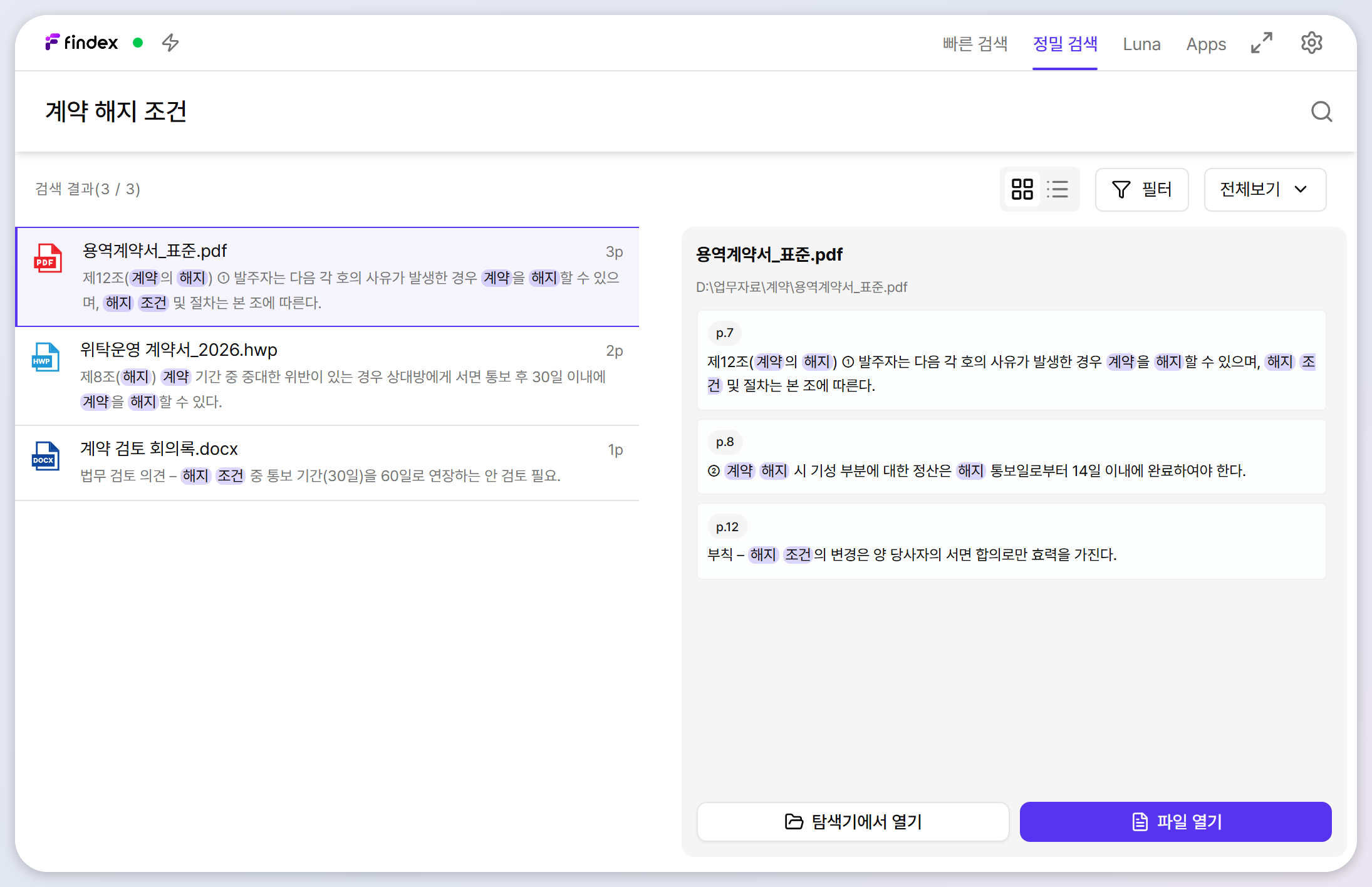
- Open file / Open in Explorer: buttons under the evidence panel jump to the document or its location.
- Grid/list toggle: switch between card and list layouts with the icons above the results.
- Evidence units: pages for PDF/HWP, slides for PPT, sheets for Excel, paragraphs for text formats.
- Shared filters: extension/date filters and the document-type selection also apply here.
Best for: “a sentence somewhere in a report”, “a clause inside a table”, or “I do not know the title, but I remember words from the body”. While indexing is running, coverage grows — retry shortly for a newly added folder.
Behind the results
Reading the indexing status
Findex processes watched folders in two phases: ① file scan — collecting names, paths, and dates for quick search, and ② document indexing — reading contents for precise search. Progress appears in the pill under the search bar and in the preparation window.
- Quick search is fully functional as soon as the scan finishes.
- Precise-search coverage grows as document indexing progresses.
- Per-folder progress is visible in Settings → Folders or the preparation window; per-document results live in that window's History tab.
Dedicated window · 1.2
The PDF preview window — read results and Luna sources at full size
PDFs from search results open not only in the Command Center's right panel but also in a separate window. Click Open larger in the preview panel, or a PDF source in a Luna answer, and the window opens at the cited page. Several windows can stay open at once, which makes side-by-side comparison easy.
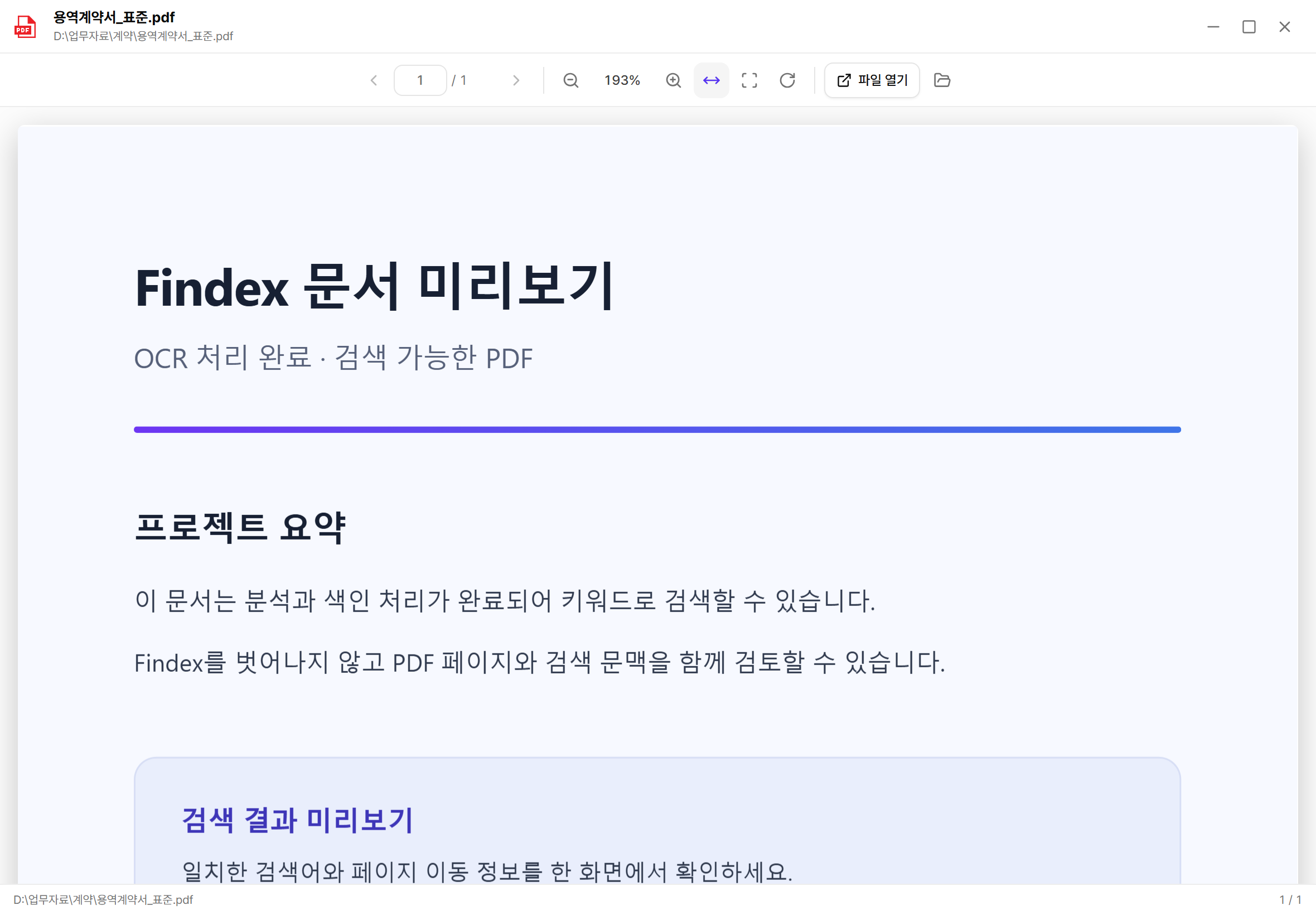
- Navigate: use the ‹ › buttons, type a page number, or scroll. The status bar shows the current page and total.
- View controls: zoom in/out, actual size (100%), fit width, fit page, and rotate clockwise.
- If the advanced viewer fails: Findex falls back to the WebView's built-in PDF viewer and offers “Retry advanced viewer”. If that also fails, use Open file to launch your default PDF app.
Processing history · 1.2
Find out which documents were skipped, and why
The History tab of the preparation window (Settings → Folders → Progress) keeps a per-document record. Filter by All · Success · Failed · Queued · Excluded · Empty or search by file name. Failed documents show a failure reason — empty document, password-protected, unsupported format, parser unavailable, and so on — with a summary hint when the same reason repeats.
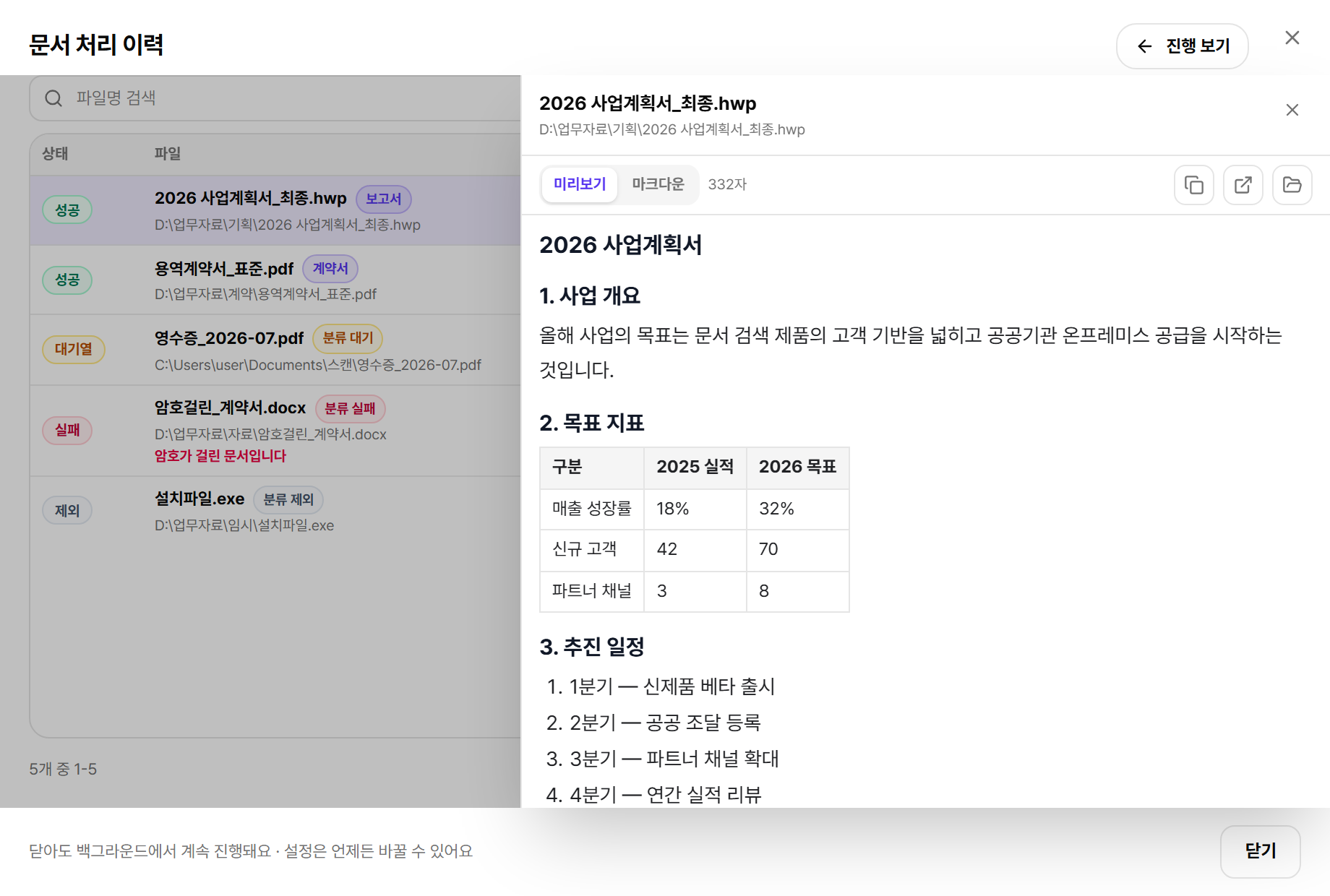
- Retry failed items: the button above the list requeues only the failed documents. Use it after unlocking a password or repairing a file.
- Document-type badges: each row also shows the assigned document type (Report, Contract, …) or a pending/excluded classification state.
- When precise search looks empty: “Queued” means the document is not indexed yet; “Excluded” means it was skipped by the analysis file-type or max-size settings (Settings → Analysis).
Boost
Boost — when you want indexing done fast
Normally Findex caps its CPU and memory so it never disturbs your work. To finish indexing faster, click the lightning button to enable Boost. A confirmation window asks for a duration (1 / 2 / 4 / 8 hours, or custom up to 24h), and limits return to normal automatically when it expires.
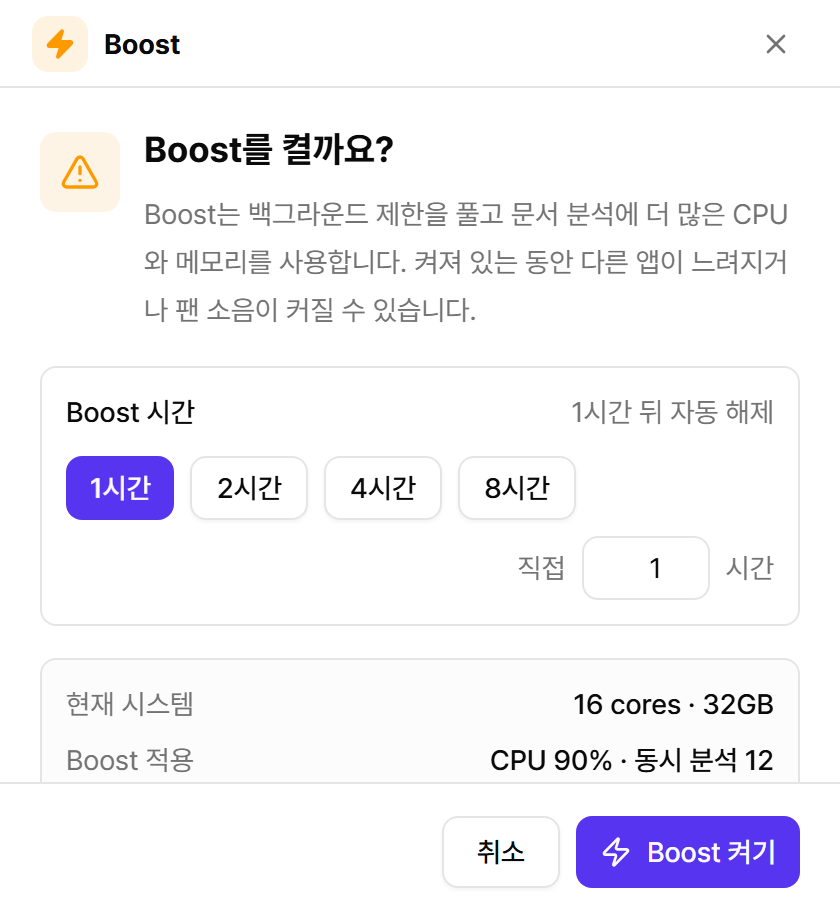
Other apps may slow down while Boost is on — best used when you are away from the PC. For automatic speed-up during idle hours, use Idle Boost in Settings → Performance.
Reference
Search shortcuts
| Keys | Action |
|---|---|
| Ctrl+Shift+F | Open the search window from anywhere (configurable) |
| ↑ / ↓ | Move up/down in the results |
| Enter | Open the selected file |
| Tab / Shift+Tab | Move between neighboring tabs in the simple view; in Command Center results, move between panels and action controls |
| Esc | Close an open filter/menu first, otherwise hide the current window (window mode stays unchanged) |