
Ask in sentences — the Luna AI assistant
Luna is an agentic assistant that understands your request and searches, reads, and compares documents on its own before answering. One sentence — “find the quarterly report and summarize it” — covers search, reading, and summarizing.
Prerequisite
Luna activates when an LLM is connected
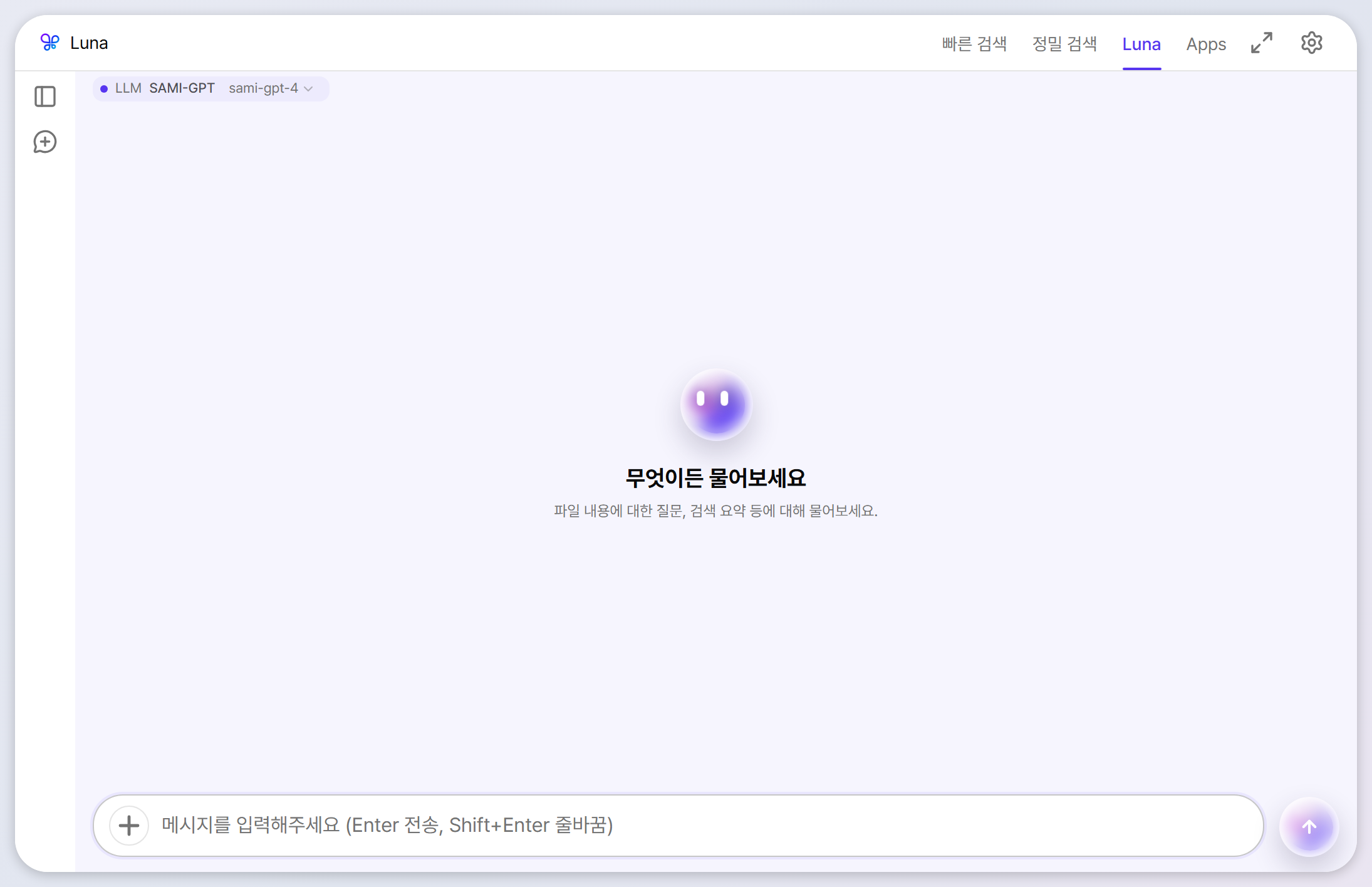
Click the Luna tab in the main window to open the chat. The badge at the top shows the connected provider and model — click it to switch models. If no LLM is connected yet, set one up in Settings → LLM.
Basics
Ask, stop, and retry
- Send: Enter — new line with Shift+Enter.
- Stop: cut a long response short with the stop button.
- Retry / copy: buttons under each answer re-ask the question or copy the whole response.
- Edit your message: use the pencil button to revise an earlier prompt. All later messages are removed and a new answer is generated, but completed tool actions are not rolled back — including files already created or changed and data already sent externally.
- Tables, math, and code: responses render as Markdown — tables with merged cells and formulas such as
$E=mc^2$display cleanly, and ranges like2026~2027no longer turn into strikethrough. - Font size: use the T 100% control at the top right, Ctrl+wheel, or Ctrl++/- to scale the chat between 80% and 220%; Ctrl+0 resets it.
- Auto-scroll and Latest message: the view follows long answers, pauses when you scroll up to read, and the Latest message button jumps back to the bottom.
Rich output
Mermaid diagrams and sandboxed HTML preview
When Luna visualizes a structure or proposes a small interface, you can inspect the result instead of reading code alone. Completed mermaid blocks render as diagrams, and html blocks gain a separate preview action.
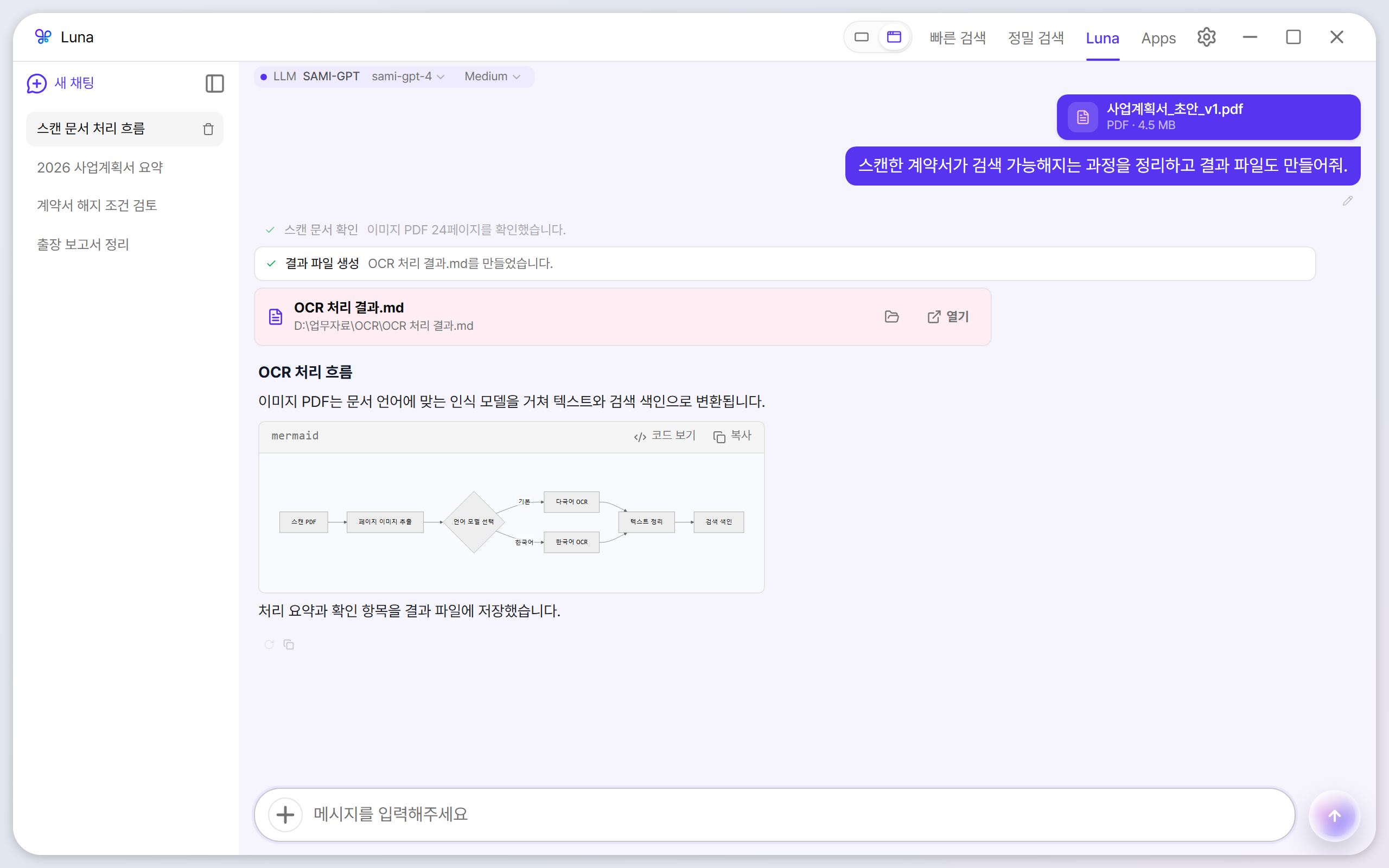
- Mermaid: renders after the response finishes. Toggle between diagram and code; syntax failures leave the source available with an error state.
- HTML: the preview opens in a sandboxed frame with scripts disabled. Use it to inspect layout, and review the source for anything important.
Agentic behavior
Understanding Luna's tool runs
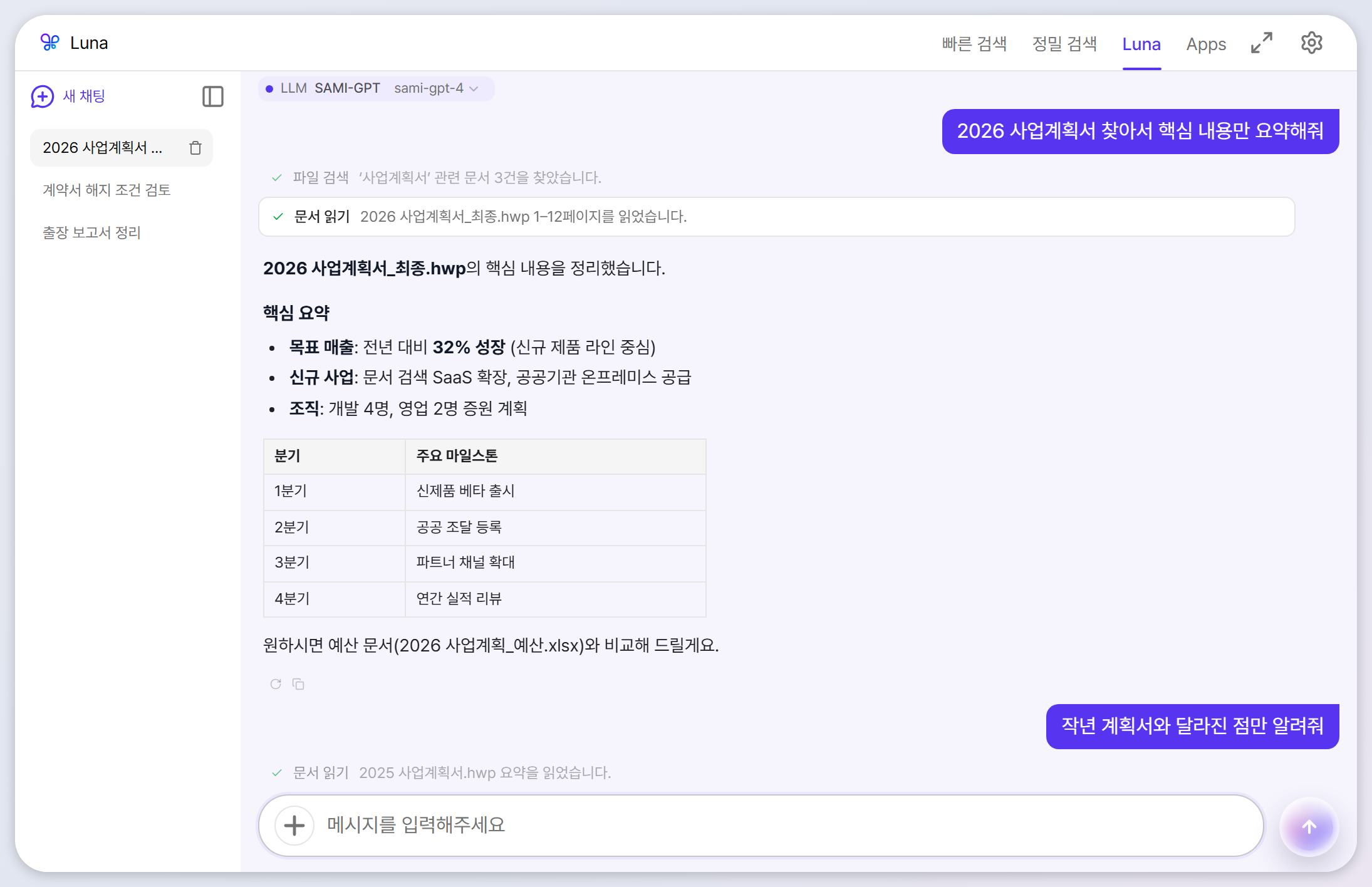
Before answering, Luna runs whatever tools it needs and gathers them under the Process header above the answer. The header shows the tool count plus failures and retries; expand it for each tool name, its result summary (e.g. “found 3 related documents”), and interim notes in order. While work continues it reads “In progress”, so you can see what the answer is based on and what Luna is doing right now. Sources list only documents that were actually opened, and clicking a PDF source opens the dedicated preview window at the cited page.
| Tool | What it does |
|---|---|
| Search files | Finds documents in watched folders by name and content. |
| Read document | Reads pages or sections of a document as evidence for the answer. |
| Compare documents | Compares the extracted text of two documents; results appear as a collapsible diff card. |
| Folder tree | Reads the folder/file structure inside watched folders. |
| External MCP tools | External tools enabled in Connection Center (web search, …); may ask for your approval first. |
The Process log records what Luna read. Retrying an answer re-runs the tools from scratch instead of reusing earlier results. AI answers can still be wrong, so for important decisions verify the source document, page, and original text.
Attachments
Focus the question on specific files
If your question is about specific documents, attach them — Luna analyzes attached files first.
- + button: opens a file picker (multi-select, up to 10 files).
- Drag & drop: drop files from Explorer straight into the chat.
- Paste from clipboard: press Ctrl+V in the composer to attach files copied from Explorer or clipboard images. Files transferred as clipboard data are limited to 25MB each.
- Supported formats: same as search — PDF, HWP/HWPX, Word, Excel, PowerPoint, TXT, MD.
- Files outside watched folders: can be analyzed in that conversation, but are not added to the index.
Large attachments: files at or above 100MB show a warning. Documents with many pages can also take much longer to analyze. Attach only what the question needs and identify the relevant range or pages when possible.
History
Managing chat sessions
- New chat: the + button in the left rail. Starting fresh per topic keeps answers sharp.
- Open history: expand the sidebar with the panel button; titles are generated from the first question.
- Delete: trash icon per session; delete everything via “Clear chat history” in Settings → Engine.
- Storage: up to 100 sessions, stored only on your PC.
In practice
Prompts that work well
| Example request | What Luna does |
|---|---|
| “Find the 2026 business plan and summarize the key points” | Search → read → bullet/table summary |
| “Find the termination clause in this contract” (attached) | Locates and quotes the clause with its page |
| “Compare last year's plan with this year's” | Reads both and produces a diff card with a change list |
| “Show me the structure of this project folder” | Reads the folder tree (inside watched folders only) |
| “Extract only the decisions from the minutes as a table” | Finds and reads the minutes, then tabulates the decisions |
New in 1.2
Pet Chat — ask through the desktop pet
With the desktop pet enabled you can ask Luna without opening the main window. Click the pet and an “Ask Luna…” box appears beside it; depending on the answer mode the reply arrives in a chat window (a mini Luna that accepts follow-ups) or as answer only (a speech bubble). Give the pet a name and persona and it answers in that voice.
- Continue in the main window: Open Findex in the mini chat opens the same conversation in the Luna tab.
- If the LLM is off: clicking the pet opens the main search window instead of Pet Chat.
- Same tools, same approvals: Pet Chat is the same Luna, so document tools and MCP approval rules apply unchanged.
MCP
Approving external (MCP) tools
Enable external MCP servers in the Connection Center and Luna can also use tools like web search. When a tool requires confirmation, an approval card appears in the chat — choose allow once, always allow, or deny. Deny anything you did not expect.