
Work tools that extend the search window
The Apps tab in the main window hosts productivity apps. Each opens in its own window; Schedule and To-do also offer desktop widgets and integrate with Luna. Version 1.2 adds the Desktop Pet — a companion that roams your desktop and lets you ask Luna on the spot.
Entry point
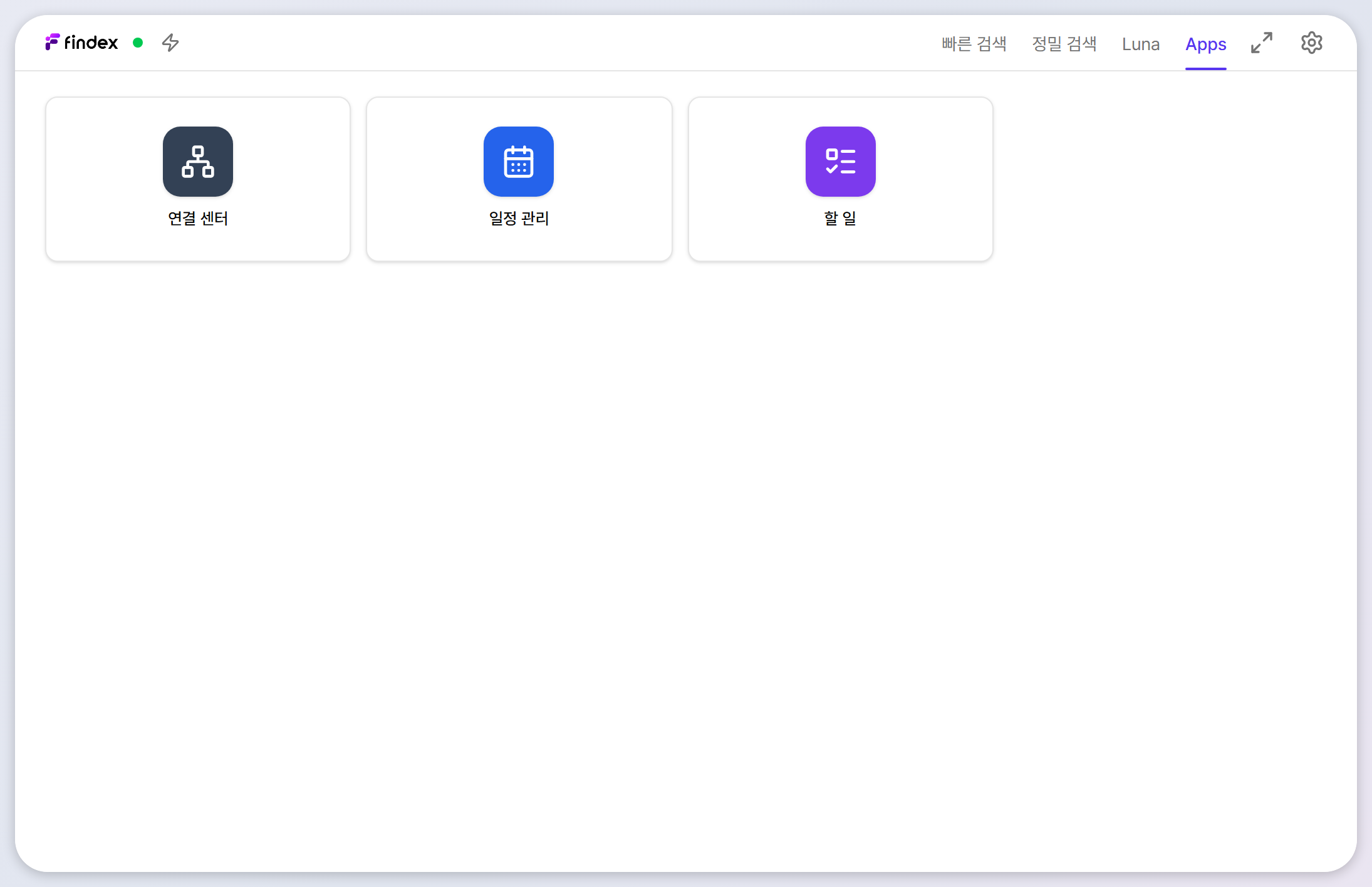
The Apps tab — where apps open
Click a card and the app opens in its own window (or refocuses if already open). Connection Center appears only when MCP servers & tools is enabled in Settings → General → Extensions; the Desktop Pet card opens the pet settings window.
Folder Organizer — an AI-assisted folder cleanup tool — is still in testing and not part of the default app set. It will be documented here once released.
App 1
Schedule — your work calendar, stored locally
Manage events on a monthly calendar. Everything is stored in a local database on your PC.
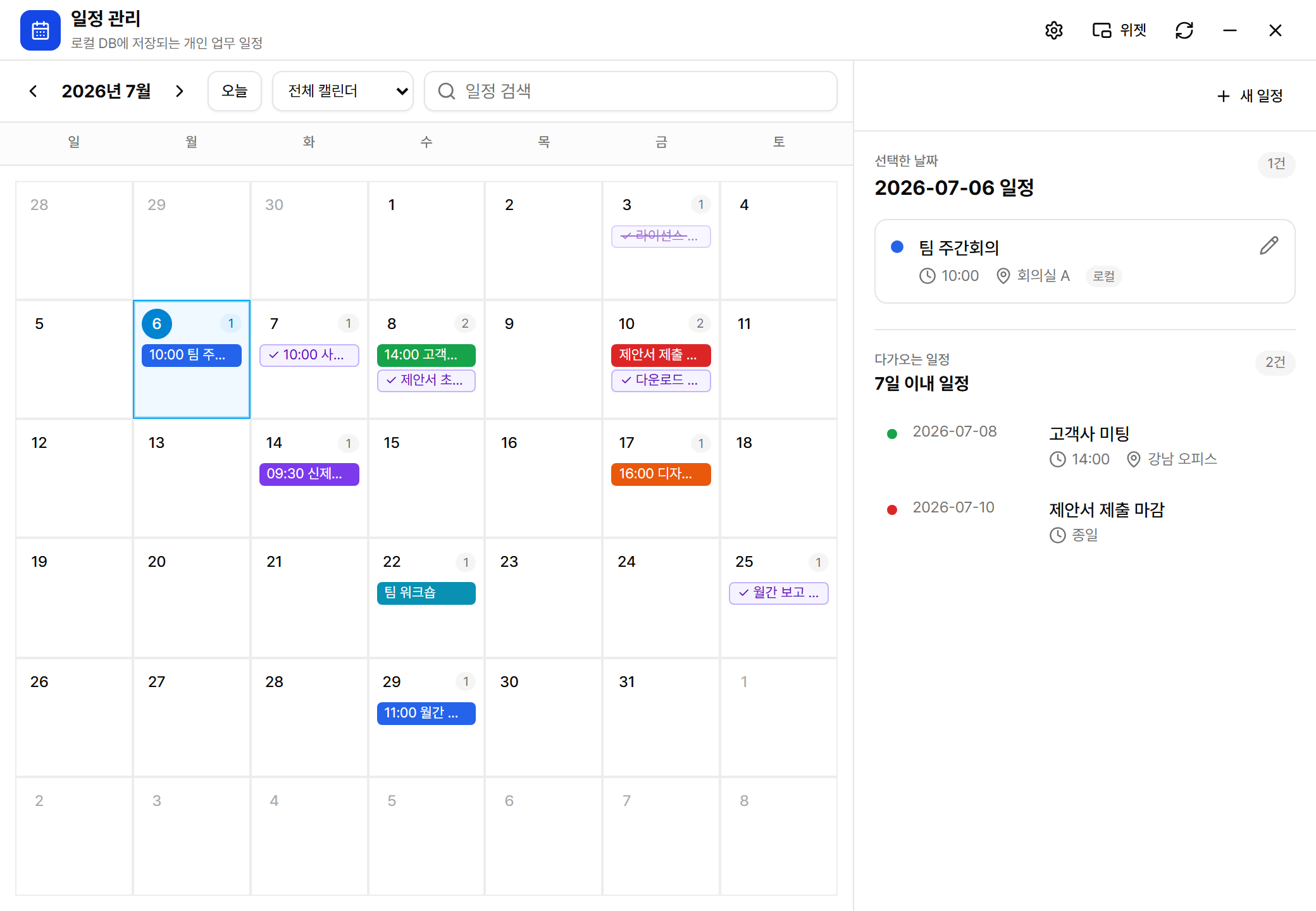
- New event: click + New event or a day cell. Enter title, date/time (or all-day), color, description, and location.
- Edit/delete: click an event, then use the pencil icon.
- Search: the top search box matches titles, descriptions, and locations.
- Reminders: get notified at event time (Settings → General → Notifications).
- Luna integration: ask things like “what's on next week?” or “add a meeting Friday at 3pm”.
App 2
To-do — tasks with due dates and priorities
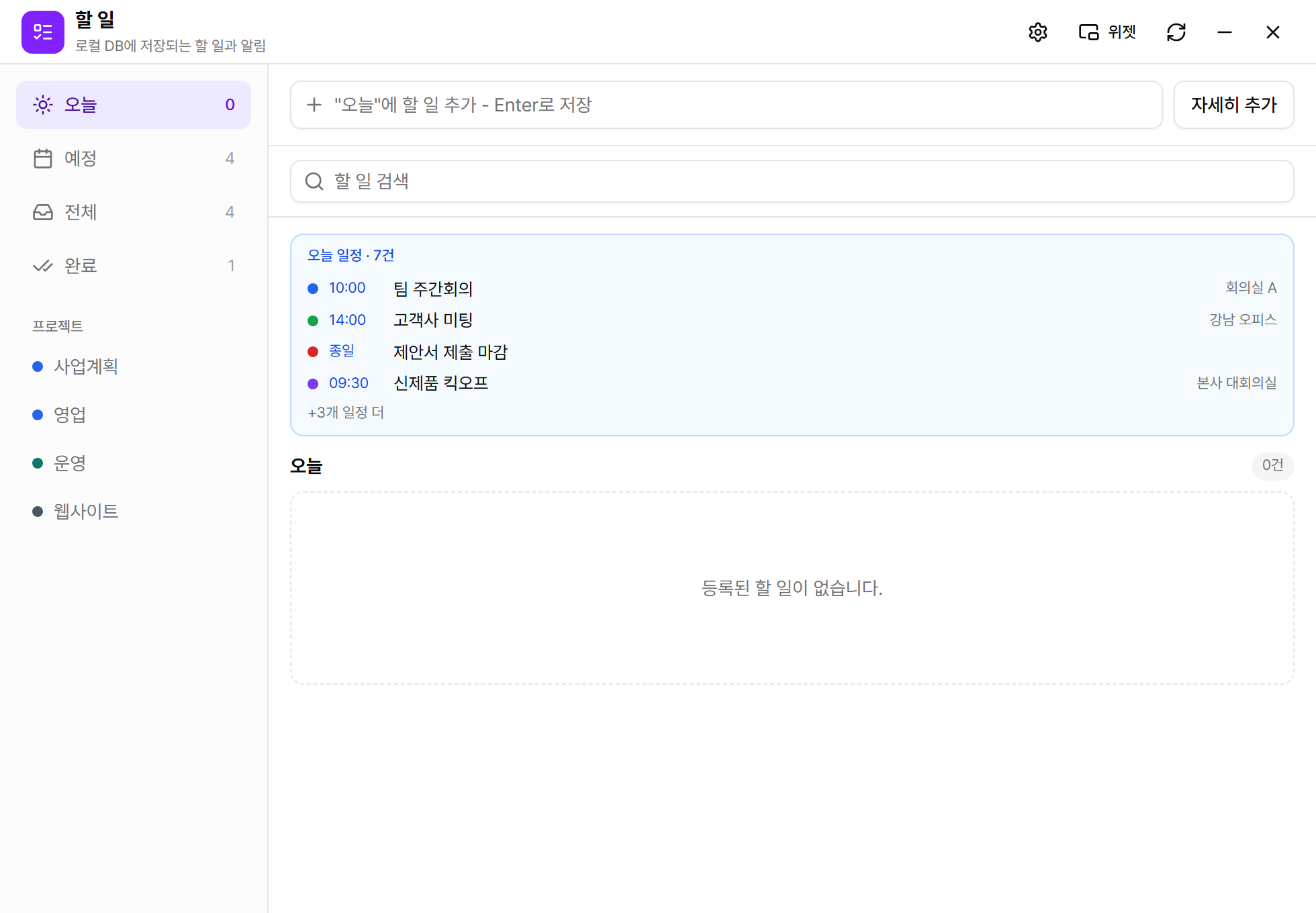
- Task fields: title, notes, project, priority (high/medium/low), due date & time, and a reminder time.
- Projects: tasks group by project color so multiple workstreams stay readable.
- Show in Schedule: enable it and the task appears on the calendar by its due date.
- Reminders: Windows notifications at the time you choose.
- Luna integration: ask “what's due tomorrow?” or “add a task to review the report”.
Widgets
Keep them visible with desktop widgets
Click the Widget button at the top of Schedule or To-do to open an always-on-top mini widget on your desktop. Widgets collapse/expand, remember their position, and restore automatically on the next launch. The To-do widget supports quick-add, and each widget's theme can be chosen per app, independent of the main theme.
App 4 · New in 1.2
Desktop Pet — a small companion, and a shortcut to Luna
The desktop pet is a small character that walks, runs, jumps, and rests on your desktop. It is more than decoration — click the pet to ask Luna a question right there, and the answer comes back in a mini chat window or a speech bubble next to it. The pet hides automatically during full-screen apps and presentations, and notifications steer clear of it.
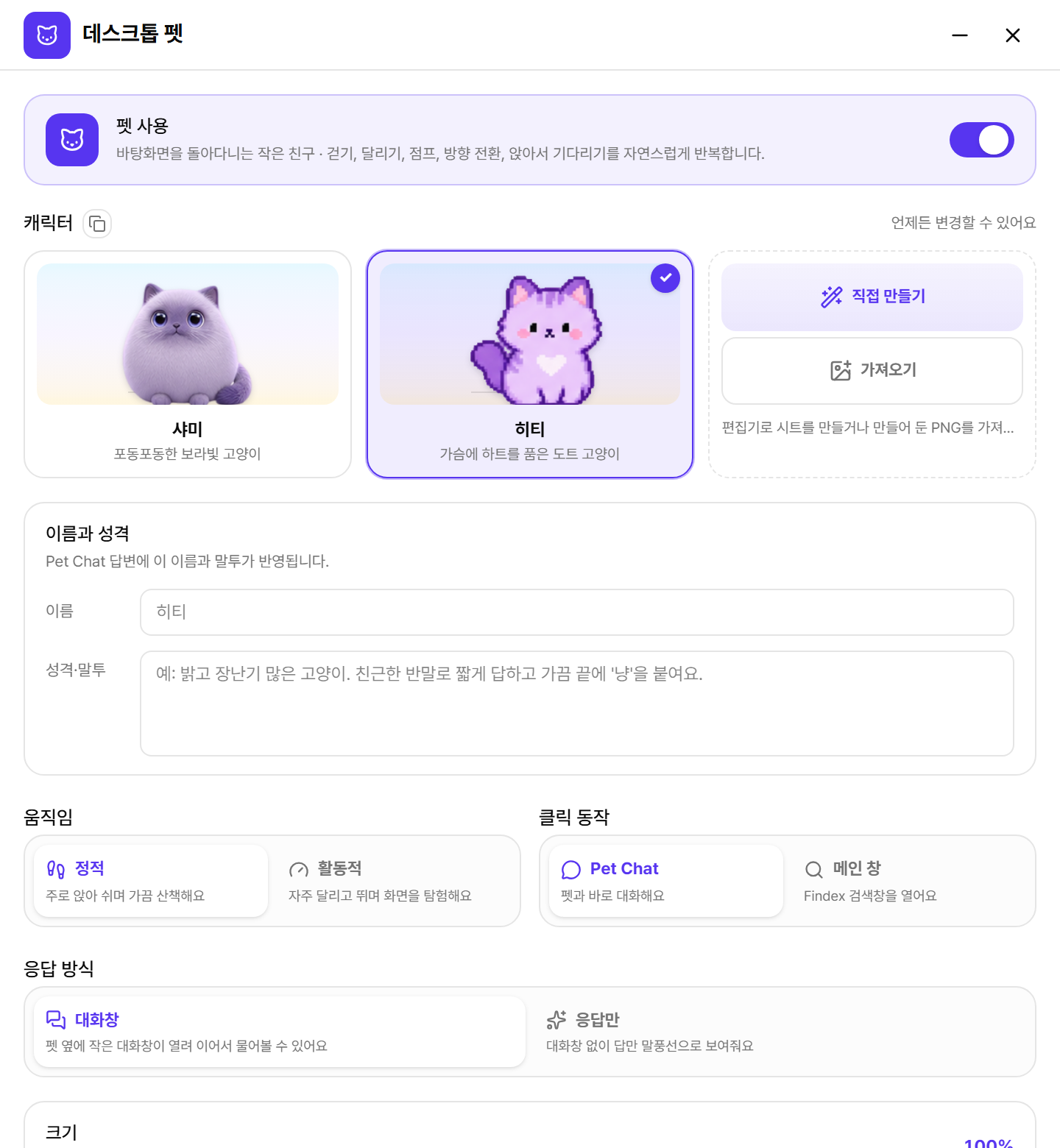

| Setting | What it does |
|---|---|
| Enable pet | Turns the pet on or off. Off by default; it appears on the desktop as soon as you enable it. |
| Character | Shami, a plump lavender cat, and Hitty, a pixel cat with a heart on its chest, are built in. Create your own opens the sheet editor with the standard 6-row × 7-frame template; Import loads a PNG sheet you already made. |
| Name & persona | The name and personality you enter shape Pet Chat replies. Korean particles after the name are chosen automatically. |
| Motion | Calm mostly sits and takes the occasional stroll; Active runs and jumps around the screen. |
| Click action | Pet Chat opens a question box next to the pet; Main window opens the Findex search window. Without an LLM connected, Pet Chat falls back to the main window. |
| Answer mode | Chat window opens a mini Luna next to the pet for follow-ups; Answer only shows just the reply in a thought bubble. The bubble always points at the pet and moves to the other side when space runs out. |
| Roam across monitors · Size | Choose whether the pet crosses between adjacent screens, and scale the pet and its bubble together with the size slider. |
- Long-press menu: hold the pet for Pet settings · Hide for N minutes · Turn off pet. Use “hide” to park it during a meeting.
- Continue in Luna: Open Findex in the mini chat carries the same conversation into the Luna tab of the main window.
- Lightweight: the pet is tuned to stay out of the way of search and indexing performance.
App 3
Connection Center — Luna's external tools (MCP)
Connection Center manages your MCP (Model Context Protocol) connections. With a server enabled, Luna can call external tools — web search, internal systems, and more — during conversations. The window has three tabs — Browse · My connections · Findex MCP — and the On/Off badge at the top right is the master MCP switch (the same setting as “MCP servers & tools” in Settings → General). The subtitle shows how many connections and tools are currently active.
Browse — add from the catalog
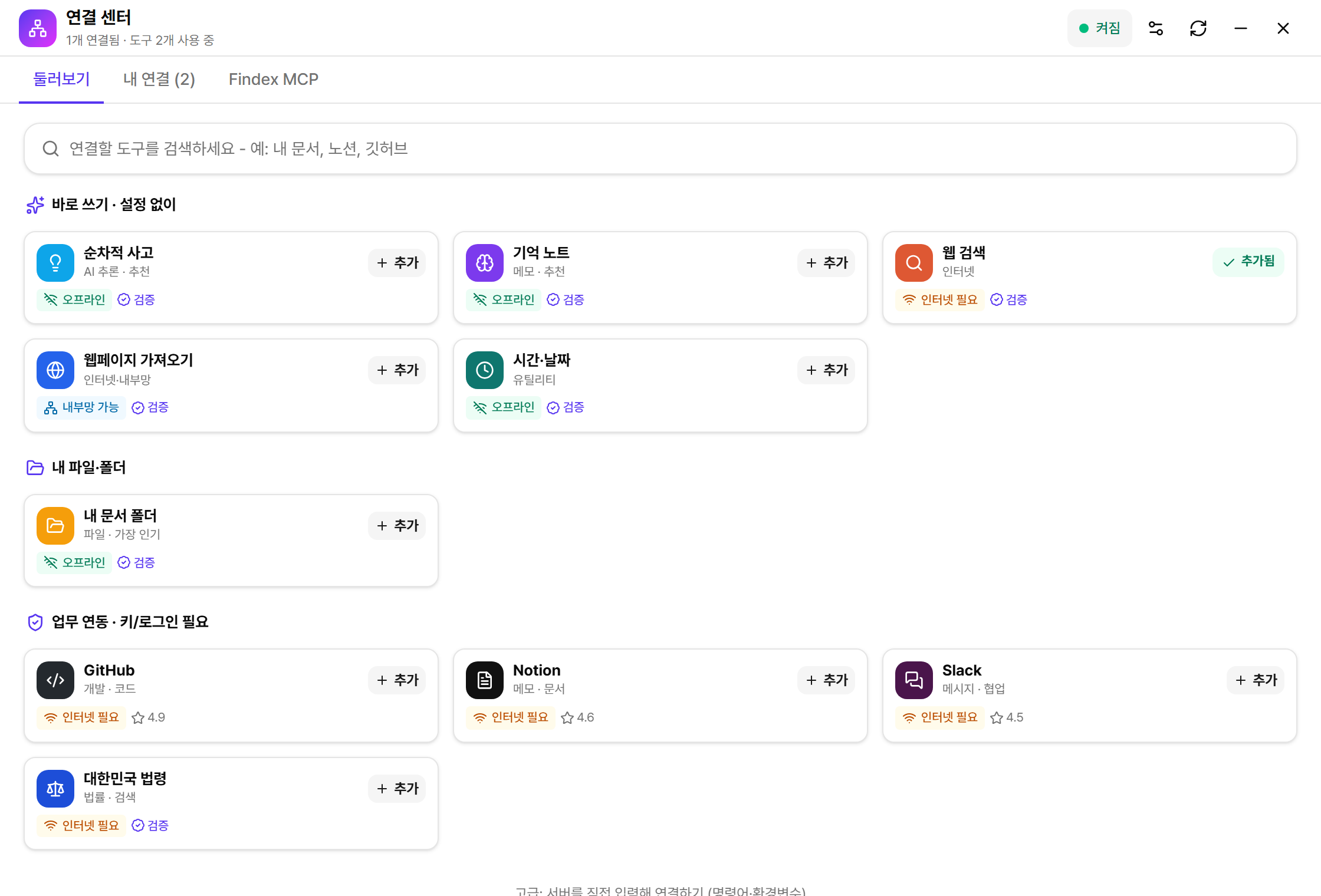
- Catalog: sequential thinking, memory notes, web search, page fetch, time & date, documents folder, HWPX documents, XLSX & Word documents, GitHub, Notion, Slack, and — for Korean locales — Korean law (law.go.kr, no API key required). The HWPX and XLSX/Word tools run offline with nothing extra to download.
- Badges: “Offline” works without internet, “Internet required” talks to external services, and “Verified” marks vetted servers.
- Manual setup: servers not in the catalog can be added via the advanced option — both command (stdio) and URL servers, with env vars, headers, and timeouts.
My connections — manage servers and tools
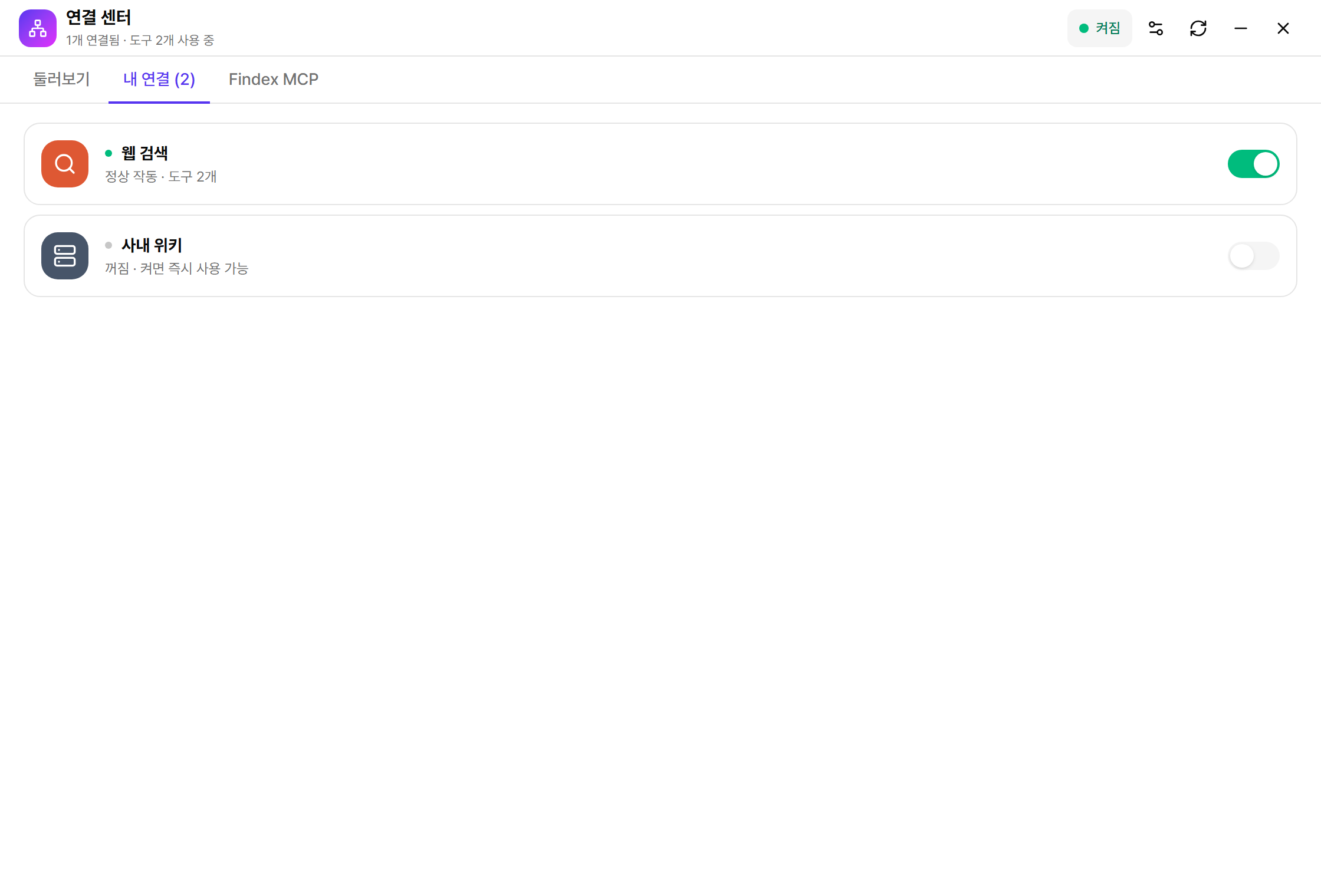
- Enable/disable servers: toggle each registered server; only enabled servers expose tools to Luna.
- Test before saving: the connection test verifies the server responds and lists its tools.
- Per-tool control: enable each tool individually and set its permission — ask, always allow, or block.
External MCP tools may talk to outside services. Register only servers you trust, and keep new tools on “ask” permission at first.
Document automation
HWPX, XLSX, and Word documents — from reading to form filling
Add HWPX documents in Connection Center and Luna can read, find, edit, and fill HWPX files inside the work folder you select. Add XLSX & Word documents the same way to read, create, and edit .xlsx and .docx files in that folder. The Python and Node runtimes they need ship with Findex, so they work offline with nothing extra to install.
- Add HWPX documents or XLSX & Word documents from BrowseChoose one work folder. The tools are restricted to files of that format inside the folder.
- Enable the server and tools in My connectionsKeep edit and create tools on “ask” at first, then review the file and proposed action before approving.
- Ask Luna for the changeBe explicit about the target and edit — “fill the company details in this form”, “rename the proposal title”, “add totals to the March column of the budget sheet”.
Attachments outside the work folder
When you attach an HWPX from outside the work folder, Findex gives the tool a temporary working copy inside the allowed folder. After a successful edit, it syncs the changed copy back and creates a .sami-sync.bak safety backup beside the original. An unchanged or empty output never overwrites the original.
Editing an earlier Luna message regenerates the later chat, but completed tool actions such as HWPX creation or editing are not rolled back. Verify the target before approval and review the result with its backup.
Findex MCP
Findex MCP — lend your document search to other AIs
The Findex MCP tab manages the reverse direction: Findex itself acts as an MCP server so external AI clients (e.g. Claude Desktop) can use Findex's file-name and content search. A dedicated On/Off toggle lets you stop sharing at any time.
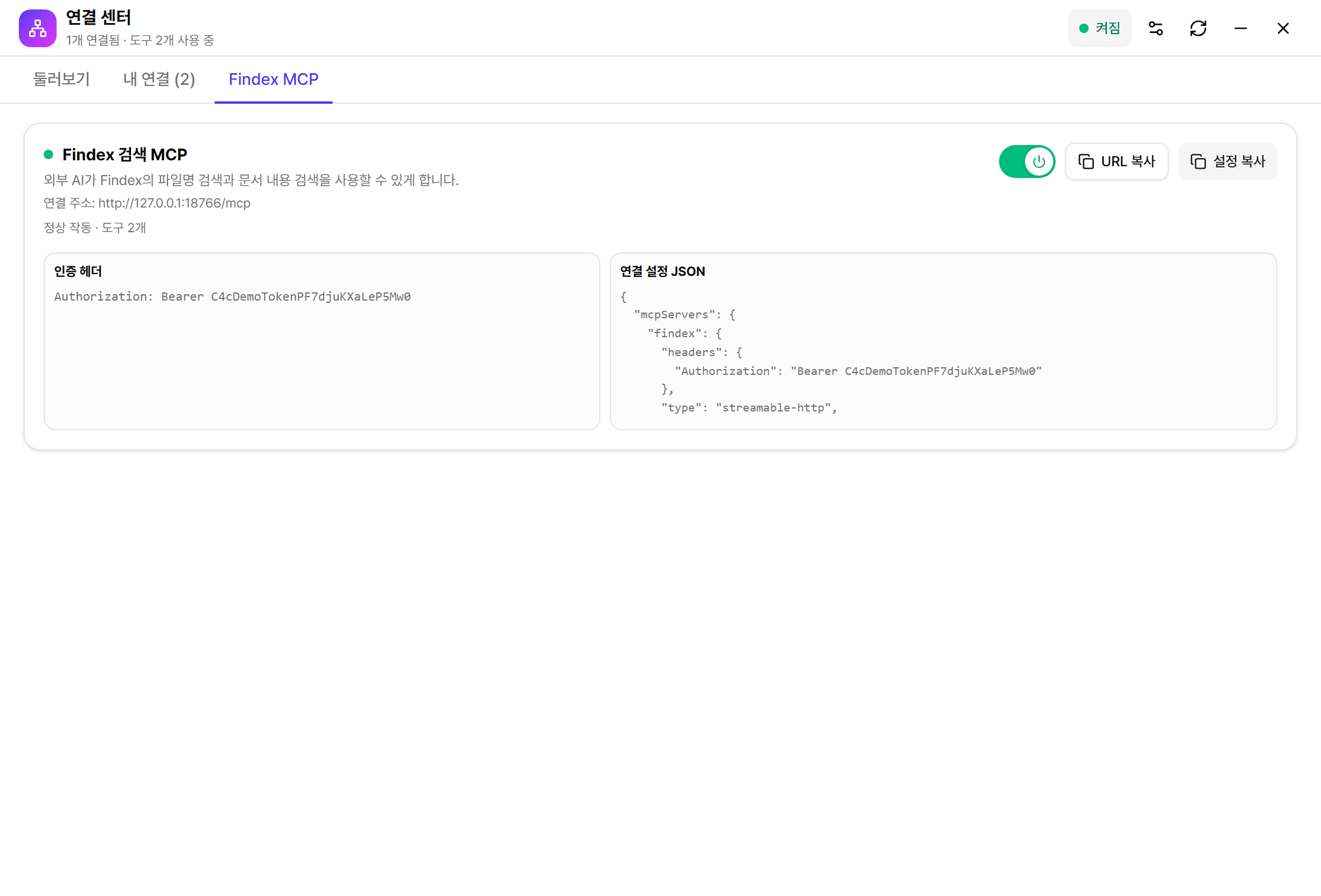
- Turn the toggle onA green dot with “running · N tools” means it is ready. The endpoint is served only inside your PC (127.0.0.1).
- Copy URL or Copy configUse Copy URL for just the address, or Copy config for a ready-made mcpServers JSON to paste into Claude Desktop and similar clients.
- Paste into your AI clientThe Authorization header is required — treat the token as a secret and never share it.